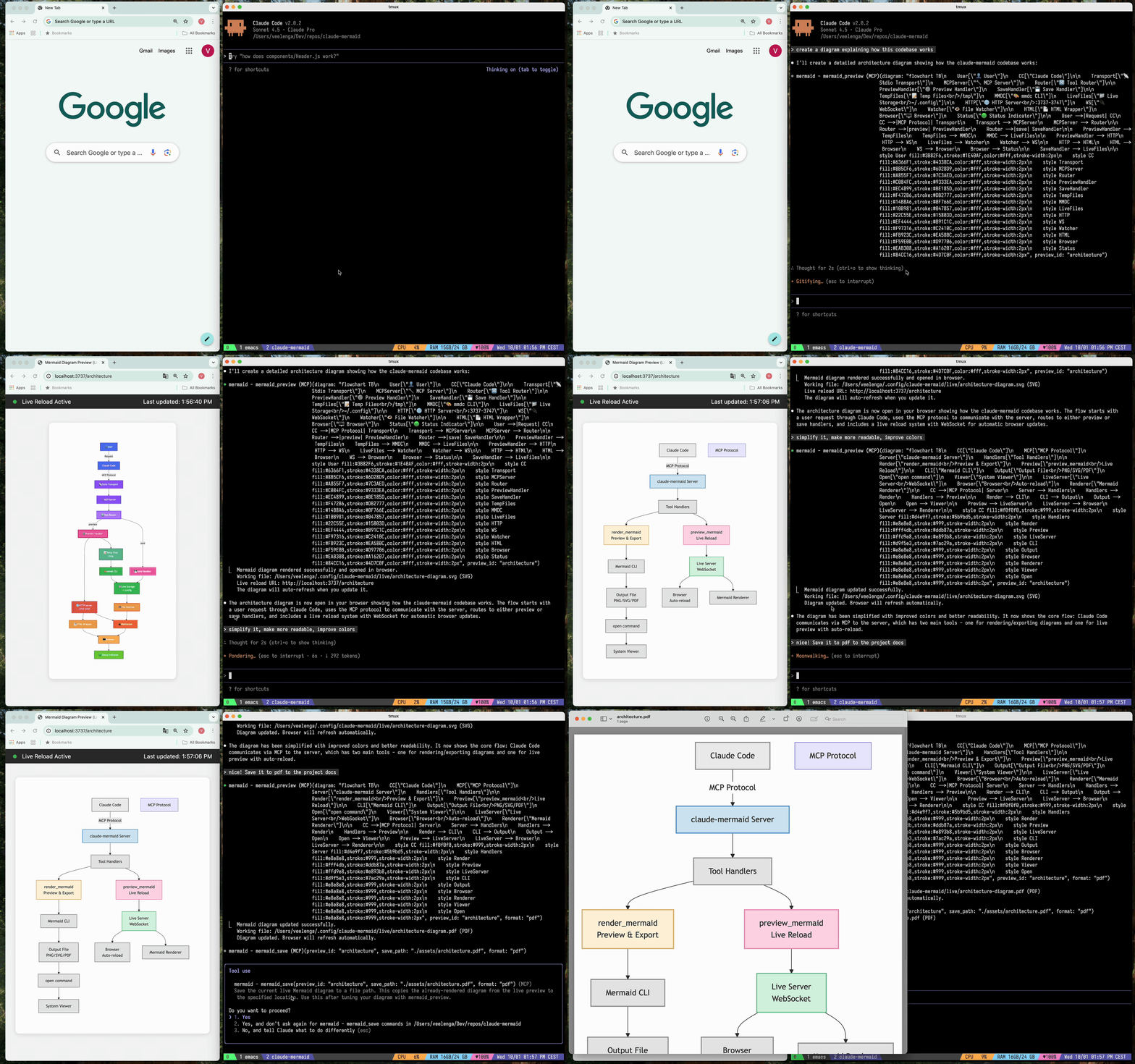
MCP server for rendering Mermaid diagrams in Claude Code with live reload functionality and a built-in skill for expert guidance.
Automatically renders diagrams in your browser with real-time updates as you refine them. Perfect for iterative diagram development and documentation workflows.
MCP Server to previewing mermaid diagrams with live reload
2026-11-17
स्टार
221
टूल
—
अपटाइम
—
✨ Features
🔄 Live Reload - Diagrams auto-refresh in your browser as you edit
🎨 Multiple Save Formats - Export to SVG, PNG, or PDF
🌈 Themes - Choose from default, forest, dark, or neutral themes
📐 Customizable - Control dimensions, scale, and background colors
🪄 Interactive Preview - Pan diagrams by dragging, zoom with browser controls, reset position with one click
⬇️ Browser Export - Download diagrams as SVG or PNG directly from the preview
🗂️ Multiple Previews - Use preview_id to work on multiple diagrams simultaneously
💾 Persistent Working Files - Live previews are stored under ~/.config/claude-mermaid/live
🤖 Built-in Skill - Includes a Claude skill with best practices and expert guidance for creating diagrams
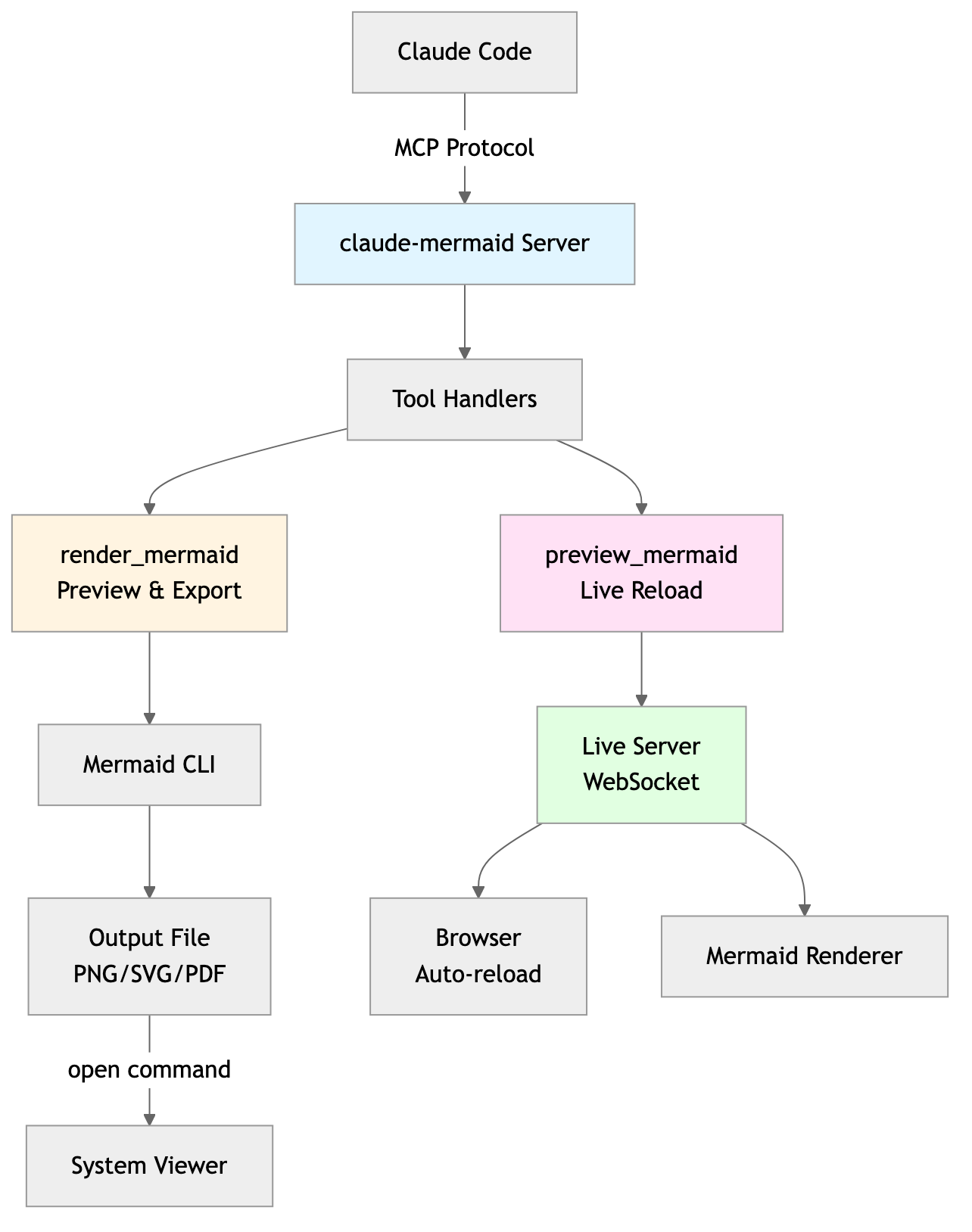
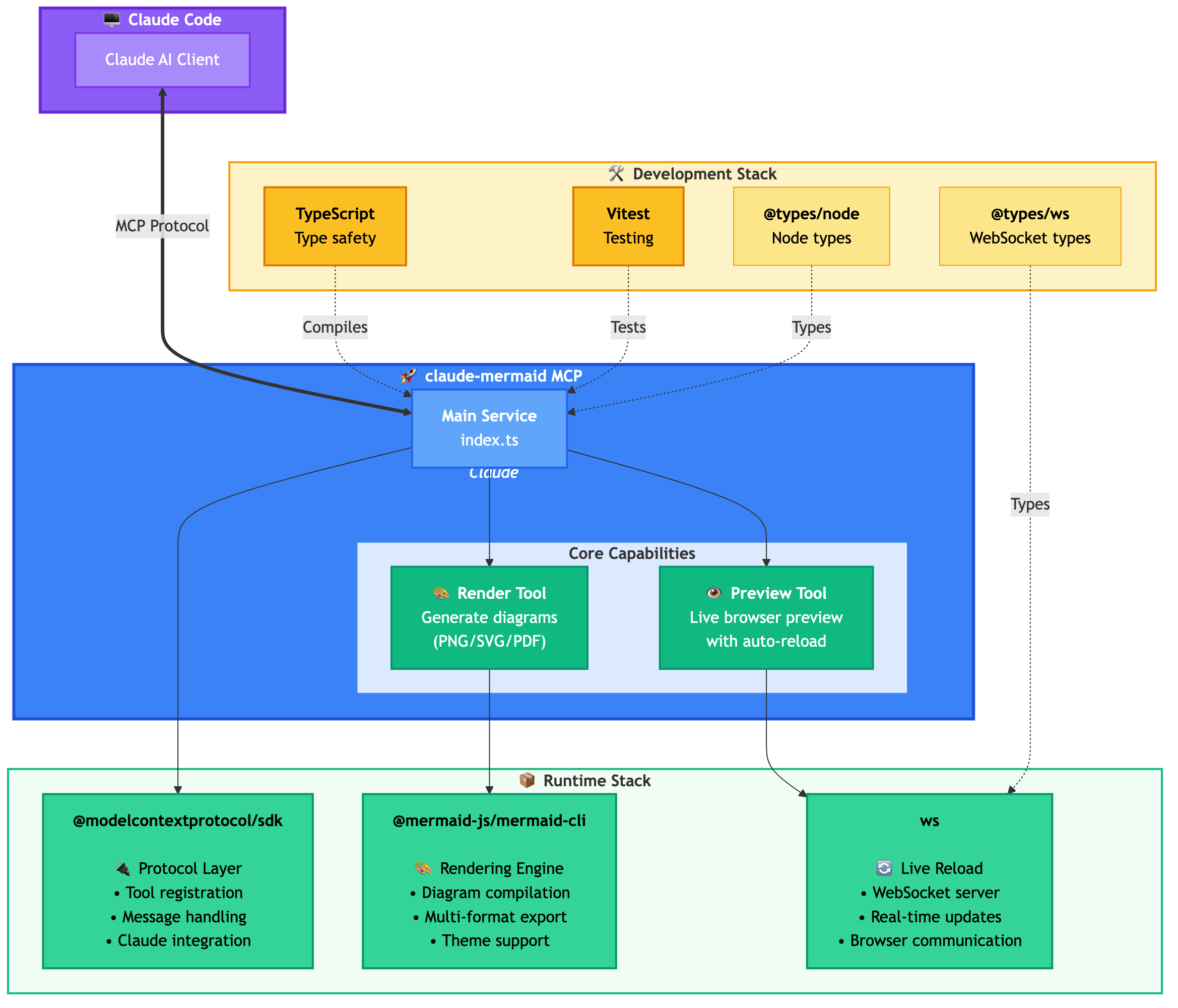
Architecture
🚀 Quick Start
1. Install
Plugin Install (Recommended)
In Claude Code, add the marketplace and install the plugin:
The command claude-mermaid should be available in your PATH after installation.
Note: Some clients may require the full path to the executable:
Find the path: which claude-mermaid (Unix/macOS) or where claude-mermaid (Windows)
Use absolute path in config: "command": "/path/to/claude-mermaid"
💡 Usage
Simply ask Claude Code to create Mermaid diagrams naturally. When installed as a plugin, the built-in mermaid-diagrams skill provides expert guidance, best practices, and automatic workflow management.
Basic Examples
"Create a Mermaid diagram showing the user authentication flow"
"Draw a sequence diagram for the payment process"
"Generate a flowchart for the deployment pipeline"
Advanced Examples
With custom formatting:
"Create a dark theme architecture diagram with transparent background"
"Generate a forest theme flowchart and save to ./docs/flow.svg"
With specific output format:
"Create an ER diagram and save as PDF to ./docs/schema.pdf"
"Save the flowchart as PNG to ./docs/flow.png"
Note: Browser always shows SVG for live preview, while saving to your chosen format.
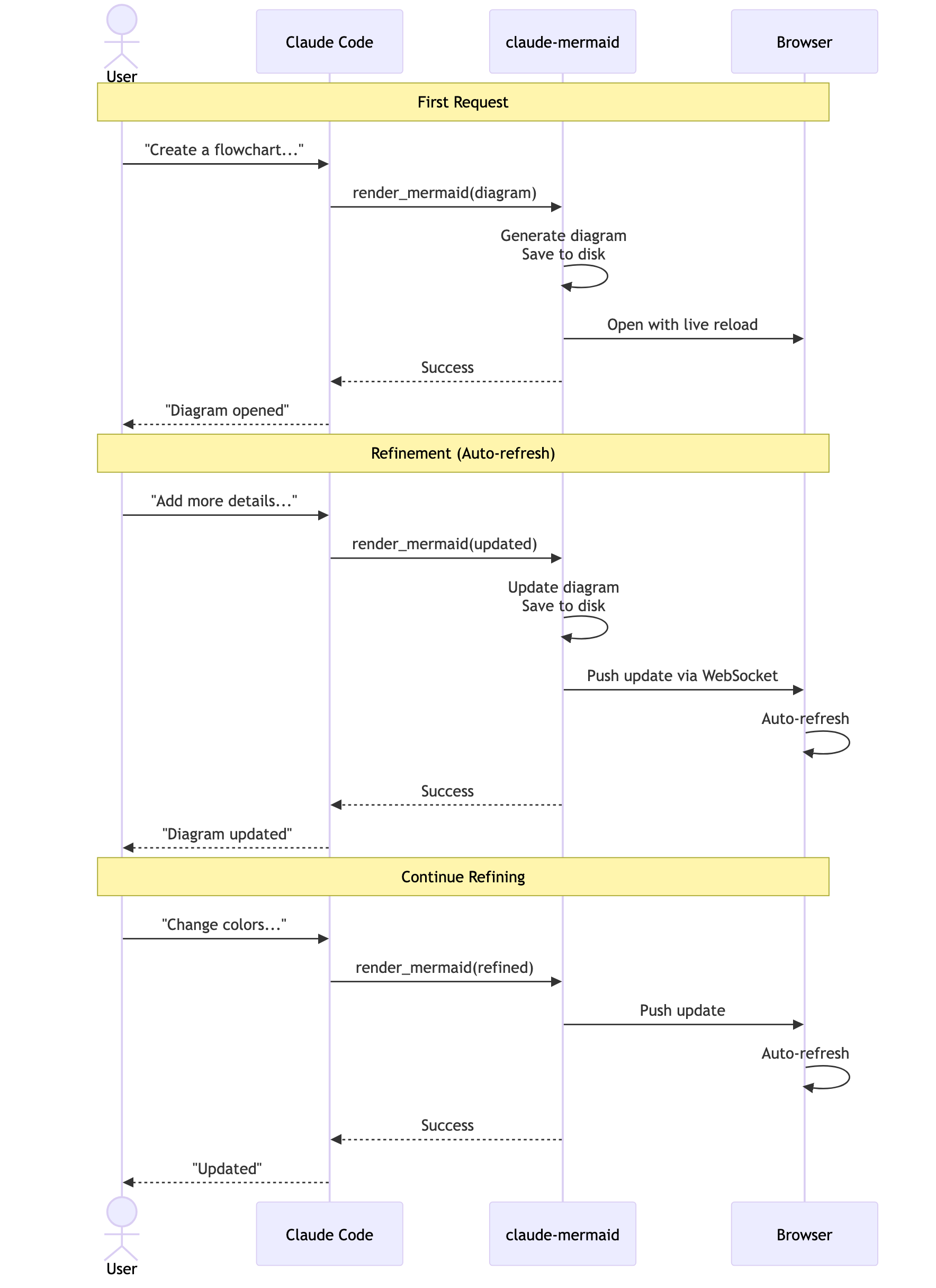
Iterative refinement:
"Create a class diagram for the User module"
// Browser opens with live preview
"Add the Address and Order classes with relationships"
// Diagram updates automatically in browser!
Complete Example
"Create a flowchart and save to ./docs/auth-flow.svg:

graph LR
    A[User Login] --> B{Valid Credentials?}
    B -->|Yes| C[Access Granted]
    B -->|No| D[Access Denied]
    C --> E[Dashboard]
    D --> F[Try Again]

    style A fill:#e1f5ff
    style C fill:#d4edda
    style D fill:#f8d7da
"
The diagram will be saved to ./docs/auth-flow.svg and opened in your browser with live reload enabled.
🔧 Tools and Parameters
There are two tools exposed by the MCP server:
mermaid_preview — render and open a live preview
diagram (string, required) — Mermaid diagram code
preview_id (string, required) — Identifier for this preview session. Use different IDs for multiple concurrent diagrams (e.g., architecture, flow).
format (string, default svg) — One of svg, png, pdf. Live preview is available only for svg.
theme (string, default default) — One of default, forest, dark, neutral.
preview_id (string, required) — Must match the preview_id used in mermaid_preview.
format (string, default svg) — One of svg, png, pdf. If the live working file for this format doesn’t exist yet, it is rendered on demand before saving.
🎯 How Live Reload Works
First render: Opens diagram in browser at http://localhost:3737/{preview_id}
Make changes: Edit the diagram through Claude Code
Auto-refresh: Browser detects changes via WebSocket and reloads
Status indicator: Green dot = connected, Red dot = reconnecting
The live server uses ports 3737-3747 and automatically finds an available port.
Live Preview Controls
Pan: Click and drag the diagram to move it around
Zoom: Use browser zoom (Ctrl/Cmd + +/- or pinch-to-zoom on trackpad)
Reset Position: Click the ⊙ button in the status bar to recenter the diagram
Export: Click the ⬇ button to download as SVG or PNG
Notes
Live preview is available for svg format only; PNG/PDF are rendered without live reload.
For sequence diagrams, Mermaid does not support style directives inside sequenceDiagram.
🖥️ Standalone server
You can start the preview server without an AI agent using the --serve flag:
claude-mermaid --serve
This opens the diagram gallery in your browser with all previously rendered diagrams. Useful for browsing and exporting diagrams outside of a Claude Code session.
🛠️ Development
# Install dependencies
npm install

# Build the project
npm run build

# Run tests
npm test

# Watch mode for development
npm run dev

# Start the MCP server directly
npm start
📝 Troubleshooting
Error: Cannot find package 'puppeteer':
This is a rare environment-specific issue. Try these solutions:
अभी टूल सूची नहीं है। रिमोट सर्वर को पहले हेल्थ चेक के बाद सूची मिलती है।
FAQ
सवाल
Claude Mermaid कैसे इंस्टॉल करें?
इस पेज पर Cursor, Claude Desktop, Claude Code या VS Code के लिए stdio कॉन्फ़िग कॉपी करें। यह पब्लिशर का इंस्टॉल इस्तेमाल करता है, PlugMCP प्रॉक्सी नहीं।
क्या Claude Mermaid के लिए API key चाहिए?
इस रिकॉर्ड में कोई ज़रूरी एनवायरनमेंट वेरिएबल दर्ज नहीं है।
Claude Mermaid कौन सा ट्रांसपोर्ट इस्तेमाल करता है?
Claude Mermaid stdio पर लोकल चलता है।
Claude Mermaid की पिछली जाँच कब हुई थी?
पिछली जाँच 2026-11-17 को हुई। MCP Server to previewing mermaid diagrams with live reload