A sandboxed computer-use MCP server — let an AI agent drive a real browser and desktop apps
(mouse, keyboard, screenshots, vision grounding), confined to a nested X11 window so it can
never touch your real screen, files, or other apps.
Like a lab glovebox: the agent reaches in and manipulates real applications, sealed off from
everything else. Bring the sandbox up, log into whatever sites or apps you want to automate , and the agent operates only there — you can watch it live and close it instantly.
Sandboxed computer-use MCP — drive a real browser + desktop apps in a nested X11 window.
スター
13
ツール
—
稼働率
—
inside
that window
Speaks the Model Context Protocol, so it works with MCP clients
like Claude Code. Your host can run Wayland; the sandbox gives the agent a real X server to drive.
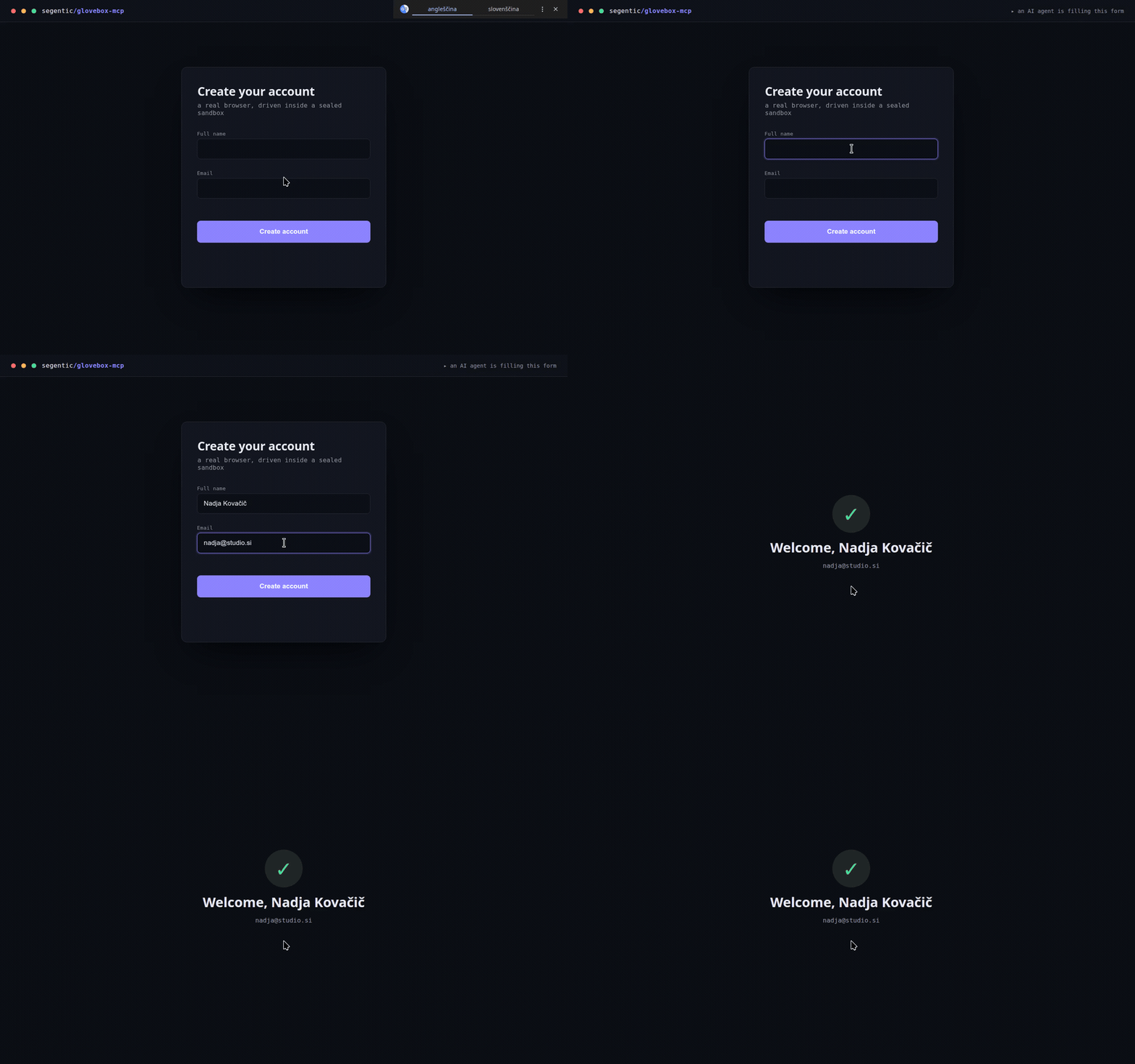
An agent driving a real browser in the sandbox — gliding the cursor, inserting a unicode name (Nadja Kovačič), typing, and submitting. All confined to a nested X11 window.
Why a nested X11 sandbox?
Most desktop automation (xdotool, PyAutoGUI) is X11-only, but many modern desktops run Wayland.
Xephyr provides a real X server inside a single window (DISPLAY :1). Everything the agent
does — clicks, typing, screenshots — is confined to that window, not your real desktop.
You stay in control: watch it live, pkill Xephyr to close everything.
Requirements
Linux — the sandbox nests a real X server (Xephyr), so it works even on Wayland hosts
(via Xwayland). Not macOS/Windows. Developed on Ubuntu; any modern Linux with the packages below.
System packages — xserver-xephyr (Xephyr), openbox, scrot, x11-utils, xdotool,
wmctrl, xclip (+ tesseract-ocr for basic). On Debian/Ubuntu the installer auto-installs
them via apt (sudo); on Fedora/Arch it prints the matching dnf/pacman command. The MCP server
itself is distro-agnostic — any Linux with these tools works.
A browser in the sandbox (Chromium or Chrome).
NVIDIA GPU (≥6 GB VRAM) — only for the local vision mode.
Install
Pick a vision backend and run its one-liner (clone → install). Each one installs the system packages
(auto via apt on Debian/Ubuntu) and the Python deps for that mode, and writes a ready-to-paste
mcp-config.json with your paths.
none — no local models; your agent reads screenshots itself (lightest, instant):
git clone https://github.com/segentic-lab/glovebox-mcp && cd glovebox-mcp && ./install.sh none
git clone https://github.com/segentic-lab/glovebox-mcp && cd glovebox-mcp && ./install.sh basic
local — OmniParser on an NVIDIA GPU (parse_screen → text + icons, pixel-precise; ~4 GB weights, ≥6 GB VRAM):
git clone https://github.com/segentic-lab/glovebox-mcp && cd glovebox-mcp && ./install.sh local
Your choice is written to .vision-mode (override per run with the GLOVEBOX_VISION env var).
Works with any MCP client / harness
Claude Code, Cursor, Codex, or your own agent — it's a standard MCP server, not tied to any one host.
Two compatibility notes: basic/local return element coordinates as text, so they work even
with text-only agents; none relies on the client passing the tool's screenshots to a
multimodal model (fine for Claude Code, Cursor, and other image-capable MCP clients).
Quickstart
Start the sandbox (leave it running):
./start-display.sh              # 1440×900 Xephyr window with a browser
./start-display.sh 1920x1080    # …or pass a screen size (or set $RES)
Log into any sites or apps you want to automate in that window.
Register the server with your MCP client. install.sh already wrote mcp-config.json with
your real install path — copy its glovebox block into your client's MCP config:
Ask the agent to screenshot / click / type — it operates only on the :1 window.
Driving it with an AI agent? Paste AGENTS.md into the agent's system prompt — it
teaches the observe → act → verify loop, grounding, the upload/unicode gotchas, and when to stop.
Tools
Tool
What
status()
Server + sandbox status in one read-only call: version, vision backend, host display, live instances, and which system deps (xdotool, xclip, Xephyr, tesseract, OmniParser weights) are present. Run it first — and paste it into bug reports.
parse_screen()
Vision grounding → JSON of detected elements (id, type, label, interactive, pixel-center; capped at 300 per call, flagged via "truncated") + a numbered Set-of-Mark image at /tmp/glovebox_annotated_<N>.png. (local mode: OmniParser on GPU, ~2 s.)
click_element(id)
Click an element from the last parse_screen (no coordinate guessing).
Unicode-safe typing (ASCII via xdotool; anything with č/š/ž… is inserted via the clipboard, because xdotool's synthetic unicode is silently dropped by some GTK apps).
press_keys("ctrl+a"/"Return"/…)
Keys/combos (xdotool syntax).
upload_file(filepath, selector?)
Attach a local file to a page's <input type=file> via the Chrome DevTools Protocol. The nested X11 file picker is invisible to automation and hangs the renderer, so use this for all uploads — never click an upload button expecting a dialog. Works on Chromium started by launch_app/start-display.sh (they open a per-instance --remote-debugging-port, 9222+N). Browser file inputs only — for native apps see open_file.
open_file(filepath, app?)
Open a local file in a native app on the instance's display (e.g. app="gimp") or via xdg-open. GTK apps get the same X11/D-Bus handling as launch_app.
list_files()
The instance's staging folder files/<N>/ (under the install dir) + its contents.
Every control tool takes instance=N and optional observe / settle_ms (see below).
In local mode OmniParser is lazy-loaded on first parse_screen (~6 s once, then ~2 s/parse).
Structured, honest responses
Every tool returns JSON: {"ok": true, "action": "click", "instance": 1, "detail": "clicked (10,20) button 1", …}.
Failures come back with the MCP isError flag set and the same JSON shape embedded in the error
text — {"ok": false, "error": "…", "fix": "…"} — where fix names the call that unblocks you
(e.g. a click on a dead instance says to run list_instances() / launch_app(); an unknown element
id says to re-run parse_screen()). Silent no-ops are treated as failures too: an invalid keysym,
a zero scroll, closing an instance that isn't running, or non-ASCII typing without xclip all
error instead of pretending success. screenshot() returns a PNG image; observe="screenshot"|"parse"
returns [json, image] in one call.
Vision backend (selectable)
GLOVEBOX_VISION env var, or the .vision-mode file, or default local:
Mode
parse_screen
Needs
When
none
disabled (returns a note) — use screenshot() + reason
nothing (mcp, mss, xdotool)
lightest; let the agent's own vision do grounding
basic
Tesseract OCR → text elements + coords
tesseract-ocr + pytesseract
no GPU; text-only grounding
local
OmniParser → text + icons + coords
torch + CUDA + OmniParser weights
best grounding
Switch anytime with ./install.sh <mode> (installs only what that mode needs).
Multi-instance (a fleet of app windows)
Every control tool takes instance=N (default 1 = the start-display.sh sandbox). Spin up more —
each its own Xephyr display/window on the host desktop:
launch_app(command, name?, size?) → starts the next free :N running any GUI app
(chromium, gimp, inkscape, xterm, …). Chromium auto-gets X11 flags, a per-instance profile,
a remote-debugging port, and D-Bus isolation. Returns the instance id.
list_instances() · close_instance(n).
Because each display has its own cursor, multiple agents can drive different instances in parallel —
one window each. The only shared resource is the GPU for local-mode parse_screen (it just queues).
The host display for new windows is GLOVEBOX_HOST_DISPLAY (default :0); XAUTHORITY is auto-discovered.
One-call action + observe
click · click_element · type_text · press_keys · scroll · drag · double_click take
observe (none default · screenshot · parse) and settle_ms. With observe="screenshot"
the action returns its result and the resulting screen in a single call (with settle_ms to let the
page update first) — no separate screenshot round-trip. Default none keeps routine steps cheap; opt
into screenshot/parse on the steps that change the page (navigations, submits).
Files & uploads
Each instance gets a staging folder files/<N>/ inside the install dir — a stable place to drop
files for that instance (readable by native apps and, since it's under $HOME, by snap Chromium too).
list_files(instance) shows the folder and its contents.
Browser<input type=file> → upload_file(path, instance) (via CDP). The nested file
picker is invisible to automation and hangs snap Chromium, so never click an upload button expecting
a dialog.
Native apps (GIMP, Inkscape, editors) → open_file(path, instance, app="gimp"), or just
drive the app's own Open dialog — unlike the browser's, it's a real visible window you can type a
path into (Ctrl+L in a GTK file chooser).
Saving / downloads → apps run as your user, so they can save anywhere you can write. launch_app
Chromium instances are pre-configured to download and "save as" into files/<N>/; point native
apps' Save dialogs there too, then list_files(instance) to see the results.
Maintenance (local mode)
install.sh clones OmniParser, downloads the v2 weights, and
applies two patches automatically:
PaddleOCR made optional (this uses easyocr): OmniParser/util/utils.py's
from paddleocr import PaddleOCR is wrapped in try/except and the module-level paddle_ocr = PaddleOCR(...)
is guarded with … if PaddleOCR is not None else None.
transformers is pinned to 4.49.0 — newer releases break Florence-2's remote config.
If you upgrade OmniParser manually, re-apply the PaddleOCR patch. Weights live in OmniParser/weights/.
The agent's input and vision are scoped to the sandbox display — it does not see or control your real desktop.
The server process runs as your user (shell/file access, like any MCP server); only its GUI control is
sandboxed to the Xephyr window. For OS-level isolation from your files, run it inside a VM or container.
You can watch everything live and close it instantly with pkill Xephyr.
Automate responsibly — only sites and services you are authorized to use.
AGENTS.md — drop-in tool-usage instructions for the AI agent (paste into its system prompt).
mcp-config.json — a ready-to-paste MCP client config snippet.
Credits
local vision mode uses Microsoft's OmniParser
(cloned and weights downloaded by install.sh, under its own license). Screen capture uses
mss; input is driven with
xdotool. Not affiliated with Microsoft.
Contributing
Shipped as-is under MIT. Issues and PRs are welcome, but this is maintained by one person —
no support or response time is guaranteed. If it's useful to you, a ⭐ helps.