에이전트 강화
게시자의 자체 명령입니다. PlugMCP 엔드포인트가 아닙니다.
Host a copy with our keys and logs.
npx -y [email protected]Claude Code에는 로컬 명령용 설치 링크가 없습니다. 아래 명령을 복사해 터미널에서 실행합니다.
claude mcp add halilural-electron-mcp-server -- npx -y electron-mcp-server@1.5.1터미널에서 실행합니다.
{ "mcpServers": { "halilural-electron-mcp-server": { "command": "npx", "args": [ "-y", "[email protected]" ] } }}claude_desktop_config.json
원격 URL인가요, 내 컴퓨터에서 실행하는 명령인가요? 두 설치 방식의 차이
PlugMCP에서 실행
A new server you create. It is not this listing's official endpoint. Use the publisher install when you want their URL and their credentials.
실행Control any Electron app with natural language. An MCP server that lets AI assistants (Claude, Cursor, VS Code, …) drive your Electron app: click buttons, fill forms, take screenshots, read console logs, and run JavaScript inside it — all over the Chrome DevTools Protocol, with no changes to your app.
npx -y electron-mcp-server
Then ask your AI: "Click the Settings button in my Electron app and screenshot the result."
Why you might want it
--remote-debugging-port=9222The 4 tools it exposes: get_electron_window_info, take_screenshot, send_command_to_electron (UI interaction + eval), read_electron_logs.
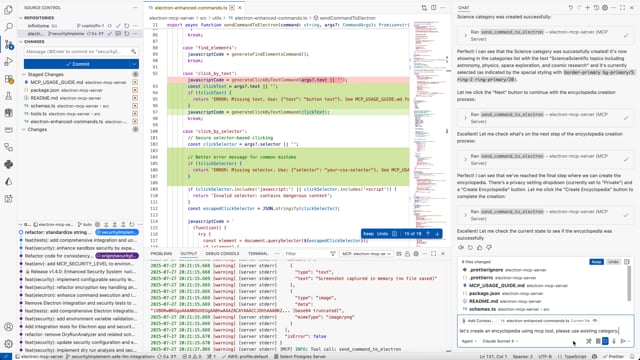
See the Electron MCP Server in action:
Watch how easy it is to automate Electron applications with AI-powered MCP commands.
Configurable security levels to balance safety with functionality:
Configure the security level and other settings through your MCP client configuration:
VS Code MCP Settings:
{
  "mcp": {
    "servers": {
      "electron": {
        "command": "npx",
        "args": ["-y", "electron-mcp-server"],
        "env": {
          "SECURITY_LEVEL": "balanced",
          "SCREENSHOT_ENCRYPTION_KEY":"your-32-byte-hex-string"
        }
      }
    }
  }
}
Claude Desktop Configuration:
{
  "mcpServers": {
    "electron": {
      "command": "npx",
      "args": ["-y", "electron-mcp-server"],
      "env": {
        "SECURITY_LEVEL": "balanced",
        "SCREENSHOT_ENCRYPTION_KEY":"your-32-byte-hex-string"
      }
    }
  }
}
Alternative: Local .env file (for development):
# Create .env file in your project directory
SECURITY_LEVEL=balanced
SCREENSHOT_ENCRYPTION_KEY=your-32-byte-hex-string
Security Level Behaviors:
Environment Setup:
.env.example to .envSECURITY_LEVEL to your desired levelcp .env.example .env
# Edit .env and set SECURITY_LEVEL=balanced
Instead of raw JavaScript eval, use these secure commands:
// ✅ Secure button clicking
{
  "command": "click_by_text",
  "args": { "text": "Create New Encyclopedia" }
}

// ✅ Secure element selection
{
  "command": "click_by_selector",
  "args": { "selector": "button[title='Create']" }
}

// ✅ Secure keyboard shortcuts
{
  "command": "send_keyboard_shortcut",
  "args": { "text": "Ctrl+N" }
}

// ✅ Secure navigation
{
  "command": "navigate_to_hash",
  "args": { "text": "create" }
}
See SECURITY_CONFIG.md for detailed security documentation.
The most common mistake when using this MCP server is incorrect argument structure for the send_command_to_electron tool.
{
  "command": "click_by_selector",
  "args": "button.submit-btn"  // ❌ Raw string - WRONG!
}
{
  "command": "click_by_selector",
  "args": {
    "selector": "button.submit-btn"  // ✅ Object with selector property
  }
}
get_page_structure or debug_elements// Step 1: Understand the page
{
"command": "get_page_structure"
}
// Step 2: Click button using text (most reliable)
{
"command": "click_by_text",
"args": {
"text": "Create New Encyclopedia"
}
}
// Step 3: Fill form field
{
"command": "fill_input",
"args": {
"placeholder": "Enter encyclopedia name",
"value": "AI and Machine Learning"
}
}
// Step 4: Submit with selector
{
"command": "click_by_selector",
"args": {
"selector": "button[type='submit']"
}
}
Enterprise-grade security built for safe AI-powered automation:
eval, file system access, and network requests are blocked by defaultSafety First: Every command is analyzed, validated, and executed in a secure sandbox before reaching your application.
Add to your VS Code MCP settings:
{
  "mcp": {
    "servers": {
      "electron": {
        "command": "npx",
        "args": ["-y", "electron-mcp-server"],
        "env": {
          "SECURITY_LEVEL": "balanced",
          "SCREENSHOT_ENCRYPTION_KEY": "your-32-byte-hex-string-here"
        }
      }
    }
  }
}
Add to ~/Library/Application Support/Claude/claude_desktop_config.json:
{
  "mcpServers": {
    "electron": {
      "command": "npx",
      "args": ["-y", "electron-mcp-server"],
      "env": {
        "SECURITY_LEVEL": "balanced",
        "SCREENSHOT_ENCRYPTION_KEY": "your-32-byte-hex-string-here"
      }
    }
  }
}
npm install -g electron-mcp-server
launch_electron_appLaunch an Electron application with debugging capabilities.
{
  "appPath": "/path/to/electron-app",
  "devMode": true,  // Enables Chrome DevTools Protocol on port 9222
  "args": ["--enable-logging", "--dev"]
}
Returns: Process ID and launch confirmation
get_electron_window_infoGet comprehensive window and target information via Chrome DevTools Protocol.
{
  "includeChildren": true  // Include child windows and DevTools instances
}
Returns:
take_screenshotCapture high-quality screenshots using Playwright and Chrome DevTools Protocol.
{
  "outputPath": "/path/to/screenshot.png",  // Optional: defaults to temp directory
  "windowTitle": "My App"  // Optional: target specific window
}
Features:
send_command_to_electronExecute JavaScript commands in the running Electron application via WebSocket.
{
  "command": "eval",  // Built-in commands: eval, get_title, get_url, click_button, console_log
  "args": {
    "code": "document.querySelector('button').click(); 'Button clicked!'"
  }
}
Enhanced UI Interaction Commands:
find_elements: Analyze all interactive UI elements with their properties and positionsclick_by_text: Click elements by their visible text, aria-label, or title (more reliable than selectors)fill_input: Fill input fields by selector, placeholder text, or associated label textselect_option: Select dropdown options by value or visible textget_page_structure: Get organized overview of all page elements (buttons, inputs, selects, links)get_title: Get document titleget_url: Get current URLget_body_text: Extract visible text contentclick_button: Click buttons by CSS selector (basic method)console_log: Send console messageseval: Execute custom JavaScript codeRecommended workflow: Use get_page_structure first to understand available elements, then use specific interaction commands like click_by_text or fill_input.
read_electron_logsStream application logs from main process, renderer, and console.
{
  "logType": "all",  // Options: "all", "main", "renderer", "console"
  "lines": 50,       // Number of recent lines
  "follow": false    // Stream live logs
}
close_electron_appGracefully close the Electron application.
{
  "force": false  // Force kill if unresponsive
}
build_electron_appBuild Electron applications for distribution.
{
  "projectPath": "/path/to/project",
  "platform": "darwin",  // win32, darwin, linux
  "arch": "x64",         // x64, arm64, ia32
  "debug": false
}
// 1. First, understand the page structure
await send_command_to_electron({
  command: 'get_page_structure',
});

// 2. Click a button by its text (much more reliable than selectors)
await send_command_to_electron({
  command: 'click_by_text',
  args: {
    text: 'Login', // Finds buttons containing "Login" in text, aria-label, or title
  },
});

// 3. Fill inputs by their label or placeholder text
await send_command_to_electron({
  command: 'fill_input',
  args: {
    text: 'username', // Finds input with label "Username" or placeholder "Enter username"
    value: '[email protected]',
  },
});

await send_command_to_electron({
  command: 'fill_input',
  args: {
    text: 'password',
    value: 'secretpassword',
  },
});

// 4. Select dropdown options by visible text
await send_command_to_electron({
  command: 'select_option',
  args: {
    text: 'country', // Finds select with label containing "country"
    value: 'United States', // Selects option with this text
  },
});

// 5. Take a screenshot to verify the result
await take_screenshot();
// Find all interactive elements with detailed information
await send_command_to_electron({
  command: 'find_elements',
});

// This returns detailed info about every clickable element and input:
// {
//   "type": "clickable",
//   "text": "Submit Form",
//   "id": "submit-btn",
//   "className": "btn btn-primary",
//   "ariaLabel": "Submit the registration form",
//   "position": { "x": 100, "y": 200, "width": 120, "height": 40 },
//   "visible": true
// }
// Launch app in development mode
await launch_electron_app({
  appPath: '/path/to/app',
  devMode: true,
});

// Take a screenshot
await take_screenshot();

// Click a button programmatically
await send_command_to_electron({
  command: 'eval',
  args: {
    code: "document.querySelector('#submit-btn').click()",
  },
});

// Verify the result
await send_command_to_electron({
  command: 'get_title',
});
// Get window information
const windowInfo = await get_electron_window_info();

// Extract application data
await send_command_to_electron({
  command: 'eval',
  args: {
    code: 'JSON.stringify(window.appState, null, 2)',
  },
});

// Monitor logs
await read_electron_logs({
  logType: 'all',
  lines: 100,
});
// Get system information
await send_command_to_electron({
  command: 'eval',
  args: {
    code: '({memory: performance.memory, timing: performance.timing})',
  },
});

// Take periodic screenshots for visual regression testing
await take_screenshot({
  outputPath: '/tests/screenshots/current.png',
});
ELECTRON_RUN_AS_NODE and other environment variablesNode.js 20+
TypeScript 4.5+
Electron - Required for running and testing Electron applications
# Install Electron globally (recommended)
npm install -g electron

# Or install locally in your project
npm install electron --save-dev
For the MCP server to work with your Electron application, you need to enable remote debugging. Add this code to your Electron app's main process:
const { app } = require('electron');
const isDev = process.env.NODE_ENV === 'development' || process.argv.includes('--dev');

// Enable remote debugging in development mode
if (isDev) {
  app.commandLine.appendSwitch('remote-debugging-port', '9222');
}
Alternative approaches:
# Launch your app with debugging enabled
electron . --remote-debugging-port=9222

# Or via npm script
npm run dev -- --remote-debugging-port=9222
Note: The MCP server automatically scans ports 9222-9225 to detect running Electron applications with remote debugging enabled.
git clone https://github.com/halilural/electron-mcp-server.git
cd electron-mcp-server

npm install
npm run build

# Run tests
npm test

# Development mode with auto-rebuild
npm run dev
The project includes comprehensive test files for React compatibility:
# Run React compatibility tests
cd tests/integration/react-compatibility
electron test-react-electron.js
See tests/integration/react-compatibility/README.md for detailed testing instructions and scenarios.
This MCP server has been thoroughly tested with React applications and handles common React patterns correctly:
preventDefault() in click handlerssrc/
├── handlers.ts # MCP tool handlers
├── index.ts # Server entry point
├── tools.ts # Tool definitions
├── screenshot.ts # Screenshot functionality
├── utils/
│ ├── process.ts # Process management & DevTools Protocol
│ ├── logs.ts # Log management
│ └── project.ts # Project scaffolding
└── schemas/ # JSON schemas for validation
We welcome contributions! Please see our Contributing Guide for details.
Before reporting issues: Please use the standardized ISSUE_TEMPLATE.md for proper bug reporting format. For React compatibility problems or similar technical issues, also review REACT_COMPATIBILITY_ISSUES.md for detailed debugging examples, including proper command examples, error outputs, and reproduction steps.
git checkout -b feature/awesome-feature)git commit -m 'Add awesome feature')git push origin feature/awesome-feature)MIT License - see LICENSE file for details.
If this project helped you, consider buying me a coffee! ☕

Your support helps me maintain and improve this project. Thank you! 🙏
Ready to supercharge your Electron development with AI-powered automation? Install the MCP server and start building smarter workflows today! 🚀
MCP server that lets AI assistants automate, debug and screenshot any Electron app over the Chrome DevTools Protocol — no app changes required.
{ "mcpServers": { "halilural-electron-mcp-server": { "command": "npx", "args": [ "-y", "[email protected]" ] } }}도구
아직 도구 목록이 없습니다. 원격 서버는 첫 상태 확인 후에 도구 목록이 생깁니다.
FAQ
이 페이지에서 Cursor, Claude Desktop, Claude Code 또는 VS Code용 stdio 설정을 복사합니다. PlugMCP 프록시가 아니라 게시자의 설치 방식을 사용합니다.
이 레코드에는 필수 환경 변수가 등록되어 있지 않습니다.
Electron은(는) stdio를 통해 로컬에서 실행됩니다.
마지막 확인: 2026-10-28. MCP server that lets AI assistants automate, debug and screenshot any Electron app over the Chrome DevTools Protocol — no app changes required.
