Mailtea lets your AI assistant send and schedule email, check delivery, write
and design newsletters, manage contacts, and build your publication's website,
all from a conversation. It is for newsletter writers, creators and teams who
send with Mailtea, and for developers who want an agent to handle email
without writing integration code.
Send email and newsletters with Mailtea over MCP, plus skills for email and website design.
2026-11-07
ดาว
—
เครื่องมือ
—
อัปไทม์
—
What you get
167 tools, grouped by what they work on:
Tool family
What your assistant can do
Email (email.*)
Send, batch, schedule, cancel and resend email, check it before sending, track delivery and engagement, and read and reply to inbound mail
Newsletters (issue.*, monetize.*)
Draft, edit, preview, test, schedule and send newsletters, publish them to your website, follow delivery progress, and manage sponsor offers
Templates (template.*)
Create, render, publish, duplicate and version reusable email templates
List and create publications, connect custom website domains, manage API keys and webhooks, and check who is connected
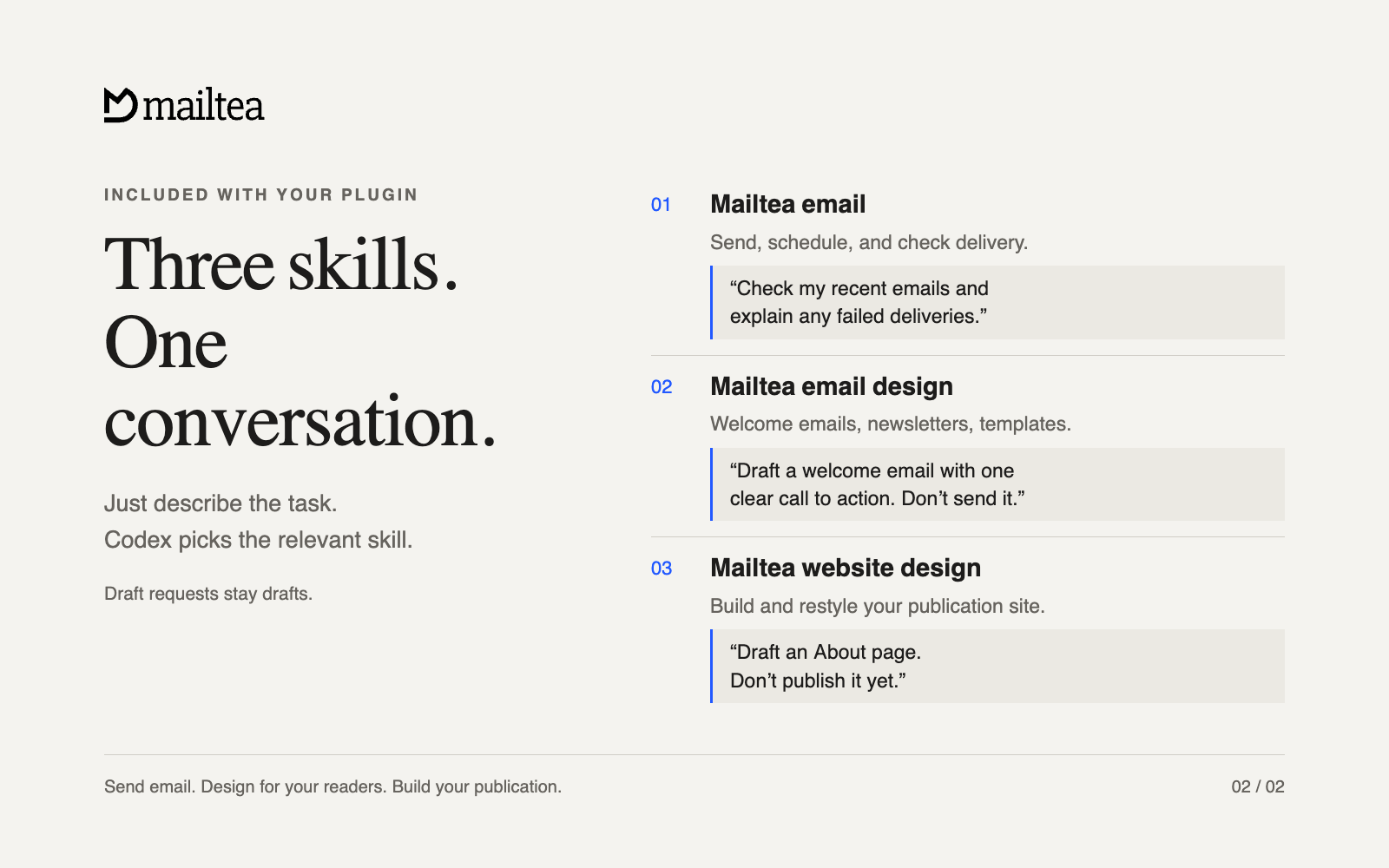
Three skills, ready when you need them
Your assistant picks the relevant skill from your request. You can also name a
skill if you want to be explicit.
Included skill
What it helps you do
Try saying
Mailtea email (mailtea-email)
Send or schedule email, check delivery, draft newsletters, and manage contacts
“Help me send my first email.”
Mailtea email design (mailtea-email-design)
Design welcome emails, newsletters, and reusable templates for real inboxes
“Draft a welcome email with one clear call to action. Do not send it yet.”
Mailtea website design (mailtea-site-design)
Build or restyle your publication's website, with changes saved as drafts
“Draft an About page for my publication. Do not publish it yet.”
The plugin does not replace Mailtea Studio, or the SDKs and CLI for
application code. Use it when an AI assistant should do the work for you.
Connect
Where you use AI
How to connect
Claude.ai
Settings, then Connectors, then Add custom connector, and paste https://api.mailtea.app/mcp
Claude Desktop
Install Mailtea from Discover, or add the same custom connector as on Claude.ai
Claude Code
claude plugin marketplace add mailtea-app/mailtea-agent-plugin, then claude plugin install mailtea@mailtea
Cursor
Settings, then Plugins, then Add from repository: mailtea-app/mailtea-agent-plugin
VS Code
Command Palette, then MCP: Browse servers, then Mailtea
Codex
codex plugin marketplace add mailtea-app/mailtea-agent-plugin, then codex plugin add mailtea@mailtea
More clients, and a one-line install for each, are under
Get started.
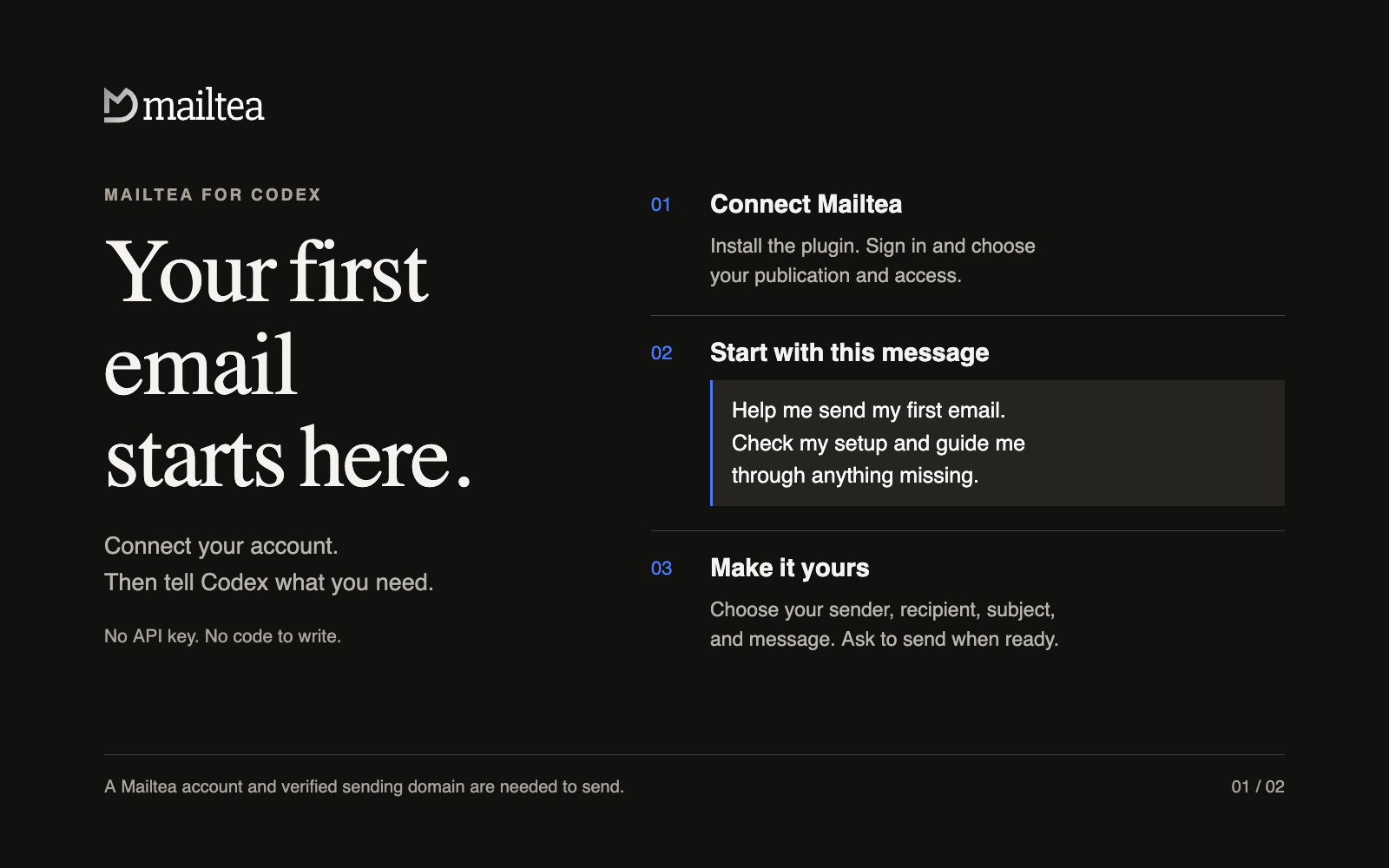
The first time you connect, you sign in to Mailtea in your browser, pick one
publication, and choose an access level from read only to full access. Your
assistant can act only inside that publication at that level, and you can
revoke the connection in Mailtea at any time.
You need a Mailtea account. Sending also needs a verified sending
domain. The hosted connection needs no API key, no Node.js install, and no
code. You sign in through your browser.
Client
Install
Any client
npx plugins add mailtea-app/mailtea-agent-plugin
Codex
codex plugin marketplace add mailtea-app/mailtea-agent-plugin then codex plugin add mailtea@mailtea
Claude Code
claude plugin marketplace add mailtea-app/mailtea-agent-plugin then claude plugin install mailtea@mailtea
Cursor
Settings → Plugins → Add from repository, or npx plugins add mailtea-app/mailtea-agent-plugin -t cursor
Grok Bot (in Cursor)
Installs with the Cursor plugin above; no separate step
Settings, then Agents, then MCP servers: paste the Warp entry from Manual configuration
JetBrains AI Assistant
MCP settings: add the JetBrains entry from Manual configuration. It has no browser sign-in yet, so it sends a personal access token. Junie signs in through the browser itself
Amazon Q Developer CLI
Add the Amazon Q entry from Manual configuration to your agent configuration, then run /mcp in a session to sign in
Devin, Perplexity, Mistral Le Chat, Manus
Add a custom MCP connector with the URL https://api.mailtea.app/mcp
npx plugins add is the universal path. The
plugins CLI reads this package's
plugin.json and installs it into whichever agent tools it detects: Claude
Code, Cursor, Codex, Grok Build, Kimi Code, GitHub Copilot CLI, and VS Code.
Use -t <target> to pick one, and npx plugins targets to see what it found.
Then open a new session, connect Mailtea through the browser sign-in prompt,
choose your publication and the access you want to grant, and paste:
Help me send my first email with Mailtea. Check my setup and guide me through anything missing.
Your agent checks the publications, senders, and domain verification available
to your account, and explains the next step for anything missing. You do not
need to know tool names or pick a skill.
Every entry points at the same hosted server, https://api.mailtea.app/mcp.
Unless a row above says otherwise, you sign in through your browser the first
time the client connects, and there is no key to paste.
JetBrains AI Assistant: it cannot sign in through the browser yet, so send a
Mailtea personal access token (create one in Settings → API keys) as the
Authorization header. Junie signs in through the browser and needs no header.
Send one email. Replace the bracketed details with your own:
Send an email from [my verified sender] to [recipient]. Subject: [subject]. Message: [body].
Schedule a send:
Schedule this email for [date and time, including time zone]. Use [verified sender] and send only to [recipient].
Check delivery:
Check my recent Mailtea emails and explain any failed deliveries.
Create a newsletter draft:
Draft a newsletter for [publication] about [topic]. Give it a clear subject and one call to action. Do not send it yet.
Design your website:
Draft a home page for [publication] using its brand and existing content. Do not publish it yet.
What happens when you ask
Draft means draft. Draft requests do not send email or publish a website.
You choose who receives an email. Your agent asks for missing details and
uses the sender, recipients, and content you supply or approve.
An email ID means accepted, not delivered. Ask for delivery status to
check the result. Do not repeat a send after a timeout until its status is
known.
Your permissions apply. The connection only reaches what your Mailtea
account and the access you grant allow.
If you get stuck
What you see
What to do
No Mailtea tools after installing
Open a new session, check that the plugin is enabled, and connect Mailtea.
No browser sign-in prompt
Reconnect from the terminal or MCP settings. See the table below.
No publication available
Create one in Mailtea, or reconnect with access to an existing publication.
No sender, or the domain is not verified
Follow domain setup, complete the DNS records, and choose a sender on that domain.
Permission denied
Reconnect and select access that permits the action. Ask a publication owner if that option is unavailable.
A send timed out
Ask your agent to check recent emails before trying again, to avoid duplicates.
You want to disconnect
Revoke the connection in Mailtea's API keys / connected agents screen, and disable the plugin in your client.
Reconnecting per client
Client
How to reconnect
Codex
codex mcp login mailtea
Claude Code
/mcp, or claude mcp login mailtea
Cursor
MCP settings, then Mailtea, then reconnect
VS Code
MCP: Browse servers, then Mailtea
Kiro
MCP settings
Grok Build
/marketplace, or grok mcp login
Package layout
The repository root is the plugin root. Every client loads this one
directory: Agent Plugins clients (Cursor, VS Code, Kiro, Codex), Claude Code,
Grok Build, and the Gemini CLI. There is no per-client subdirectory and no
second copy of the skills.
That decision follows from Agent Plugins 1.0.0 §4.1: a path a client resolves
from the package must stay inside the plugin root, so a nested package cannot
share skills/ with the root by symlink or relative path. Nesting would mean
duplicating every skill. A single root keeps one copy, and the mirror's
v<version> release tag reads plugin.json at that same root.
Every manifest names the same plugin at the same version with the same
description, points at skills/ and the same MCP endpoint, and carries no
credentials. node scripts/check-manifests.mjs enforces that; the monorepo
runs it as pnpm check:agent-plugin.
Self-hosting and stdio
The hosted server at https://api.mailtea.app/mcp signs in through your
client's browser flow and stores no credentials in this package. For a
self-hosted API or local development, run the MCP server over stdio instead and
let your client inject the token:
# Claude Code example
claude mcp add mailtea -e MAILTEA_API_TOKEN=mt_pat_xxx -- npx -y mailtea-mcp
Variable
Required
Purpose
MAILTEA_API_TOKEN
yes
PAT (mt_pat_…) or session token
MAILTEA_PUBLICATION_ID
no
Default publication scope
MAILTEA_API_BASE_URL
no
Defaults to Mailtea cloud; use http://localhost:7787 for a local API
Create a personal access token in Settings → API keys, or with
POST /v1/api-keys. Never commit one: Agent Plugins forbids credentials in
package files, and scripts/check-manifests.mjs fails the build if one appears
in an MCP header.
Versioning
There is no npm or PyPI package. The plugin is this repository, so a
release tag is
how you pin one. main always holds the latest:
Every manifest's version matches the tag, and each release's notes come from
CHANGELOG.md. Semver: a patch sharpens skill wording, a
minor adds a skill or an MCP surface, a major removes or renames one.
Authoring notes
Do not add client-only hooks, commands, or marketplace metadata to the top
level of plugin.json. Put those under a reverse-domain extensions key or in
that client's own directory, per
client extensions.
Skills here are copies of the canonical ones in the Mailtea monorepo. Edit
those, then run pnpm sync:agent-plugin-skills.
The plugin stores no credentials. The hosted connection signs in through your
browser and reaches only the publication and access you grant, and you can
revoke it in Mailtea at any time.