A Model Context Protocol (MCP) server that gives AI assistants (VS Code Copilot, Cursor, Claude, Gemini, Antigravity) access to AccelByte Gaming Services (AGS) APIs through OpenAPI integration.
What It Does
Search AGS API operations by description, tags, method, or service
Stateless MCP server for AccelByte Gaming Services APIs with OpenAPI integration
2026-11-08
ดาว
—
เครื่องมือ
—
อัปไทม์
—
Describe specific operations — parameters, schemas, auth requirements
Execute API requests with your authenticated token
AccelByte hosts the AGS API MCP Server for you — you don't need to install or run anything locally. Just point your AI assistant at your environment's MCP URL and sign in.
Quick Install
Paste this into your AI coding assistant — it will fetch the install guide, ask you a couple of questions, and configure everything for you:
Install the AGS API MCP server for me. Fetch and follow the instructions at
https://raw.githubusercontent.com/AccelByte/ags-api-mcp-server/refs/heads/master/INSTALL.md
Works in VS Code Copilot, Cursor, Claude Code, Antigravity, and Gemini CLI.
Claude Desktop users: The simplest path is Settings → Connectors → Add custom connector (Name: ags-api, URL: your MCP URL) — no AI installer needed. See Claude Desktop below for the full instructions and the fallback for accounts where workspace policy blocks custom connectors.
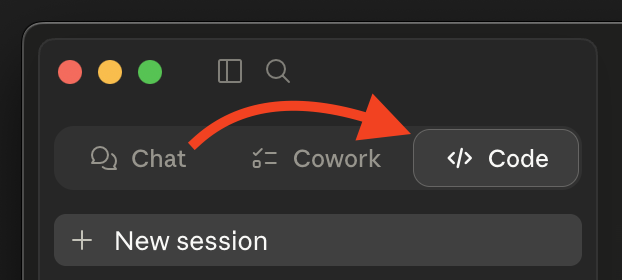
If you do want to use the Quick Install prompt above, switch to the Code tab first (Chat and Cowork can't edit your config file).
Public Cloud customers receive a {studio} namespace at registration — that one value goes in twice, once as the subdomain and once as the path. Studio admins and game admins use the same URL; your assigned roles decide which namespaces you can reach, not the URL you connect to.
Private Cloud customers use their own environment domain, whatever it is — no namespace segment. You may need to coordinate with AccelByte support to enable the MCP endpoint.
"Shared Cloud" is the same thing as Public Cloud — older docs and support threads use that name.
Not sure which edition you're on? Check with your AccelByte administrator.
Step 2: Configure Your Client
The deployed server uses OAuth 2.0 with PKCE and Dynamic Client Registration (DCR). If your client supports DCR, you can connect to the URL directly. If not — or if your client only supports stdio transport — use mcp-remote as a bridge.
Need mcp-remote? It runs via npx. You need Node.js 18+ with npx available — verify with npx --version. Most installers (nodejs.org, Homebrew, nvm, official Windows installer) bundle npx via npm automatically, but minimal Linux distros sometimes ship Node without it; install npm from your package manager if that's the case. No global mcp-remote install required.
Substitute your URL from Step 1 wherever you see <URL> below.
Visual Studio Code (Copilot)
.vscode/mcp.json in your workspace (or user settings.json):
Claude Desktop has two install paths. Pick the first one that works for your account:
Option A — Custom Connector (recommended for personal / Pro accounts)
Open Settings → Connectors → Add custom connector (under the "Customize" area).
Fill in:
Name: ags-api
Remote MCP server URL: your <URL> from Step 1
Save. Claude Desktop handles OAuth (DCR + PKCE) natively — no config file edits, no mcp-remote.
Don't see "Add custom connector"? Some Team and Enterprise plans disable custom connectors via workspace policy. If the option is missing or greyed out, use Option B.
Option B — mcp-remote config file (fallback when custom connectors are blocked)
provider="facade" reads Athena Facade results by query_id + namespace
provider="direct" renders small inline datasets from data_columns + data_rows
The typical Athena Facade flow:
Use run-apis to submit a query via POST /afs/v1/admin/namespaces/{namespace}/queries, preferably with wait_ms=0 if you plan to render by query_id
Poll GET /afs/v1/admin/namespaces/{namespace}/queries/{id} until status="SUCCEEDED"
Pass that query_id to a render_* tool with provider="facade"
If the submit returns 200 with inline rows on the fast path, render those rows directly with provider="direct".
See docs/ARCHITECTURE.md for the render-tool input matrix and the Athena Facade operation list.
Workflow Prompts
The server also provides workflow resources and prompts. Ask your assistant about available workflows or invoke the run-workflow prompt.
Troubleshooting
mcp-remote opens a browser every time
mcp-remote caches tokens under ~/.mcp-auth/. If it's re-authenticating on every launch, that directory may be unwritable or hold stale entries.
First, check permissions on ~/.mcp-auth/ (it needs to be writable by your user). If permissions look fine, the cache may be stale — back the directory up (e.g. mv ~/.mcp-auth ~/.mcp-auth.bak) and retry. Restore the backup if the move doesn't help. Note: removing the cache will sign you out of every MCP server you've authenticated with via mcp-remote, not just this one.
Native config fails with an OAuth or DCR error
Your client may not yet support Dynamic Client Registration. Switch to the mcp-remote fallback config shown above.
Sign-in succeeds but tool calls fail with 403
Your AccelByte user may not have permission for the operation you're calling. Check with your AGS administrator.
Authentication fails with "Invalid Request", "invalid client ID", or "client ID not found"
If your client connected before but now fails at sign-in — often with a generic IAM Invalid Request page mentioning an invalid redirect URI, client ID, or target path, or an "invalid client ID" / "client ID not found" error — the cached Dynamic Client Registration (DCR) is likely stale.
Clients that use DCR cache the IAM client ID they registered. If an administrator or an inactive-client cleanup job later removes that IAM client, the cached registration becomes invalid. The client keeps reusing the deleted client ID and authentication fails before a fresh DCR registration is ever attempted.
This is different from normal token expiry. When only your access token has expired, the client silently refreshes it or reauthorizes against the same valid client ID and you may not notice. A deleted client can't be refreshed — you have to clear the cached registration so the client runs DCR again and registers a new one.
Recovery — clear the cached authentication for the ags-api server, then sign in again:
Claude Code: run /mcp, select the ags-api server, and choose Clear authentication. Then reconnect (via /mcp or by restarting) to trigger a new sign-in.
Codex: run codex mcp logout ags-api, then codex mcp login ags-api.
Clearing authentication only removes the local OAuth state (the cached registration and tokens) for this one server and requires you to sign in again — it creates a fresh DCR registration and restores access. You do not need to remove and re-add the MCP server, and you should not wipe all MCP credentials globally unless your client offers no way to clear a single server on its own.
Documentation
Installation Guide — followed by the Quick Install prompt; readable on its own