Power your agent
คำสั่งของผู้เผยแพร่เอง ไม่ใช่เอนด์พอยต์ของ PlugMCP
Host a copy with our keys and logs.
uvx mcp-airq-cloud==1.4.6Claude Code ไม่มีลิงก์ติดตั้งสำหรับคำสั่งแบบโลคัล ให้คัดลอกคำสั่งด้านล่างแล้วรันในเทอร์มินัล
AIRQ_CLOUD_CONFIG_FILE=<value> AIRQ_CLOUD_DEVICES=<secret> AIRQ_CLOUD_API_KEY=<secret> claude mcp add io.github.corantgmbh-mcp-airq-cloud -- uvx mcp-airq-cloud==1.4.6รันในเทอร์มินัล
{ "mcpServers": { "io.github.corantgmbh-mcp-airq-cloud": { "command": "uvx", "args": [ "mcp-airq-cloud==1.4.6" ], "env": { "AIRQ_CLOUD_CONFIG_FILE": "<value>", "AIRQ_CLOUD_DEVICES": "<secret>", "AIRQ_CLOUD_API_KEY": "<secret>" } } }}claude_desktop_config.json
URL แบบรีโมตหรือคำสั่งบนเครื่องของคุณ? การติดตั้งสองแบบต่างกันอย่างไร
รันบน PlugMCP
A new server you create. It is not this listing's official endpoint. Use the publisher install when you want their URL and their credentials.
เปิดMCP server for the air-Q Cloud API — access air quality data from anywhere.
Unlike mcp-airq (which communicates directly with devices on the local network), this server uses the air-Q Cloud REST API to retrieve sensor data remotely.
The same mcp-airq-cloud executable also works as a direct CLI when you pass a
tool name as a subcommand.
All tools are read-only — the Cloud API does not support device configuration or control.
pip install mcp-airq-cloud
Or install from source:
git clone https://github.com/CorantGmbH/mcp-airq-cloud.git
cd mcp-airq-cloud
uv sync --frozen --extra dev
Use the same command directly from the shell:
mcp-airq-cloud list-devices
mcp-airq-cloud get-air-quality --device "Living Room"
mcp-airq-cloud get-air-quality-history --device "Living Room" --last-hours 24 --sensors co2 pm2_5
mcp-airq-cloud plot-air-quality-history --sensor co2 --output-format png --output co2.png
mcp-airq-cloud export-air-quality-history --sensor co2 --output-format xlsx --output co2.xlsx
For historical plots and exports:
device, location, and group to combine all configured devices into one artifactlocation or group to combine only the matching devicesplot_air_quality_history returns one file per requested sensor, with one series per matching deviceexport_air_quality_history returns one CSV/XLSX file per request, with rows for all matching devicesThe CLI subcommands mirror the MCP tool names. Both styles work:
mcp-airq-cloud list-devices
mcp-airq-cloud list_devices
To force MCP server mode from an interactive terminal, run:
mcp-airq-cloud serve
The CLI is pipe-friendly: successful command output goes to stdout, while
tool errors go to stderr with exit code 1. Plot commands can also stream
directly to stdout.
mcp-airq-cloud get-air-quality --device "Living Room" | jq '.co2'
mcp-airq-cloud get-air-quality-history --device "Living Room" --compact-json | jq '.columns.co2'
mcp-airq-cloud get-air-quality-history --device "Living Room" --yaml | yq '.columns.co2'
mcp-airq-cloud plot-air-quality-history --sensor co2 --device "Living Room" --output - > co2.png
mcp-airq-cloud export-air-quality-history --sensor co2 --device "Living Room" --output - > co2.xlsx
Three tools provide access to historical sensor data via the air-Q Cloud API:
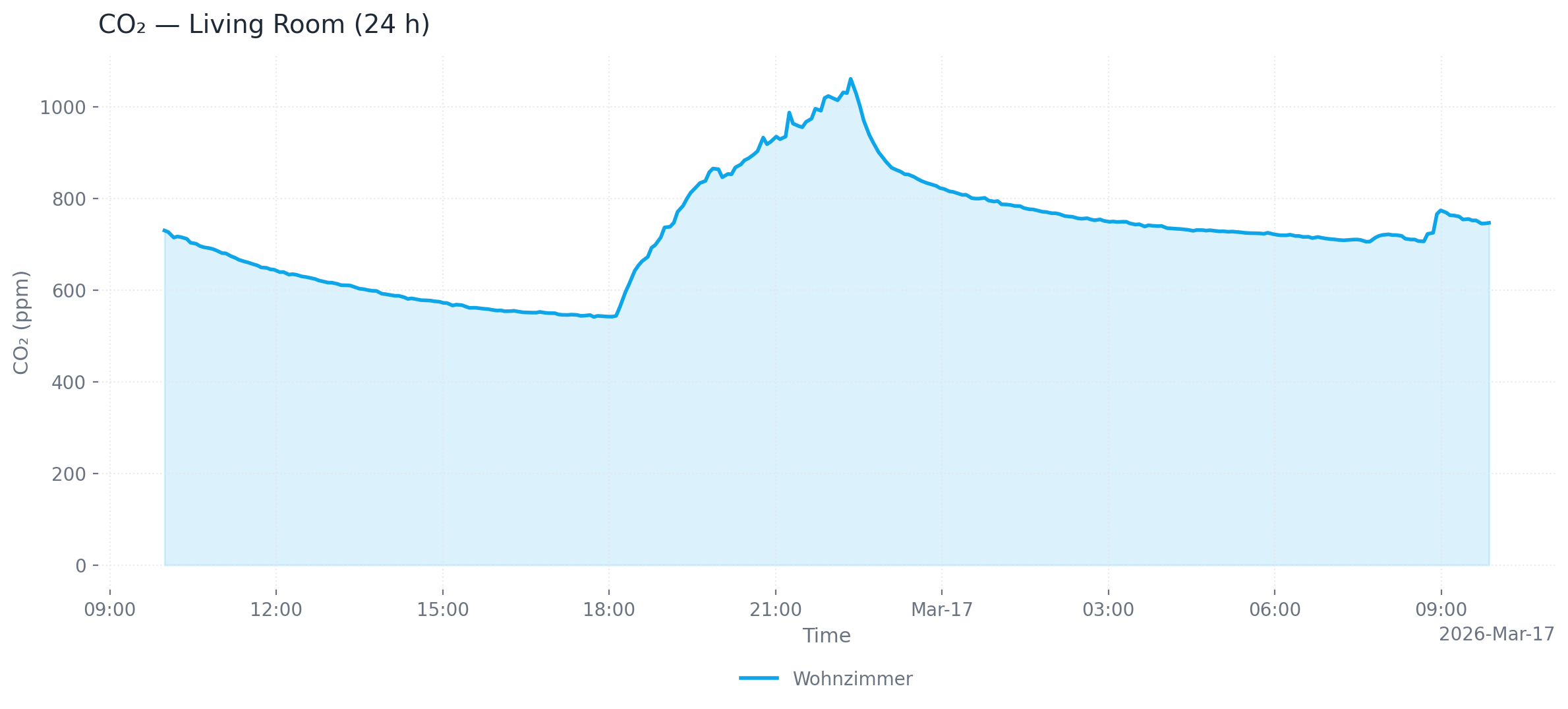
plot_air_quality_history renders a chart for one sensor. When multiple devices
match, each device becomes a separate series in the same chart.
Single device (24 h, area chart, PNG)
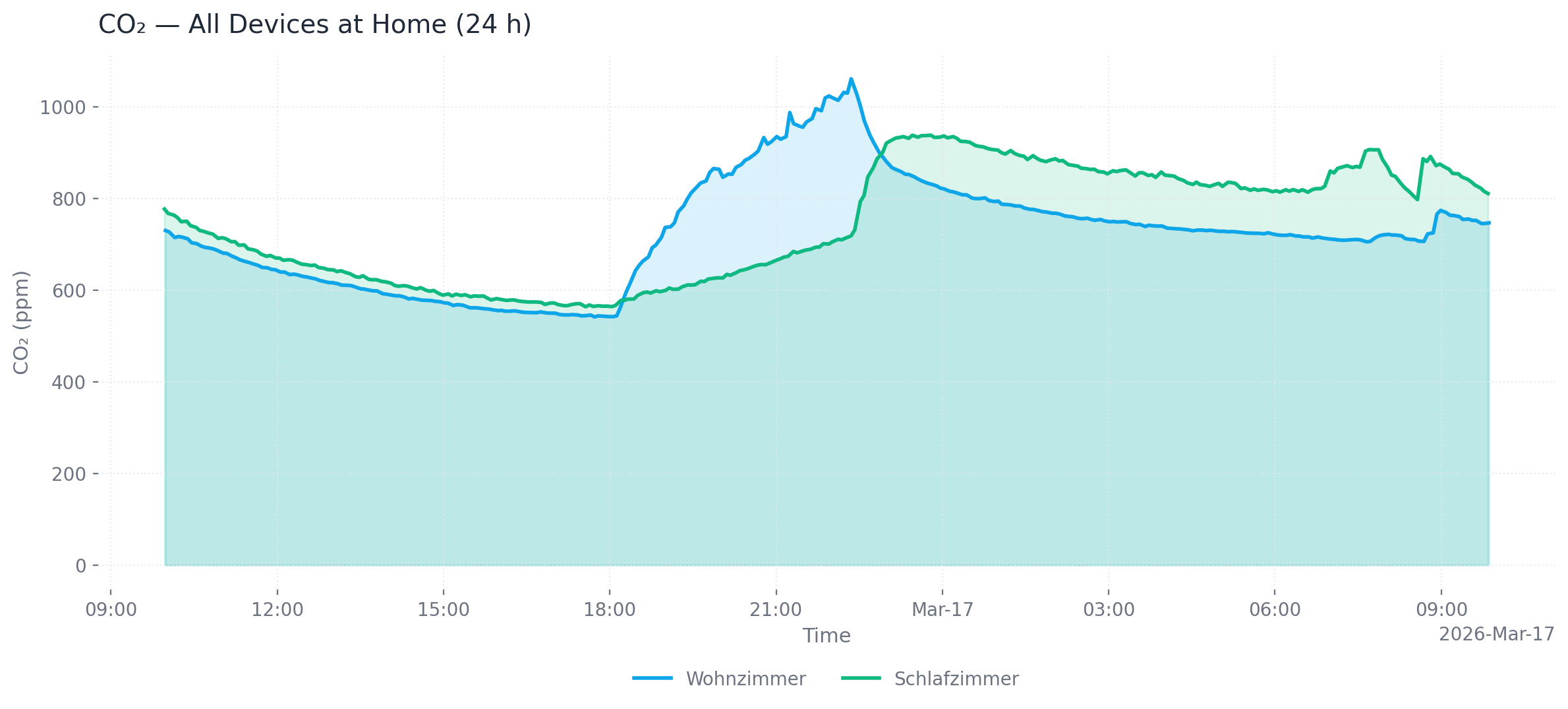
Multiple devices at one location (24 h, area chart, PNG)
# Single device, last 24 hours (default), PNG output (default)
mcp-airq-cloud plot-air-quality-history --sensor co2 --device "Living Room"

# All devices at a location, custom time range, SVG output
mcp-airq-cloud plot-air-quality-history --sensor co2 --location "Living Room" \
  --from-datetime "2026-03-16T00:00:00" --to-datetime "2026-03-17T00:00:00" \
  --output-format svg --output co2.svg

# All configured devices, dark mode, line chart
mcp-airq-cloud plot-air-quality-history --sensor co2 --dark --chart-type line

# Save to file
mcp-airq-cloud plot-air-quality-history --sensor co2 --output co2_chart.png
Output formats: png (default), webp, svg, html (interactive Plotly chart with hover tooltips and zoom)
Customization: --title, --x-axis-title, --y-axis-title, --chart-type (line/area), --dark, --timezone-name
export_air_quality_history produces one CSV or Excel file containing all matching devices.
# CSV export (default)
mcp-airq-cloud export-air-quality-history --sensor co2 --device "Living Room" --last-hours 48

# Excel export for all devices at a location
mcp-airq-cloud export-air-quality-history --sensor co2 --location "Home" \
  --output-format xlsx --output co2.xlsx
You need a Cloud API key and the 32-character device ID for each device. Both can be obtained at my.air-q.com.
export AIRQ_CLOUD_DEVICES='[{"id": "de45d2ed777780c96c0deae7a220b745", "api_key": "your-api-key", "name": "Living Room"}]'
Place a JSON file at ~/.config/airq-cloud-devices.json — no environment variable needed:
[
  {"id": "de45d2ed777780c96c0deae7a220b745", "api_key": "your-api-key", "name": "Living Room"}
]
export AIRQ_CLOUD_CONFIG_FILE=/path/to/devices.json
If all devices share the same API key, set it once:
export AIRQ_CLOUD_API_KEY="your-api-key"
export AIRQ_CLOUD_DEVICES='[{"id": "de45d2ed777780c96c0deae7a220b745", "name": "Living Room"}]'
Add to claude_desktop_config.json:
{
  "mcpServers": {
    "air-Q Cloud": {
      "command": "mcp-airq-cloud",
      "env": {
        "AIRQ_CLOUD_DEVICES": "[{\"id\": \"<device-id>\", \"api_key\": \"<key>\", \"name\": \"Living Room\"}]"
      }
    }
  }
}
claude mcp add air-Q-Cloud mcp-airq-cloud \
  -e AIRQ_CLOUD_DEVICES='[{"id":"<ID>","api_key":"<KEY>","name":"<Name>"}]'
uv sync --frozen --extra dev
uv run pre-commit install
uv run pytest
The repository uses a project-local .venv plus uv.lock for reproducible
tooling. Run developer commands through uv run, for example:
uv run ruff check .
uv run ruff format --check .
uv run pyright
uv run pre-commit run --all-files
Apache 2.0 — see LICENSE.
MCP server for air-Q Cloud API — access air quality data from anywhere
{ "mcpServers": { "io.github.corantgmbh-mcp-airq-cloud": { "command": "uvx", "args": [ "mcp-airq-cloud==1.4.6" ], "env": { "AIRQ_CLOUD_CONFIG_FILE": "<value>", "AIRQ_CLOUD_DEVICES": "<secret>", "AIRQ_CLOUD_API_KEY": "<secret>" } } }}เครื่องมือ
ยังไม่มีรายการเครื่องมือ เซิร์ฟเวอร์แบบรีโมตจะได้รายการหลังการตรวจสอบสถานะครั้งแรก
FAQ
คัดลอกคอนฟิก stdio สำหรับ Cursor, Claude Desktop, Claude Code หรือ VS Code ได้ในหน้านี้ คอนฟิกนี้ใช้การติดตั้งของผู้เผยแพร่ ไม่ใช่พร็อกซีของ PlugMCP
ผู้เผยแพร่ระบุตัวแปรสภาพแวดล้อมเหล่านี้: AIRQ_CLOUD_CONFIG_FILE, AIRQ_CLOUD_DEVICES, AIRQ_CLOUD_API_KEY
Air Q Cloud ทำงานแบบโลคัลผ่าน stdio
ตรวจสอบล่าสุดเมื่อ 2026-11-09 MCP server for air-Q Cloud API — access air quality data from anywhere
