⚠️ Important Notice - Major Updates (Feb/March 2026)
Version 4.x introduces significant changes including Express 5 migration, refactored database connection handling, and major performance improvements. While we've tested extensively, please be aware of potential issues in your specific environment.
150+ SAP HANA database tools as MCP tools for AI assistants
2026-11-09
ดาว
—
เครื่องมือ
—
อัปไทม์
—
If you encounter problems:
Report Issues: Please open an issue on our GitHub Issues page with details about your environment and the problem you're experiencing.
Rollback to Stable Version: If you need to quickly revert to the last stable release before these major changes, you can install version 3.202601.0 (January 2026):
What's Changed: The change log describes all notable changes including Express 5 migration, database connection refactoring, CLI startup performance optimization (60-77% faster), expanded test coverage (85%+ coverage), and the new VitePress documentation site.
📚 Documentation
Complete documentation is available in the docs/ folder and organized with VitePress. This README will maintain a high-level overview and quick links to the most important sections of the documentation but over time expect that more and more detailed documentation will be added to the docs folder as the project evolves.
cd docs
npm install
npm run docs:dev
# Open http://localhost:5173
Build For Production
cd docs
npm run docs:build
npm run docs:serve
See docs/README.md for complete documentation setup details.
Description
This sample is intended to shown how one could build a developer-centric SAP HANA command line tool, particularly designed to be used when performing local SAP HANA development in non-SAP tooling (like VSCode). It utilizes the default-env.json that is often used in local development for connectivity to a remote SAP HANA DB (although it can of course be used with a local SAP HANA, express edition instance as well). There is no intention to replacing the hdbsql tool as a generic SQL console. Instead this sample will focus on simplifying and grouping common and complex commands that otherwise might a lot of separate scripts.
However the tool isn't limited to only local development. It also works well when developing in the cloud. The hana-cli tool can also run well from a cloud shell in the SAP Business Application Studio, Google Cloud Shell, AWS Cloud9, etc. We can also run against a SAP HANA service for SAP BTP or SAP HANA Cloud instance. This demonstrates that the tool can run just about anywhere you can get a command line that has access to the Node.js Runtime. We can also connect to a remote HANA instance even if it isn't running in the same cloud environment in which we are performing our development tasks.
Supported Environments
graph TD
    A["SAP HANA CLI Tool"] --> B{Development Environment}
    B --> C["Local Development"]
    B --> D["Cloud Development"]

    C --> C1["VSCode"]
    C --> C2["Local SAP HANA Express"]
    C --> C3["Remote SAP HANA"]

    D --> D1["SAP Business App Studio"]
    D --> D2["Google Cloud Shell"]
    D --> D3["AWS Cloud9"]
    D --> D4["SAP BTP HANA Service"]
    D --> D5["SAP HANA Cloud"]

    style A fill:#0070C0
    style B fill:#FF6B6B
    style C fill:#51CF66
    style D fill:#FFD93D
Otherwise you can also run it from the sources as described here:
Install Node.js on your development machine https://nodejs.org/en/download/. Version 22 or later is required; Node.js 24 (LTS) is highly recommended, following the SAP CAP 10 recommendation.
Run NPM install from the root of the hana-developer-cli-tool-example project you just cloned to download dependencies
npm install
Run NPM link from the cloned project root to make the hana-cli command available from everywhere https://docs.npmjs.com/cli/link
npm link
BTP CLI Installation
The hana-cli tool includes several commands that interact with SAP Business Technology Platform (BTP) services. All BTP-related functionality in this tool relies on the SAP BTP Command Line Interface (btp CLI) being installed and available in your system's PATH.
About the BTP CLI
The btp CLI is SAP's official command-line tool for managing resources and services on the SAP Business Technology Platform. It provides capabilities for managing global accounts, directories, subaccounts, entitlements, service instances, and more. The hana-cli tool wraps and extends many of these capabilities with developer-friendly commands.
Installing the BTP CLI with install-btp.sh
For Linux and macOS users, this repository includes a convenient installation script install-btp.sh that automates the installation of the BTP CLI.
The script performs the following actions:
Downloads the latest BTP CLI installer from the SAP Development Tools download page
Makes the installer executable and runs it with automatic confirmation
After running the script, you may need to restart your terminal or run source ~/.bashrc to apply the PATH changes.
Note: Windows users should download the BTP CLI from the SAP Development Tools page and follow the platform-specific instructions there.
Verifying the Installation
Once installed, you can verify the BTP CLI is available by running:
btp --version
You can also use the hana-cli tool itself to check your BTP CLI configuration:
hana-cli btp
This will display your current BTP target information including global account, directory, and subaccount if configured.
Security
This application primarily uses the default-env.json that is often used in local development for connectivity to a remote HANA DB (although it can of course be used with a local SAP HANA, express edition instance as well). For more details on how the default-env.json works, see the readme.md of the @sap/xsenv package or the @sap/hdi-deploy package.
Connection Configuration Resolution Order
The tool doesn't simply look for a default-env.json file in the current directory however. There are numerous options and places it will look for the connection parameters. Here is the order in which it checks:
graph TD
    A["Connection Resolution<br/>Started"] --> B{Admin Mode<br/>Enabled?}
    B -->|YES| B1["Look for<br/>default-env-admin.json"]
    B -->|NO| C{.cdsrc-private.json<br/>Found?}

    B1 --> B2{Found?}
    B2 -->|YES| Z1["Use Admin Credentials"]
    B2 -->|NO| C

    C -->|YES| C1["Use CAP cds bind<br/>Dynamic Lookup"]
    C -->|NO| D{.env File<br/>Found?}

    C1 --> Z2["Secure Lookup<br/>from CF/K8s"]

    D -->|YES| D1{Contains<br/>VCAP_SERVICES?}
    D1 -->|YES| Z3["Use VCAP Services"]
    D1 -->|NO| E
    D -->|NO| E

    E{--conn Parameter<br/>Specified?} -->|YES| E1["Look for specified<br/>connection file"]
    E1 --> E2{Local or<br/>Home Found?}
    E2 -->|YES| Z4["Use Specified File"]
    E2 -->|NO| F
    E -->|NO| F

    F["Look for<br/>default-env.json<br/>in current/parent dirs"]
    F --> G{Found?}
    G -->|YES| Z5["Use default-env.json"]
    G -->|NO| H["Last Resort:<br/>Look for default.json<br/>in HOME/.hana-cli/"]

    H --> I{Found?}
    I -->|YES| Z6["Use default.json"]
    I -->|NO| Z7["❌ No Connection<br/>Configuration Found"]

    style Z1 fill:#51CF66
    style Z2 fill:#51CF66
    style Z3 fill:#51CF66
    style Z4 fill:#51CF66
    style Z5 fill:#51CF66
    style Z6 fill:#51CF66
    style Z7 fill:#FF6B6B
First we look for the Admin option and use a default-env-admin.json - this overrides all other parameters
If no admin option or if there was an admin option but no default-env-admin.json could be found in this directory or 5 parent directories, then look for .cdsrc-private.json in this directory or 5 parent directories and use cds bind functionality to lookup the credentials securely. This is the most secure option, but please note: this will make each command take a few seconds longer as credentials are no longer stored locally but looked up from cf or k8s dynamically with each command
If no .cdsrc-private.json found in this directory or 5 parent directories, then look for a .env file in this directory or up to 5 parent directories
No .env file found or it doesn't contain a VCAP_SERVICES section, then check to see if the --conn parameter was specified. If so check for that file in the current directory or up to 5 parent directories
If the file specified via the --conn parameter wasn't found locally then check for it in the ${homedir}/.hana-cli/ folder
If no specific configuration file was was found then look for a file named default-env.json in the current directory or up to 5 parent directories
Last resort if nothing has been found up to this point - look for a file named default.json in the ${homedir}/.hana-cli/ folder
Examples
A lot of the functionality of this tool revolves around typical tasks you face while doing HANA database development.
For example you might want to get a list of all views in your current schema/container:
But there are multiple output options for inspection. Perhaps you are using Cloud Application Programming Model and need to create a proxy entity in CDS for a view. This tool will read the catalog metadata and convert it to CDS:
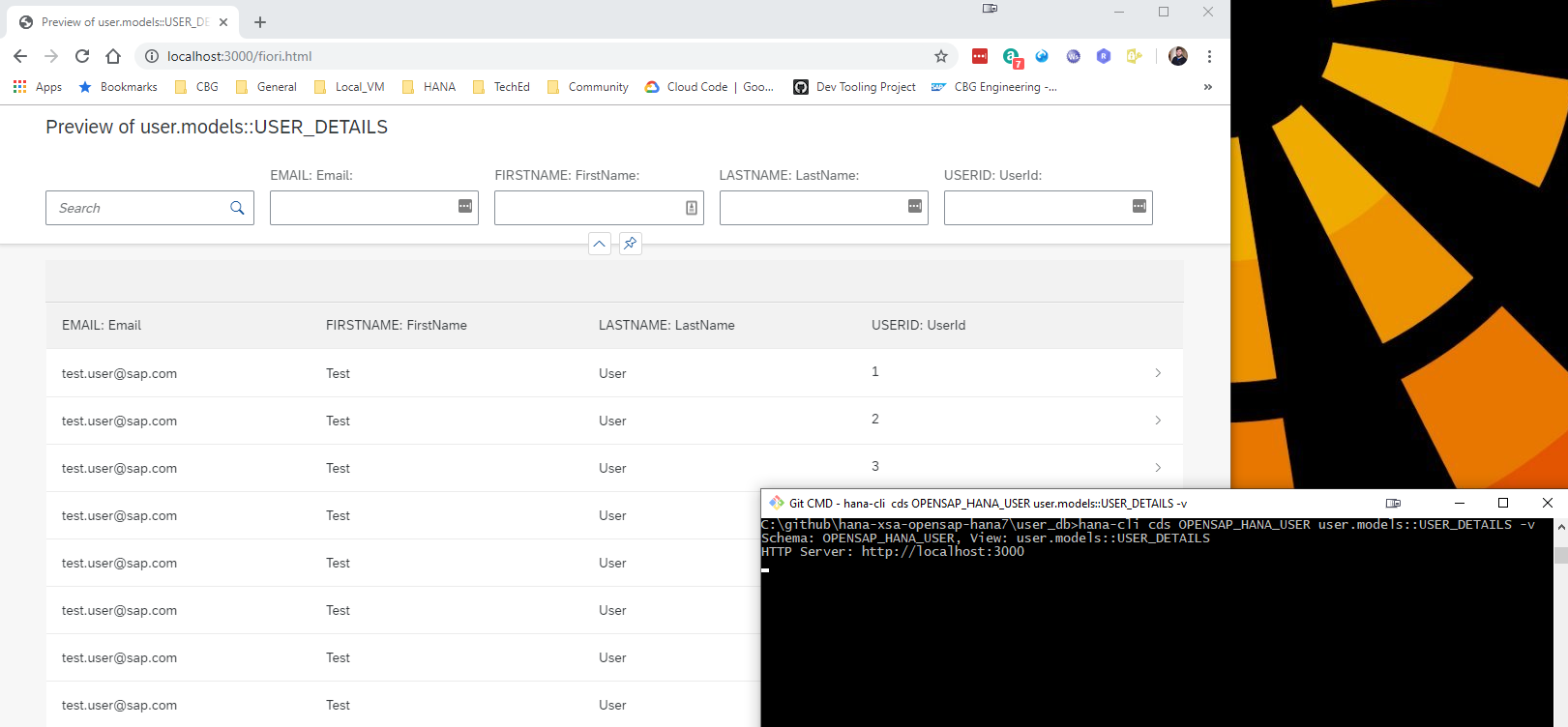
This tool will even create a temporary OData V4 service for any existing table, view or Calculation View and launch a test Fiori Ui locally.
Project Structure and Documentation
Utils Documentation
For developers looking to understand or extend the internal utilities used by this CLI tool, comprehensive documentation is available in the utils/README.md file. This documentation covers:
CLI Integration: BTP, Cloud Foundry, and XSA CLI integration utilities
Database Abstraction: Multi-database support (HANA, PostgreSQL, SQLite) with factory pattern
Usage Examples: Practical examples for using the utility modules
The utils folder contains reusable modules that provide the foundation for all CLI commands, including database connectivity, terminal UI components, security utilities, and internationalization support.
HTTP Routes Documentation
The hana-cli tool includes a built-in web server that exposes all CLI functionality through RESTful HTTP endpoints. Detailed documentation for all HTTP routes is available in the routes/README.md file. This documentation covers:
Base Configuration Endpoints: GET/PUT operations for managing CLI prompts and settings
HANA Database Endpoints: Complete API for listing and inspecting HANA database objects (tables, views, schemas, containers, etc.)
Documentation Endpoints: Access to README and CHANGELOG as HTML
WebSocket Support: Real-time communication for long-running operations
Static Resources: UI5 application and DFA integration
The web server is automatically started when using certain CLI commands with the -w or --web flag, making all hana-cli functionality accessible via HTTP requests at http://localhost:3010 (configurable port).
Swagger/OpenAPI Documentation
The hana-cli web server now includes comprehensive Swagger/OpenAPI 3.0 documentation for all REST API endpoints. This provides an interactive interface for exploring and testing all HTTP APIs, making it easier to integrate hana-cli functionality into your own applications.
Key Features:
Interactive API Documentation: Browse all 27+ documented endpoints with full request/response schemas
Try-It-Out Functionality: Test any API endpoint directly from the browser
Auto-Generated Specification: Documentation automatically generated from JSDoc comments in route files
OpenAPI 3.0 Standard: Industry-standard specification for maximum compatibility
Organized Categories: Endpoints grouped into 10 logical categories (Configuration, HANA System, HANA Objects, HDI, Cloud Services, etc.)
Export Support: Download the raw OpenAPI JSON specification for client SDK generation
Accessing Swagger UI:
# Start the UI server
hana-cli ui

# Open browser to Swagger UI
http://localhost:3010/api-docs

# Get raw OpenAPI JSON specification
http://localhost:3010/api-docs.json
For complete implementation details, usage examples, and customization options, see the SWAGGER_IMPLEMENTATION.md documentation.
Web Applications (Fiori Launchpad UI)
The hana-cli tool includes a complete browser-based interface built with SAP UI5 and the Fiori Launchpad, providing a graphical alternative to the command-line interface. This web interface offers an intuitive, tile-based navigation system for all database operations.
Fiori Launchpad Interface: Modern, responsive UI with organized tile groups
Multiple UI5 Applications: Specialized apps for listing, inspecting, and managing database objects
Real-Time Operations: WebSocket-based communication for live updates and long-running tasks
Mass Conversion Tool: Bulk convert tables to CDS, HDBTable, or HDBMigrationTable formats
System Information Dashboard: View connection details, version info, and system status
Database Object Browser: Interactive exploration of tables, views, schemas, functions, indexes, and more
Cloud Foundry Integration: Manage HDI, SBSS, Schema, and SecureStore service instances
Theme Support: Automatic light/dark mode detection and customization
Integrated Help: SAP Digital Foundation Adapter (DFA) with contextual assistance
Quick Start:
hana-cli tables -w    # Launch web interface with tables view
hana-cli serve        # Start the web server standalone
The web UI runs on http://localhost:3010 by default and provides access to all CLI functionality through an easy-to-use graphical interface. For complete documentation of all web applications, UI5 components, configuration, and development guides, see the app/README.md file.
MCP (Model Context Protocol) Integration
The hana-cli tool includes a Model Context Protocol (MCP) server, enabling AI assistants like Claude to interact with SAP HANA databases through natural language. The server uses a progressive discovery model — starting with ~22 focused tools and expanding on demand to all 186 commands.
graph LR
    AI["🤖 AI Assistant<br/>Claude, etc."]

    AI -->|Natural Language<br/>Query| MCP["MCP Server<br/>~22 Default Tools"]

    MCP -->|Router or<br/>Direct Call| Tools["186 hana-cli<br/>Commands"]

    Tools --> DB["SAP HANA<br/>Database"]
    Tools --> Cloud["BTP/Cloud<br/>Services"]
    Tools --> HDI["HDI<br/>Containers"]

    DB -->|Data & Results| Tools
    Cloud -->|Service Info| Tools
    HDI -->|Container Status| Tools

    Tools -->|Formatted<br/>Response| MCP
    MCP -->|Natural Language<br/>Result| AI

    style AI fill:#9D55F0,color:#fff
    style MCP fill:#0070C0,color:#fff
    style Tools fill:#FF6B6B,color:#fff
    style DB fill:#51CF66,color:#fff
Key Features:
Progressive tool discovery — tier-1 tools always available, others via router or dynamic promotion
Router tool (hana_execute) dispatches any of 183+ commands by name
AI-guided command recommendations and smart search
Seamless integration with Claude Desktop, VS Code, Cursor, and other MCP clients
--full mode available for environments where tool count is not a concern
For detailed setup instructions, configuration options, and usage examples, please refer to:
The hana-cli tool follows consistent parameter naming, aliasing, and default value conventions across all commands to provide a predictable and intuitive user experience.
Command Categories Overview
graph TB
    A["200+ hana-cli<br/>Commands"] --> B{Command<br/>Category}

    B --> C["Connection<br/>Commands"]
    B --> D["Data<br/>Manipulation"]
    B --> E["Database<br/>Inspection"]
    B --> F["Performance<br/>Analysis"]
    B --> G["Cloud<br/>Integration"]
    B --> H["HDI<br/>Management"]

    C --> C1["connect<br/>copy2DefaultEnv<br/>copy2Env"]

    D --> D1["export<br/>import<br/>dataSync<br/>tableCopy"]

    E --> E1["tables<br/>views<br/>procedures<br/>schemas<br/>indexes"]

    F --> F1["tableHotspots<br/>queryPlan<br/>alerts<br/>healthCheck"]

    G --> G1["btp<br/>btpInfo<br/>activateHDI"]

    H --> H1["containers<br/>createContainer<br/>dropContainer"]

    style A fill:#0070C0,color:#fff
    style B fill:#FF6B6B,color:#fff
    style C fill:#51CF66,color:#fff
    style D fill:#9D55F0,color:#fff
    style E fill:#FFD93D,color:#000
    style F fill:#F39C12,color:#fff
    style G fill:#1ABC9C,color:#fff
    style H fill:#E74C3C,color:#fff
Global Standard Parameters
All commands support the following standard connection and debugging parameters:
Parameter
Alias
Type
Default
Description
--admin
-a
boolean
false
Connect via admin credentials (uses default-env-admin.json)
--conn
—
string
—
Connection filename to override default-env.json
--disableVerbose
--quiet
boolean
false
Disable verbose output for scripting
--debug
-d
boolean
false
Enable debug output for troubleshooting
Common Command Parameters
Commands are organized into categories, each with their own standardized parameters:
Data Manipulation Commands
Commands like export, import, compareData, tableCopy, dataSync, etc.
Parameter
Alias
Type
Default
Description
--schema
-s
string
**CURRENT_SCHEMA**
Target schema name
--sourceSchema
-ss
string
**CURRENT_SCHEMA**
Source schema for operations
--targetSchema
-ts
string
**CURRENT_SCHEMA**
Target schema for operations
--table / --sourceTable
-t / -st
string
—
Table name(s)
--output
-o
string
—
Output file path
--format
-f
string
see note
Output format (csv, json, excel, summary, etc.)
--limit
-l
number
1000
Maximum result set size
--batchSize
-b, --batch
number
1000
Batch size for processing
--timeout
-to
number
3600
Operation timeout in seconds (1 hour)
--dryRun
-dr, --preview
boolean
false
Preview operation without committing changes
--profile
-p
string
—
Database profile (hana, postgresql, sqlite, etc.)
Batch Operations
Commands like massGrant, massUpdate, massDelete, massExport, etc.
Parameter
Alias
Type
Default
Description
--schema
-s
string
—
Schema containing objects
--object
-o
string
—
Object name pattern
--limit
-l
number
1000
Maximum objects to process
--dryRun
-dr, --preview
boolean
false
Preview without executing
--log
—
boolean
false
Enable operation logging
List/Inspect Commands
Commands like tables, schemas, users, procedures, functions, etc.
Parameter
Alias
Type
Default
Description
--schema
-s
string
**CURRENT_SCHEMA**
Filter by schema
--limit
-l
number
200
Maximum results to return
--profile
-p
string
—
Database profile selector
Naming Conventions
The tool follows these conventions for parameter naming:
Single Operations: Use singular names (e.g., schema, table, user)
Source/Target Operations: Use paired names (e.g., sourceSchema/targetSchema, sourceTable/targetTable)
Boolean Flags: Use descriptive names (e.g., dryRun, includeHeaders, withGrantOption)
Aggregation Parameters: Use plural or descriptive names (e.g., columns, indexes, keyColumns)
Alias Conventions
Aliases follow these consistent patterns:
Single-letter alias: First letter of the parameter (e.g., -s for schema, -t for table)
Extended alias: Meaningful abbreviation (e.g., -dr for dryRun, -batch for batchSize)
No self-referential aliases: Parameter name itself is not used as an alias (e.g., --schema has alias -s only)
Maximum aliases: Parameters typically have at most 2 aliases to avoid confusion
Default Values
Default values are standardized to ensure consistent behavior:
Parameter
Standard Default
Note
schema
**CURRENT_SCHEMA**
Uses the connection's current schema
limit
200 (lists) / 1000 (data)
Configurable per command based on context
batchSize
1000
Applies to all data manipulation operations
timeout
3600
1 hour standard timeout for long-running operations
dryRun
false
Changes are committed by default; use --dryRun to preview
format
"csv" (export) / "json" (reports)
Varies by command type
compress
true
Data backups are compressed by default
Usage Examples
Using Standard Parameters
graph LR
    A["hana-cli<br/>Command"]

    A --> B{Choose<br/>Operation}

    B --> C["List Operation<br/>tables, views, etc."]
    C --> C1["--schema<br/>-s"]
    C --> C2["--limit<br/>-l"]
    C --> C3["--profile<br/>-p"]
    C1 --> C4["Filter by schema"]
    C2 --> C5["Limit results"]
    C3 --> C6["Select DB profile"]

    B --> D["Data Operation<br/>export, import, etc."]
    D --> D1["--sourceTable/-st<br/>--targetTable/-tt"]
    D --> D2["--format<br/>-f"]
    D --> D3["--dryRun/-dr<br/>--preview"]
    D1 --> D4["Source/Target"]
    D2 --> D5["Output format"]
    D3 --> D6["Dry run preview"]

    B --> E["Batch Operation<br/>massGrant, etc."]
    E --> E1["--schema/-s"]
    E --> E2["--dryRun/-dr"]
    E --> E3["--log"]
    E1 --> E4["Target schema"]
    E2 --> E5["Safe execution"]
    E3 --> E6["Operation log"]

    style A fill:#0070C0,color:#fff
    style B fill:#FF6B6B,color:#fff
    style C fill:#51CF66,color:#fff
    style D fill:#9D55F0,color:#fff
    style E fill:#FFD93D,color:#000
# List all tables in current schema with preview of first 100
hana-cli tables -s myschema -l 100

# Export data with dry-run preview
hana-cli export -t CUSTOMERS -s SALES -f csv -dr

# Copy table structure without data (dry-run)
hana-cli tableCopy --sourceTable ORDERS --targetTable ORDERS_ARCHIVE --structureOnly --dryRun

# Compare schemas between databases with 2-hour timeout
hana-cli compareSchema --sourceSchema PROD --targetSchema TEST -to 7200

# Batch grant permissions (preview first)
hana-cli massGrant -s MYSCHEMA -o MYTABLE -g DEVELOPER_USER -p SELECT -dr
Common Parameter Combinations
# Preview and log operations
hana-cli massUpdate -s SCHEMA -o TABLE -c "STATUS='ACTIVE'" --dryRun --log

# Limit results and increase timeout for large datasets
hana-cli dataValidator -t BIGDATA -l 1000000 -to 7200

# Specify output format and location
hana-cli export -t CUSTOMERS -f json -o ./exports/customers.json
Current Schema Defaults (**CURRENT_SCHEMA**)
The vast majority of schema-aware commands now use **CURRENT_SCHEMA** as the default value for schema parameters. This special placeholder allows you to work with your current database context without explicitly specifying the schema name each time.
Supported Commands with Current Schema Default
The following command categories fully support the **CURRENT_SCHEMA** placeholder:
dataValidator, duplicateDetection, erdDiagram, dataLineage, referentialCheck, and more
Current Schema Examples
# Without explicit schema - uses CURRENT_SCHEMA
hana-cli tables                          # List tables in current schema
hana-cli procedures                      # List procedures in current schema
hana-cli export -t CUSTOMERS             # Export from current schema

# With explicit schema override
hana-cli tables -s PRODUCTION            # List tables in PRODUCTION schema
hana-cli procedures -s OTHER_SCHEMA      # List procedures in OTHER_SCHEMA
hana-cli export -t CUSTOMERS -s SALES    # Export from SALES schema
All database-connected commands now support the --profile parameter (alias -p), enabling you to work with different database configurations without switching connections or redefining credentials.
Supported Commands with Profile Parameter
The --profile parameter is available in:
All data operations: export, import, dataProfile, dataDiff, dataSync, duplicateDetection, referentialCheck, tableCopy
Analysis tools: compareData, compareSchema, dataValidator, dataLineage, erdDiagram, and more
Profile Parameter Examples
# Specify database profile
hana-cli tables --profile production     # Connect using 'production' profile
hana-cli export -t CUSTOMERS -p staging  # Export from staging environment
hana-cli dataValidator -t TABLE -p dev   # Validate data in development

# Works with other parameters
hana-cli tables -s MYSCHEMA -p prod      # List tables in schema using prod profile
hana-cli compareSchema -ss SRC -ts TGT -p target  # Schema comparison using target profile
For more details on database profile configuration, see the utils/README.md documentation.
Quality Assurance Notes
The consistency of these parameters has been standardized across all 200+ commands in the tool. This standardization ensures:
Predictability: Users can rely on consistent parameter behavior across commands
Discoverability: Common parameters work the same way in different contexts
Scripting: Automation scripts are more maintainable with consistent patterns
Error Reduction: Familiar patterns reduce mistakes and learning curve
Multi-Environment Support: Profile parameter enables seamless switching between database instances
For detailed analysis of all command consistency improvements deployed in February 2026, including the 30 commands and 50+ parameters updated, see:
For detailed information about specific commands, use the built-in help:
hana-cli help <command>
hana-cli <command> --help
Commands
📊 Visual Command Reference Guide: For command structure diagrams, parameter relationships, and quick examples for all commands, see the Command Structure Reference Guide. This separate document provides visual flowcharts and detailed usage patterns for:
Connection & setup commands
Data operations (export, import, sync)
Database inspection & analysis
HDI container management
Backup & recovery operations
Performance analysis tools
Mass operations
Cloud integration
Each command diagram shows the command syntax, available parameters, and typical usage patterns.
Unit Testing
This project includes comprehensive unit tests to ensure code quality and reliability. The test suite covers core functionality, command execution, and database operations.
For detailed information about running tests, writing new tests, and understanding the test structure, please refer to the Unit Testing Documentation.
Running Tests
Quick start for running tests:
# Run all tests
npm test

# Run specific test suites
npm run test:cli      # CLI tests only
npm run test:utils    # Utils tests only
npm run test:routes   # Routes tests only
Code Coverage
The project uses nyc (Istanbul) for code coverage reporting. To generate code coverage reports:
# Run all tests with coverage
npm run coverage

# Run specific test suites with coverage
npm run coverage:cli      # CLI tests with coverage
npm run coverage:utils    # Utils tests with coverage
npm run coverage:routes   # Routes tests with coverage

# Generate detailed HTML coverage report
npm run coverage:report

# Check if coverage meets thresholds (80%)
npm run coverage:check
After running coverage tests, open ./coverage/index.html in your browser to view the detailed interactive coverage report.
The HANA CLI tool is designed to work seamlessly across Windows, Linux, and macOS platforms. This section describes the cross-platform features and testing strategies employed to ensure consistent behavior.
Platform Compatibility
The tool has been tested and validated on:
Windows: Windows 10 and later
Linux: Ubuntu, Debian, RHEL, and other major distributions
macOS: macOS 10.15 (Catalina) and later
Cross-Platform Features
Path Handling
The tool automatically handles platform-specific path differences:
Uses Node.js path module for all path operations
Automatically detects and uses correct path separators (/ on Unix, \ on Windows)
Normalizes paths for consistent behavior across platforms
Supports both absolute and relative paths on all platforms
Environment Variables
Platform-specific environment variables are handled correctly:
Windows: Uses APPDATA for configuration files
macOS: Uses HOME/Library/Preferences with fallback to HOME/Library/Application Support
Linux: Uses HOME/.config for configuration files
Line Endings
The project uses .gitattributes to ensure consistent line endings:
Text files (.js, .json, .md, etc.) use LF (\n) in the repository
Windows scripts (.cmd, .bat, .ps1) use CRLF (\r\n)
Binary files are handled appropriately
Cross-Platform Testing
The project includes comprehensive cross-platform testing:
# Run cross-platform specific tests
npm run test:platform

# Run tests tagged for Windows
npm run test:windows

# Run tests tagged for Unix systems (Linux/macOS)
npm run test:unix
Continuous Integration
GitHub Actions CI runs the full test suite on all three platforms:
Ubuntu Latest: Tests Linux compatibility
Windows Latest: Tests Windows compatibility
macOS Latest: Tests macOS compatibility
Node.js versions: 20.x, 22.x, and 24.x on each platform
The CI workflow validates:
Package installation on each platform
All unit tests pass on each platform
Cross-platform specific tests
Platform-specific path handling
CLI command execution
Mock Filesystem Testing
Tests use mock-fs to simulate different filesystem structures:
Tests can simulate Windows, macOS, and Linux filesystems
Validates path handling without requiring multiple OS environments
This project is provided "as-is": there is no guarantee that raised issues will be answered or addressed in future releases.
License
Copyright (c) 2026 SAP SE or an SAP affiliate company. All rights reserved.
This project is licensed under the Apache Software License, v. 2 except as noted otherwise in the LICENSE file.