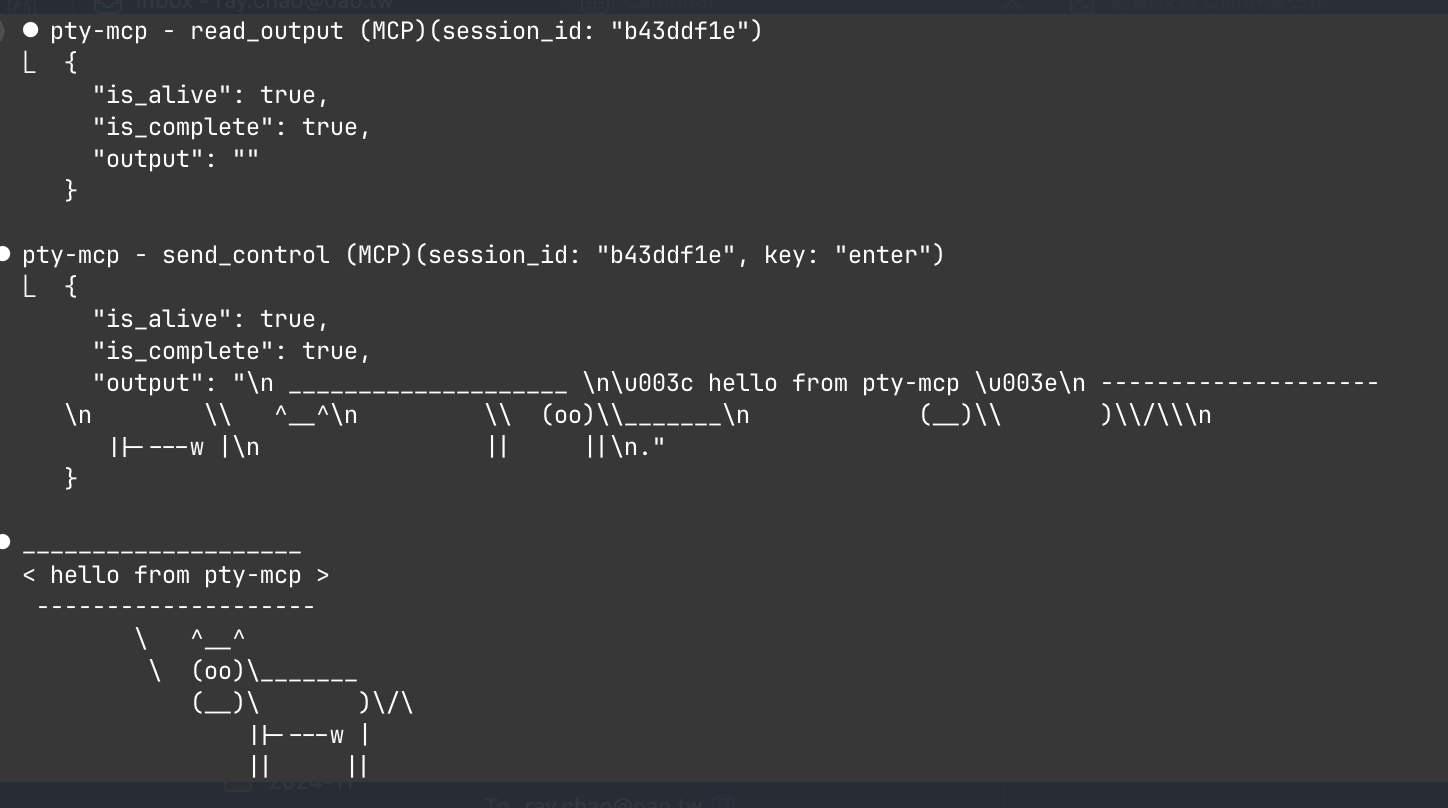
An MCP (Model Context Protocol) server that gives AI agents interactive terminal sessions — local shells, SSH, serial ports, and persistent remote sessions that survive disconnects.
Built for sysadmins and network engineers who want AI to help with real server and device management, not just code generation.
MCP server for interactive terminal sessions — local shells, SSH, serial ports, and persistent remote sessions
MIT
ตรวจสอบล่าสุด
2026-11-05
ดาว
20
เครื่องมือ
—
อัปไทม์
—
Why
AI agents run commands in non-interactive shells. They can't:
SSH into a server and interact with running processes
Connect to routers or switches via serial console
Monitor logs and react when a specific event occurs
Keep session state across multiple commands
Wait for a server to reboot and detect when it's back up
pty-mcp solves all of these by providing real PTY sessions over MCP.
Without pty-mcp, AI agents resort to sleep 30 && check_status loops — burning CPU cycles and API calls waiting for things to happen. With wait_for, the agent blocks server-side until the event occurs. Less polling, less energy, better for polar bears. 🐻❄️
Use Cases
Server administration
# Reboot a server and wait until it's back online
create_local_session("ping myserver")
read_output(wait_for: "bytes from", timeout: 300)
→ blocks until server responds after reboot (~80s, one tool call)
Network device management
# Connect to a router via serial console
create_serial_session(port: "/dev/ttyUSB0", baud: 9600)
send_input("show interfaces status")
read_output(wait_for: "\\$")
Log monitoring and alerting
# Watch logs and act when something happens
create_ssh_session(host: "prod", user: "admin")
send_input("tail -f /var/log/app.log")
read_output(wait_for: "ERROR|CRITICAL", timeout: 3600)
→ returns the error line + context when it appears
Long-running tasks that survive disconnects
create_ssh_session(host: "server", user: "admin", persistent: true)
send_input("apt upgrade -y")
detach_session()          → close Claude Code, task continues
# Reconnect later to check result
Features
Feature
Description
Local terminal
Interactive bash/python/node sessions on local machine
SSH sessions
Connect to remote hosts with key/password auth, SSH config support
Serial port
Connect to devices via serial (IoT, embedded, network gear)
Persistent sessions
Sessions survive SSH disconnects via ai-tmux daemon
Attach/Detach
Detach from a running session, reconnect later
Control keys
Send ctrl+c, ctrl+d, arrow keys, tab, escape
Settle detection
Waits for output to settle before returning (smart timeout)
Pattern matching
wait_for blocks until a regex pattern appears in output (v0.2.0)
Bounded memory
Ring buffer prevents OOM on long-running sessions (v0.2.0)
Resize terminal
Resize the PTY window for local, SSH, serial, and persistent remote sessions (v0.10.0)
Audit log
Optional voluntary operation log — record send_input commands to a collector for review and traceability (v0.8.0)
Audit redaction
Credentials, auth headers, and PEM keys are automatically scrubbed before being written to the audit log (v0.10.0)
go install github.com/raychao-oao/pty-mcp@latest
claude mcp add pty-mcp -- $(go env GOPATH)/bin/pty-mcp
WSL2 Notes
pty-mcp works in WSL2 out of the box. Use the Linux binary:
# Inside WSL2
curl -fsSL https://raw.githubusercontent.com/raychao-oao/pty-mcp/main/install.sh | sh
claude mcp add pty-mcp -- /usr/local/bin/pty-mcp
Optional: Install ai-tmux on remote servers
For persistent sessions that survive SSH disconnects, install ai-tmux on your remote server:
# Download for your server's architecture
curl -fsSL https://raw.githubusercontent.com/raychao-oao/pty-mcp/main/install.sh | sh
# Or just copy the binary:
scp /usr/local/bin/ai-tmux your-server:/usr/local/bin/ai-tmux
Usage Examples
Once registered, the AI agent can use these MCP tools:
create_local_session("ping myserver")
read_output(session_id, wait_for: "bytes from", timeout: 300)
→ blocks until server responds or 5 min timeout

send_input(session_id, "docker-compose up")
read_output(session_id, wait_for: "ready|error", timeout: 60, context_lines: 3)
→ returns matched line + 3 lines of context
Send secret / password (v0.3.0):
# AI detects a password prompt, calls send_secret instead of handling the password itself
create_ssh_session(host: "router", user: "admin")
read_output(session_id, wait_for: "Password:")   → session is waiting for input

send_secret(session_id, prompt: "Router admin password:")
→ native GUI dialog appears on the operator's screen (macOS: system dialog,
   WSL2: Windows Get-Credential, Linux: zenity/kdialog)
→ operator types password — it is sent directly to the PTY session
→ AI only sees: {success: true, length: 12}
→ password never appears in AI context or logs
Persistent session (survives SSH disconnect):
create_ssh_session(host: "server", user: "admin", persistent: true)
send_input(session_id, "make build")      → start long build
detach_session(session_id)                → disconnect, build continues

# Later (even after restart):
list_remote_sessions(host: "server", user: "admin")  → see running sessions
create_ssh_session(host: "server", user: "admin", session_id: "abc123")  → reattach
send_input(session_id, "echo $?")         → check build result
MCP Tools
Tool
Description
create_local_session
Start a local interactive terminal (bash, python3, node, etc.)
create_ssh_session
SSH to a remote host (supports SSH config aliases)
create_serial_session
Connect to a serial port device
send_input
Send a command and wait for output to settle
read_output
Read output, optionally wait for a pattern (wait_for, timeout, context_lines, tail_lines)
send_control
Send control keys (ctrl+c, ctrl+d, arrows, tab, etc.)
send_secret
Prompt the human operator for a secret via GUI dialog; sends it to the PTY session without exposing it to AI context or logs ¹
list_sessions
List all active sessions
close_session
Close a session (terminates remote PTY)
detach_session
Disconnect but keep remote PTY running
resize_session
Resize the terminal window (rows/cols) for any session type
list_remote_sessions
List persistent sessions on a remote host
¹ send_secret platform support: macOS uses a native password dialog (osascript). WSL2 uses powershell.exe Get-Credential (Windows GUI dialog). Linux with a display server uses zenity or kdialog. Headless Linux falls back to /dev/tty. On macOS/Linux, if the operator doesn't respond within 60 seconds, the dialog is dismissed and the call returns a timeout error instead of falling through to another dialog or waiting again; cancelling the call (e.g. pressing ESC in Claude Code) dismisses the dialog immediately the same way. WSL2 is the exception: its dialog has no timeout and is never force-closed, including on cancellation — killing a WSL-interop-launched process that owns an open Windows GUI window was found to freeze the hosting terminal (unresponsive to input, scrolling, and selection) until the operator closes that terminal, with no way to recover it short of that. The dialog just waits until the operator answers or clicks Cancel themselves, which exits normally.
Audit Log
pty-mcp includes an optional audit log feature that records every send_input command to a central collector. This lets teams review and trace what AI agents did during a session.
Important: This is a voluntary, self-reporting operation log. It relies on operators choosing to enable it and run the collector. Because pty-mcp runs on the operator's own machine, there is no technical mechanism to enforce logging — a non-compliant operator could simply run pty-mcp without audit enabled. This feature provides traceability for teams that want it, but it is not a substitute for system-level audit tools (e.g., auditd, syslog forwarding, SSH session recording) in environments where audit compliance is required.
What it records
Timestamp, operator identity, session ID, session type (local/ssh/serial), target host
The exact input sent via send_input (including raw=true inputs like menu selections)
Output snippet (first 2 KB) after each command
A cmd_id linking the command to its output
send_secret is never logged — secrets entered via the GUI dialog do not appear in the audit log.
Commands and output snippets are automatically redacted before being written. The following patterns are replaced with [REDACTED] or [PRIVATE KEY REDACTED]:
Enable audit after setting the collector URL in the config:
# Edit config and set: audit-url=http://your-collector:9099
pty-mcp audit enable
# Restart Claude Code to apply
To temporarily stop logging without losing your config:
pty-mcp audit disable
Operators without a config file are unaffected — audit is off by default.
Audit modes
Mode
Behaviour
best-effort (default)
Commands execute regardless of whether the log was written; entries are queued and retried in the background
strict
send_input is rejected if the audit entry cannot be delivered; use when logging is a team policy requirement
Reviewing logs
Logs are stored as JSONL (one JSON object per line), readable with standard tools:
# All commands by operator ray
grep '"user":"ray"' /var/log/pty-mcp-audit.jsonl | jq .

# Commands sent to a specific host
jq 'select(.target == "root@prod01")' /var/log/pty-mcp-audit.jsonl
ai-tmux: Persistent Terminal Daemon
ai-tmux is a lightweight daemon that runs on remote servers, keeping PTY sessions alive across SSH disconnects. Think of it as tmux designed for AI agents.
Install on remote server
# Cross-compile for Linux
GOOS=linux GOARCH=amd64 go build -o ai-tmux-linux ./cmd/ai-tmux/

# Copy to server
scp ai-tmux-linux server:~/ai-tmux
ssh server "chmod +x ~/ai-tmux && sudo mv ~/ai-tmux /usr/local/bin/ai-tmux"
How it works
ai-tmux server — daemon mode, listens on Unix socket, manages PTY sessions
ai-tmux client — bridge mode, forwards JSON protocol over stdin/stdout (used by pty-mcp over SSH)
ai-tmux list — list active sessions
The daemon auto-starts when pty-mcp connects with persistent: true. Sessions are reaped after 30 minutes of inactivity.
pty-mcp checks ai-tmux --version on the remote host before opening a session and returns a clear error if the binary is missing or below the minimum required version — no cryptic connection errors.
SSH Config Support
pty-mcp reads ~/.ssh/config to resolve host aliases:
# ~/.ssh/config
Host myserver
    HostName 192.168.1.100
    User admin
    Port 2222
    IdentityFile ~/.ssh/id_ed25519