LeafLoom
Keep your knowledge local. Put it to work with AI.
Visit the website & download · Product screenshots, Windows and Mac installers, and release notes.
Help center · Searchable guides for notes, attachments, Design Studio, AI connections and recovery.
Turn scattered notes, project docs and saved webpages into a connected knowledge base. LeafLoom is an open-source, local-first knowledge management workspace and personal wiki for Markdown and HTML, with source-linked search, a knowledge graph, MCP, Skills, AI Chat and ChatGPT integration.
Your files and search indexes live on your computer. Browse, write and search locally; connect AI when you want your knowledge in the conversation.
Download for Windows · Download for Mac
Check supported systems and signing status before installing.
Get started · Connect ChatGPT · MCP, Skills & AI Chat · User guide · Documentation
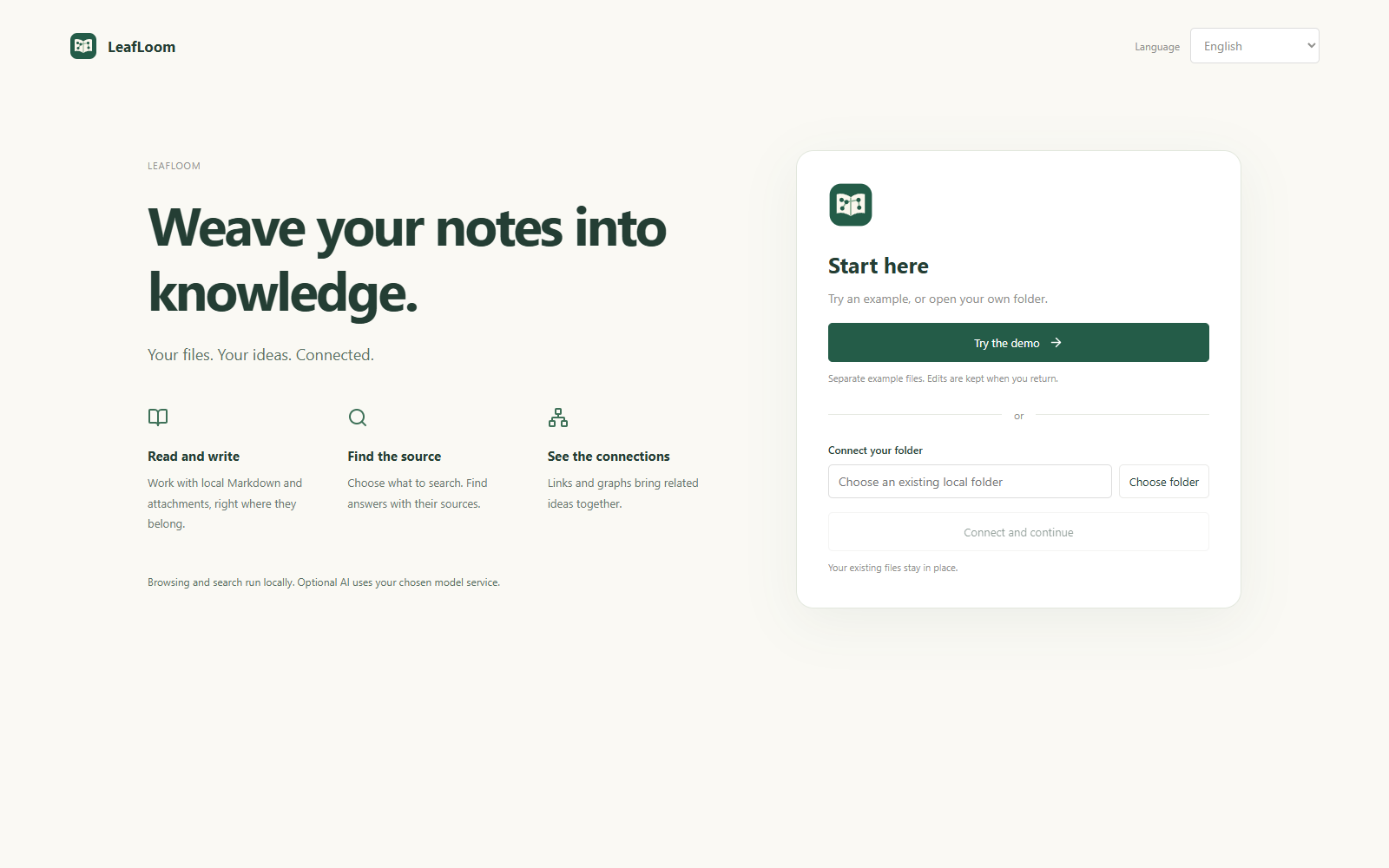
One home for your knowledge
Keep a research library, build a project wiki, collect reading notes, or give your AI assistant a source it can actually cite.
Local by design. Sharing by choice.
- Your knowledge stays in your folders. Browsing, editing, graphs and local retrieval do not upload notes to a hosted knowledge service. After dependencies and any chosen search model are prepared, these features work offline.
- You choose the search scope. No folders are indexed by default. The local service listens only on your computer, and file access stays within the connected folder.
- AI connections are optional. AI Chat may send your question, selected text, enabled note context and retrieved references to your chosen provider. ChatGPT receives requested tool results when you use the connection.
How local storage, access boundaries and AI privacy work
Your local knowledge, in ChatGPT
Bring your own knowledge into the conversation. Select LeafLoom in a ChatGPT web conversation to search your chosen folders, read notes and follow the sources while you chat. Your LeafLoom computer must be online with the app running. Enable full note access and its separate write switch in Settings to let ChatGPT create, edit, organize and recover notes. RAG keeps your selected scope.
Open ChatGPT · Add a connection in ChatGPT Plugins · Official Tunnel setup guide
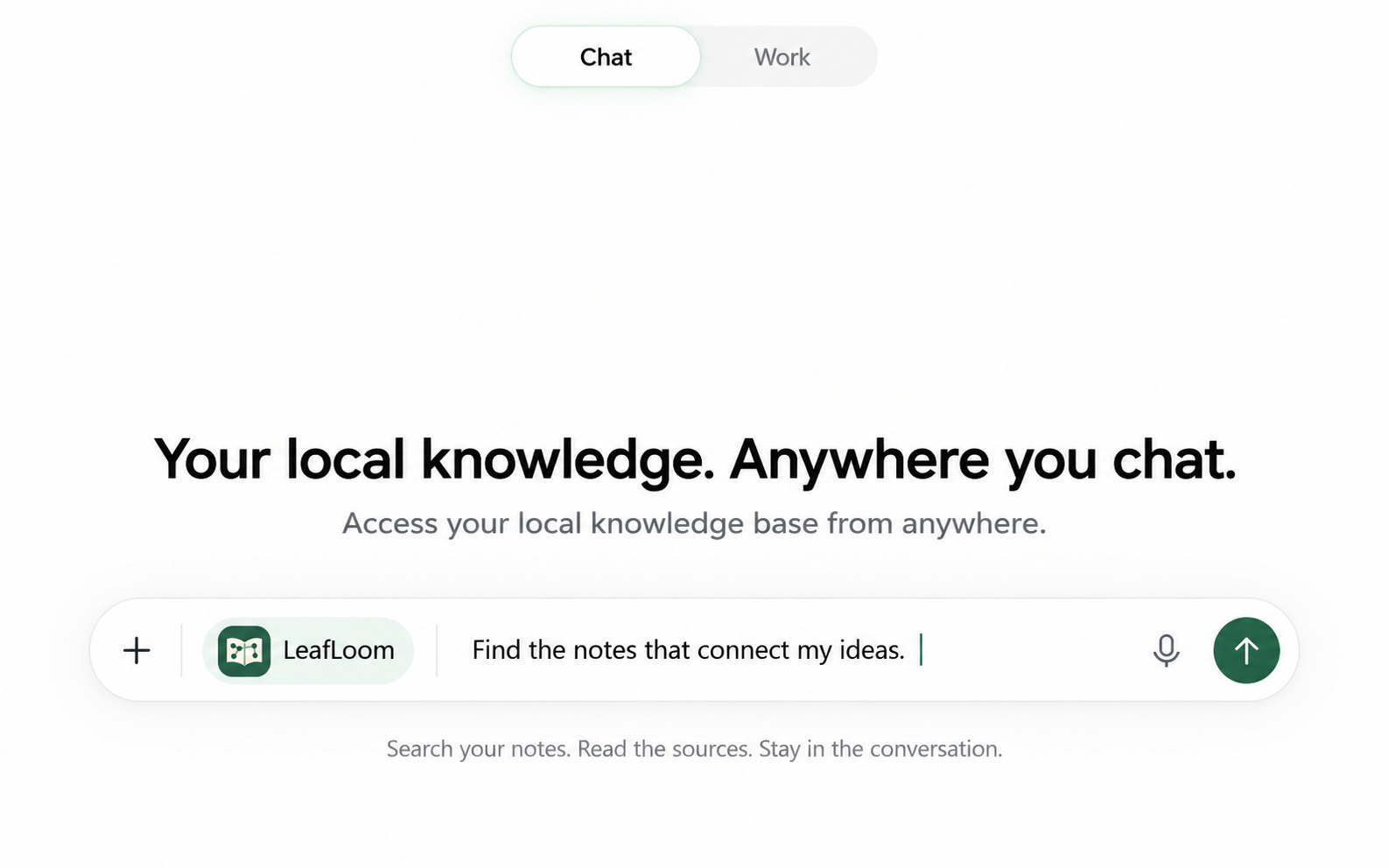
Illustrative Chat experience; the settings below are captured from the actual desktop app.
Connect once, start with the app
Before starting, you need an existing OpenAI Tunnel, its runtime App Key and a ChatGPT workspace that allows custom MCP connections. Installing LeafLoom does not create these. Follow the official setup guide first if needed; the local workspace works without this connection.
- In the LeafLoom desktop app, open Settings → AI connections → ChatGPT connection. Enter your existing Tunnel ID and App Key with Tunnels Read + Use permissions, then choose Save and connect. The client is built in: no separate download, configuration file or terminal is needed.
- In ChatGPT, add a custom MCP server, choose Tunnel, enter the same Tunnel ID and select No authentication. Install the connection and select LeafLoom in your chat. The Tunnel must be associated with your ChatGPT workspace, which must allow custom MCP connections; see the official setup guide.
- Ask, for example: “Find my notes about this topic and show the sources.” Choose your searchable folders in LeafLoom first; no folders are indexed by default.
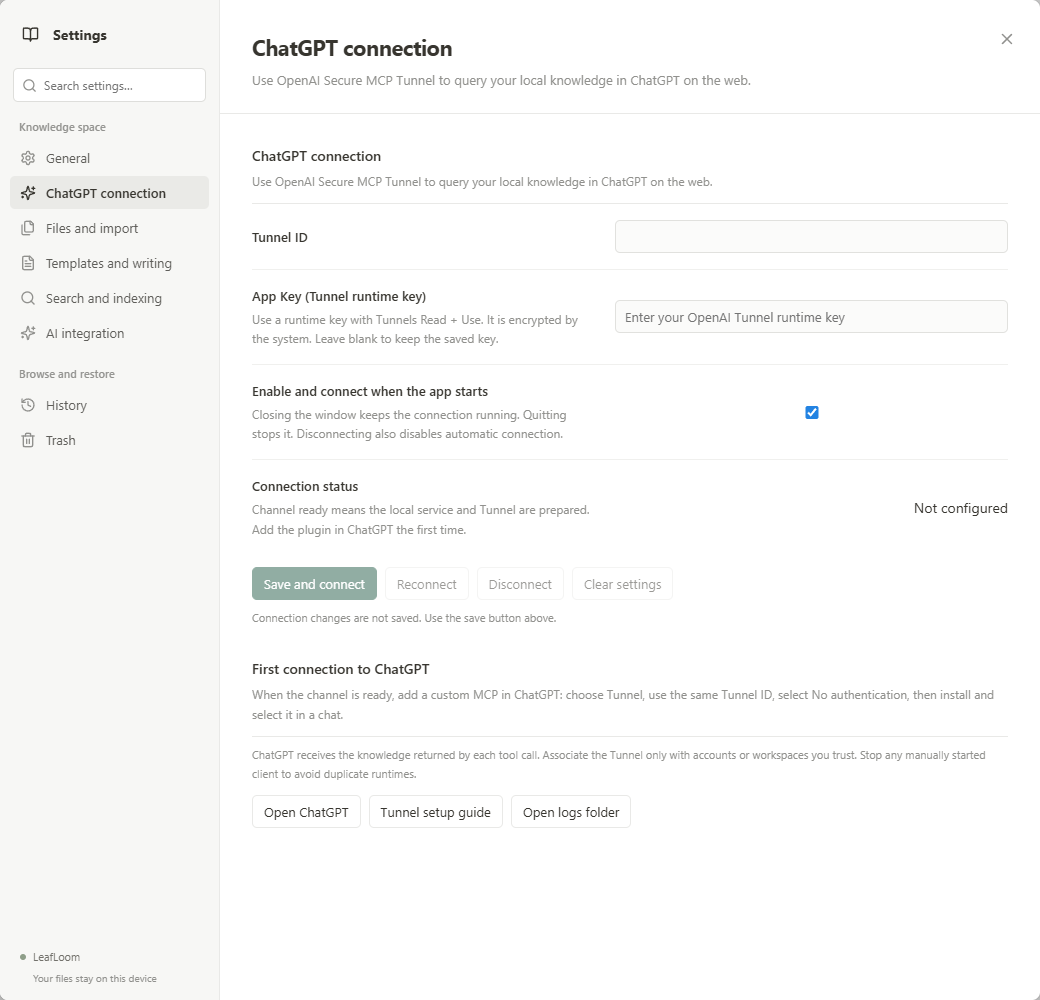
The App Key is encrypted by the operating system. Connections start with LeafLoom, continue while the window is closed to the tray, and stop when you quit. Disconnect disables automatic connection until you enable it again. Notes stay on your computer; requested tool results are sent to ChatGPT.
Desktop installation and connection details · Platform validation and current limits
MCP, Skills and AI Chat
Use your knowledge where you already work, with source references you can check.
Set up AI Chat, MCP and Skills
A workspace for connected thinking
Try the built-in learning studio from Try the demo on first launch. It includes connected notes, a local HTML reading room, and reusable project, reading and decision templates. You can edit the examples; reopening the demo keeps your changes.
Markdown, ready to read and write
Edit directly on the formatted page: use / commands, drag blocks, edit tables, and paste screenshots or drop attachments. Switch to Markdown source with shared undo history; unchanged source and properties are preserved. Ordinary edits autosave, while AI drafts require manual saving. Markdown editing guide.
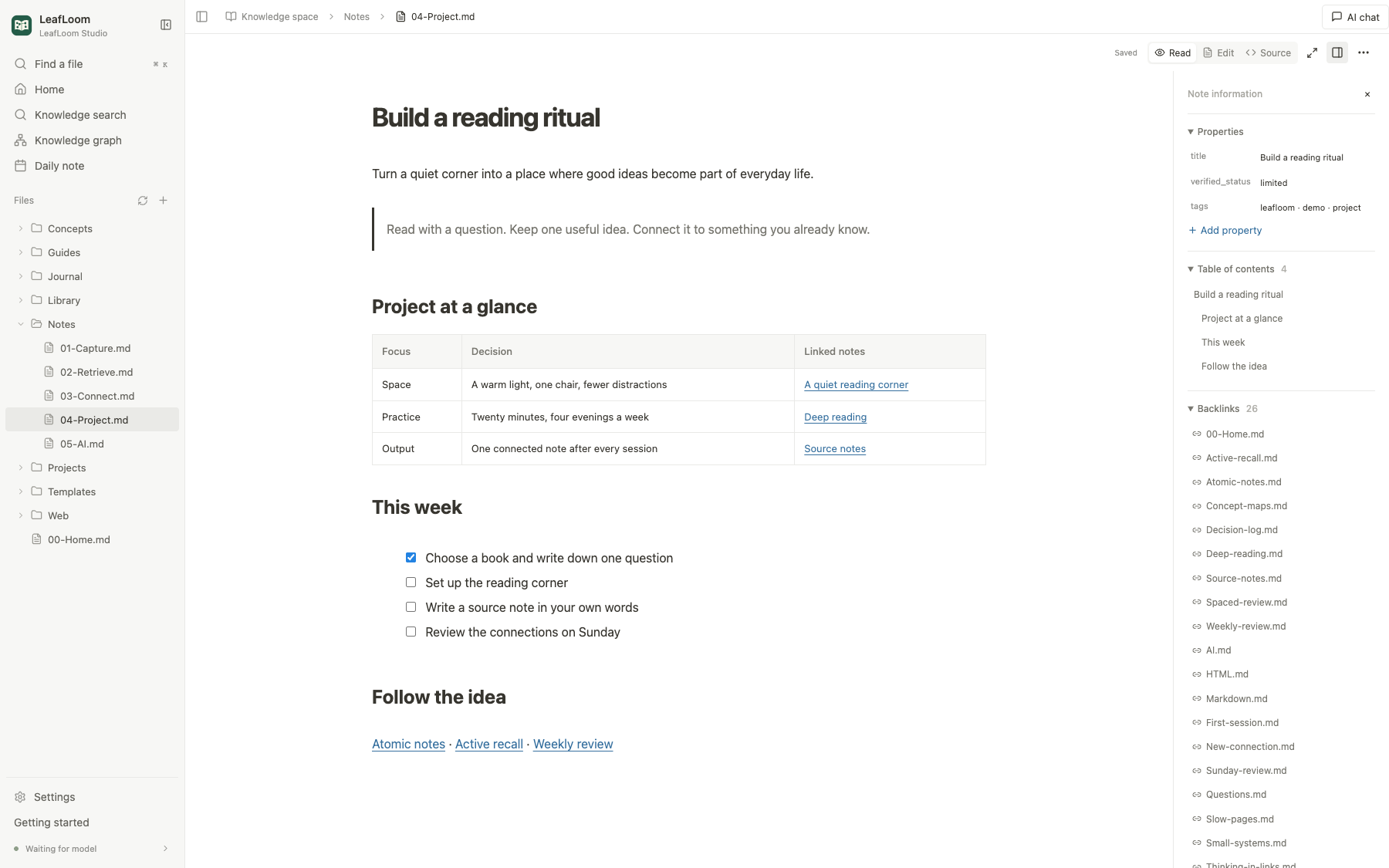
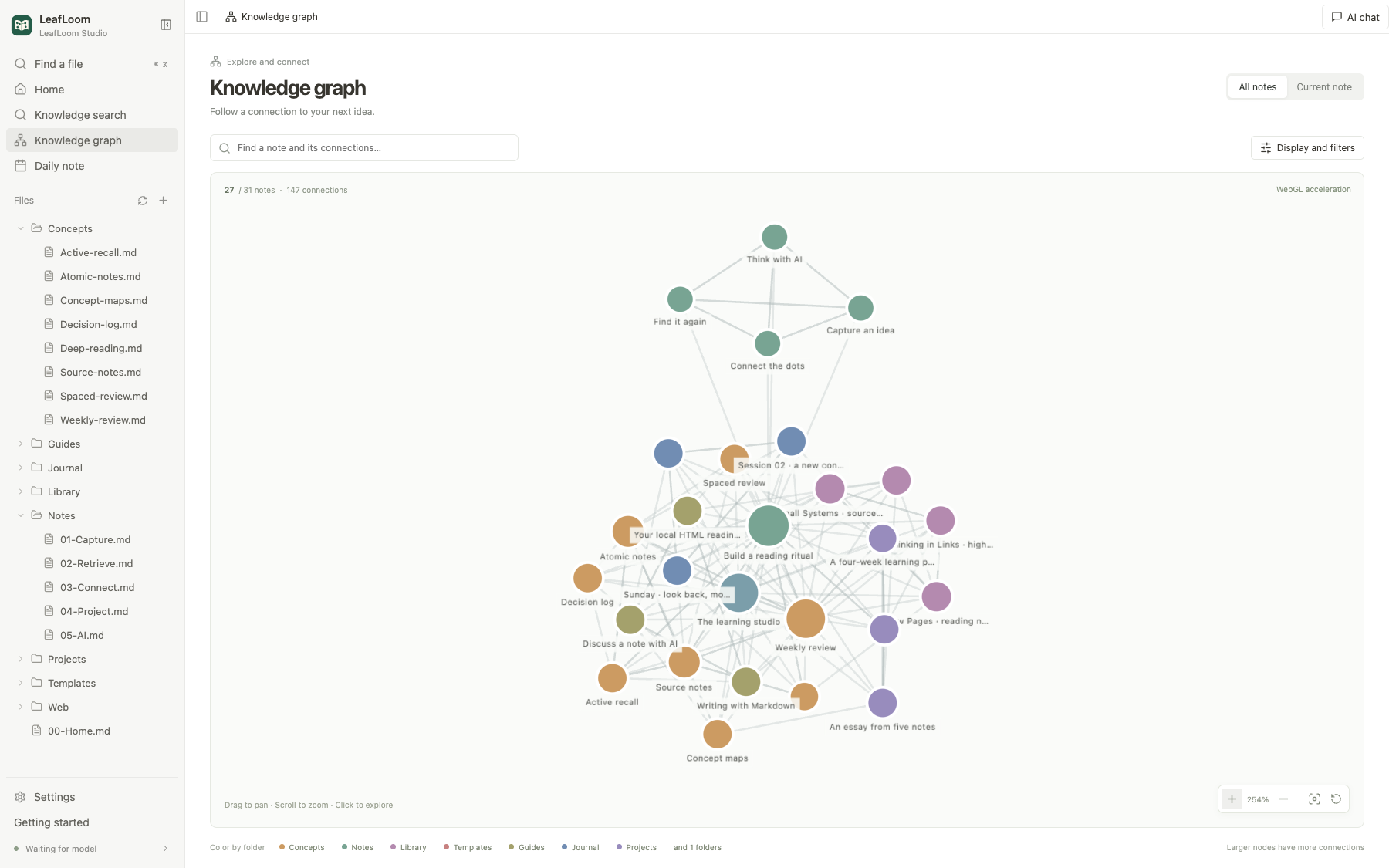
See how your ideas connect
Follow a backlink to the idea behind a decision, or explore the graph to discover a connection you had forgotten. The starter vault shows real links across concepts, projects, reading notes and journals.
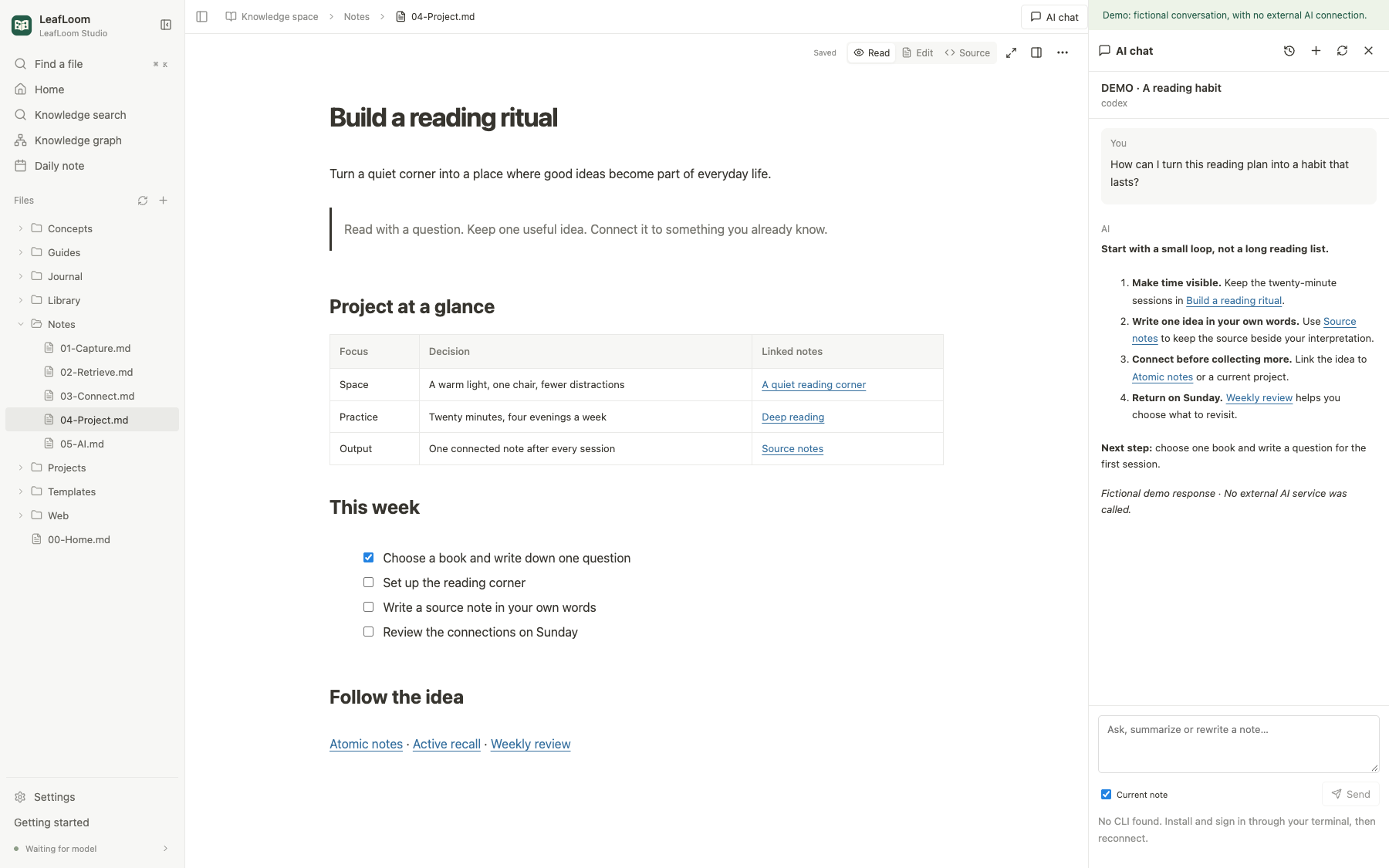
Think alongside your notes with AI Chat
Keep the current note beside a conversation and follow references back to the source. This screenshot uses an explicitly labeled fictional conversation; no external AI was called.
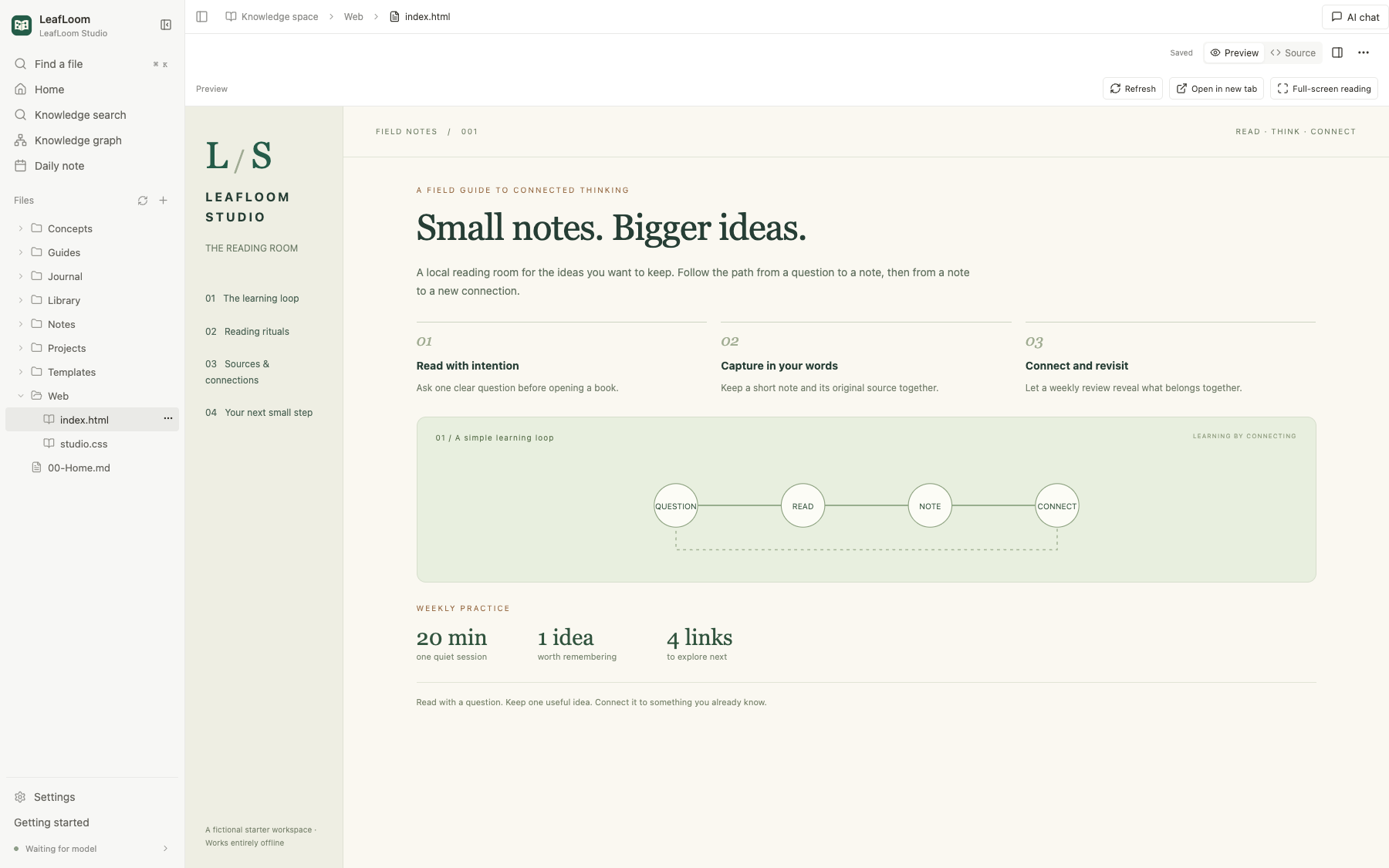
Open local HTML inside your workspace
Open a local .html or .htm file, confirm its project folder once, and run the website with its companion styles, scripts and resources. Use project navigation, downloads, optional SPA routing, or open an existing HTTP/HTTPS site or development server from Preview. HTML project guide. The HTML reading room below is included in the demo.
Get started
Recommended: install the desktop app from the latest Release. No repository clone or preinstalled Python, Node or Ollama is needed.
Before installing: Windows packages are unsigned; Mac packages use ad-hoc signing and are not Apple-notarized. SmartScreen or Gatekeeper may warn or block installation. No Linux, Intel Mac or Windows ARM installer is provided. See the release's signing status and desktop validation limits.
Try your first source-linked search
No AI account, CLI or semantic-search model is needed for this walkthrough.
- Choose English → Try the demo. The included notes are fictional and separate from your own files; demo edits are kept when you return.
- In the search-scope step, select Concepts, then Save and continue → Start exploring. You can leave model preparation for later. No folders are selected automatically.
- Open Knowledge search in the sidebar and search for Atomic notes. Open the result for
Concepts/Atomic-notes.mdto read the original note, then follow its Source notes link. - If there are no results, check Settings → Search and indexing for the selected scope and indexing status. A keyword/Wiki fallback without a prepared semantic model is expected; it does not mean semantic indexing is complete.
Search scope: Only selected .md and .txt notes are indexed. HTML, images, videos and attachments can be browsed, but are not indexed or transcribed for knowledge search. Ctrl/⌘+K finds files by name; Knowledge search searches eligible note content.
When ready, connect your own folder in Settings. Files stay in place, and edits you save change those original files. Prepare BGE-M3 from search settings only when you want local semantic retrieval.
Detailed installation and platform validation
git clone https://github.com/DJ-Huang/LeafLoom.git
cd LeafLoom
- Download or clone this repository into a writable local folder.
- Install Node 22+ (with npm) and uv. Windows 10/11 x64: double-click
Dev.cmd. macOS 14+ Apple Silicon: double-clickDev.commandor runsh Dev.sh. - First launch prepares a separate Python environment and dependencies, then opens the source desktop with automatic frontend updates. Dev shares the installed app's user settings, models and data. Only development dependencies stay in
.cache/desktop-dev/.venv. Quit the running app before switching modes. The local search model is prepared only when requested in settings. - Choose a language, try the fictional demo or connect your folder, then explicitly select what to search.
Optional browser development: Run the real backend with a dedicated state directory and browser profile, without Electron. The opt-in --loopback-ui mode uses literal localhost when a managed browser cannot open *.localhost; isolated HTML project previews may still be affected. See setup and limits. This does not add Linux desktop installer support.
📖 User guide and FAQ · ✨ AI connections
Languages
Feel at home in English, 简体中文 or 日本語. The interface, onboarding, user guides and feature screenshots cover all three languages. Language preferences are saved separately from indexing settings.
Your knowledge. Your deployment. Your control. Run LeafLoom on your own supported computer. Local-only access, private authentication and folder boundaries keep you in control. Deployment and security.
What to expect
Reading, editing, graphs and keyword search work without a model. Prepare BGE-M3 in search settings when you want local semantic retrieval. External AI and ChatGPT require their own accounts, permissions and network access.
The desktop installer supports the platforms above. This is not cloud sync, universal Obsidian plugin support or media transcription.
Update and contribute
Desktop app: Quit LeafLoom, install the updated package for your platform from Releases, then reopen it.
Source development: Update the repository and relaunch Dev. Frontend edits update automatically; Python/Electron edits require quitting Dev from its tray/menu-bar menu and relaunching. Installed apps are managed through their own shortcuts and menus.
Contributing · Changelog · Third-party notices · Media
MIT © 2026 DJ. Dependencies and models keep their own licenses. License
Technical compatibility: vault-rag, VAULT_RAG_HOME, .vault-rag/, HTTP MCP /mcp.