Docker TUI
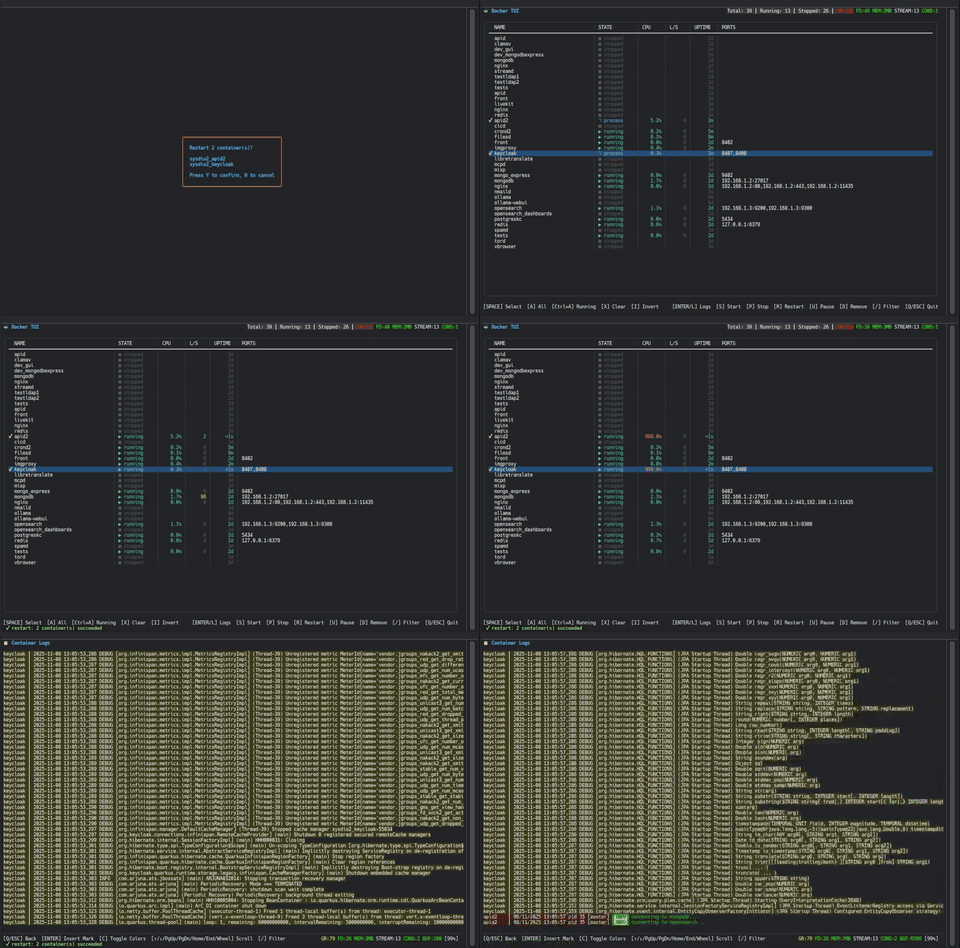
A modern, fast Terminal User Interface (TUI) for managing Docker containers, built with Go and Bubbletea.
Features
- 🐳 Container management (start/stop/restart/pause/remove)
- 📋 Real-time log streaming with regex filtering
Power your agent
Cài đặt từ nhà phát hành. Không phải endpoint của PlugMCP.
Host a copy with our keys and logs.
Chưa có bản phát hành đóng gói nào trong registry. Làm theo README của kho mã.
URL từ xa hay một lệnh trên máy của bạn? Hai cách cài đặt khác nhau thế nào
Chạy trên PlugMCP
A new server you create. It is not this listing's official endpoint. Use the publisher install when you want their URL and their credentials.
MởTừ nhà phát hành
A modern, fast Terminal User Interface (TUI) for managing Docker containers, built with Go and Bubbletea.
A Text User Interface (TUI) for managing Docker containers and view realtime logs, embed a MCP Server for Claude Code
go install github.com/eviltik/docker-tui@latest
Download pre-built binaries from the releases page:
# Linux (amd64)
curl -L https://github.com/eviltik/docker-tui/releases/latest/download/docker-tui-linux-amd64.tar.gz | tar xz
sudo mv docker-tui /usr/local/bin/

# macOS (Apple Silicon)
curl -L https://github.com/eviltik/docker-tui/releases/latest/download/docker-tui-darwin-arm64.tar.gz | tar xz
sudo mv docker-tui /usr/local/bin/
# Clone the repository
git clone https://github.com/eviltik/docker-tui.git
cd docker-tui

# Build the binary
make build

# Install system-wide (optional)
sudo make install
Simply run the binary:
./docker-tui
Or if installed system-wide:
docker-tui
docker-tui [OPTIONS]
Options:
--demo - Hide container name prefixes (removes text up to first underscore) - useful for presentations--debug-monitor - Show debug metrics (goroutines, file descriptors, memory, active streams)--logs-buffer-length SIZE - Maximum log lines in buffer (default: 10000, minimum: 100)--mcp-server - Enable MCP HTTP server alongside TUI (default port: 9876)--mcp-port PORT - Set MCP server port (default: 9876)--help, -h - Show help message with all options and keyboard shortcutsExamples:
docker-tui                                    # Run in normal mode
docker-tui --demo                             # Run in demo mode (clean container names)
docker-tui --debug-monitor                    # Run with debug metrics displayed
docker-tui --logs-buffer-length 50000         # Use 50k lines buffer for logs
docker-tui --mcp-server                       # Run with MCP server on port 9876
docker-tui --mcp-server --mcp-port 9000       # Run with MCP server on custom port
docker-tui --help                             # Show help
SPACE to toggle individual containersShift+↑/↓ for range selection✓C key (useful for copying logs)ENTER to insert a timestamp mark/ key)Container List Filtering:
/ to enter filter modeENTER to apply filter or ESC to cancelLog Filtering:
/ to enter filter modeQ or ESC to clear filterAll actions support both single and multi-container operations:
Multi-container operations (>1 selected) show a confirmation dialog with the list of affected containers.
All panics are automatically captured and logged to /tmp/docker-tui-crash.log with:
If Docker TUI crashes, check the crash log for detailed diagnostics:
cat /tmp/docker-tui-crash.log
Customize the log buffer size with --logs-buffer-length:
docker-tui --logs-buffer-length 50000  # 50k lines buffer
docker-tui --logs-buffer-length 1000   # 1k lines buffer (low memory)
Default: 10,000 lines. Minimum: 100 lines.
Larger buffers allow viewing more historical logs but consume more memory. Adjust based on your needs and available resources.
Docker TUI includes a built-in MCP HTTP server that exposes Docker container management capabilities to AI assistants like Claude Code. The server runs alongside the TUI (or in HTTP-only mode without TTY) and provides programmatic access to container operations and logs.
list_containers - List all Docker containers with status and resource usage
get_logs - Search and fetch container logs with advanced filtering
get_stats - Get detailed resource statistics
start_container - Start stopped containers
stop_container - Stop running containers
restart_container - Restart containers
# Start the MCP server
docker-tui --mcp-server --mcp-port 9876 &

# Add to Claude Code
claude mcp add-json docker-tui '{
  "type": "http",
  "url": "http://localhost:9876/mcp"
}'
Add to your ~/.claude.json:
{
  "mcpServers": {
    "docker-tui": {
      "type": "http",
      "url": "http://localhost:9876/mcp"
    }
  }
}
Then start the server:
docker-tui --mcp-server --mcp-port 9876
Create .mcp.json in your project:
{
  "mcpServers": {
    "docker-tui": {
      "type": "http",
      "url": "http://localhost:9876/mcp"
    }
  }
}
Once installed, you can test each tool with Claude Code. Here are example prompts:
Show me all my running Docker containers
List all containers including stopped ones
Find containers with "nginx" in their name
Show me the last 50 lines of logs from my nginx container
Get logs from redis container and filter for errors
Show me logs from all containers matching "api" with lines containing "WARNING"
Get the last 10 lines from mongodb container using regex filter for "connection.*failed"
What's the CPU usage of my running containers?
Show me detailed stats with CPU history for the postgres container
Get resource usage for all containers matching "web"
Start the nginx container
Start all containers with "test" in their name
Stop the redis container gracefully
Stop all containers matching "dev"
Restart the mongodb container
Restart all api containers
List all running containers, then show me logs from the one using the most CPU
Find containers with "staging" in the name, get their stats, and restart any that are using more than 80% CPU
Show me all stopped containers, then start the ones that contain "service" in their name
When running in an environment without a TTY (like Docker or systemd), the server automatically runs in HTTP-only mode:
# In a Docker container or background service
docker-tui --mcp-server --mcp-port 9876
# Output: Running in HTTP-only mode (no TTY detected)
/var/run/docker.sock)# Build for current platform
make build
# Run without building
make run
# Build for all platforms
make dist-all
# Clean build artifacts
make clean
# Run tests
make test
# Format code
make fmt
If you get "permission denied" accessing Docker socket:
# Add your user to docker group
sudo usermod -aG docker $USER

# Or run with sudo (not recommended)
sudo ./docker-tui
Make sure Docker daemon is running:
# Check Docker status
systemctl status docker

# Start Docker
sudo systemctl start docker
Contributions are welcome! Please feel free to submit a Pull Request or suggest improvement by opening a ticket.
MIT License - see LICENSE file for details
eviltik
A Text User Interface (TUI) for managing Docker containers and view realtime logs, embed a MCP Server for Claude Code
Công cụ
Chưa có danh sách công cụ. Máy chủ từ xa sẽ có danh sách sau lần kiểm tra tình trạng đầu tiên.
Câu hỏi thường gặp
Sao chép cấu hình stdio cho Cursor, Claude Desktop, Claude Code hoặc VS Code trên trang này. Cấu hình dùng bản cài đặt của nhà phát hành, không phải proxy của PlugMCP.
Bản ghi này không liệt kê biến môi trường bắt buộc nào.
Docker Tui chạy cục bộ qua stdio.
Kiểm tra lần cuối: 2026-10-28. A Text User Interface (TUI) for managing Docker containers and view realtime logs, embed a MCP Server for Claude Code
