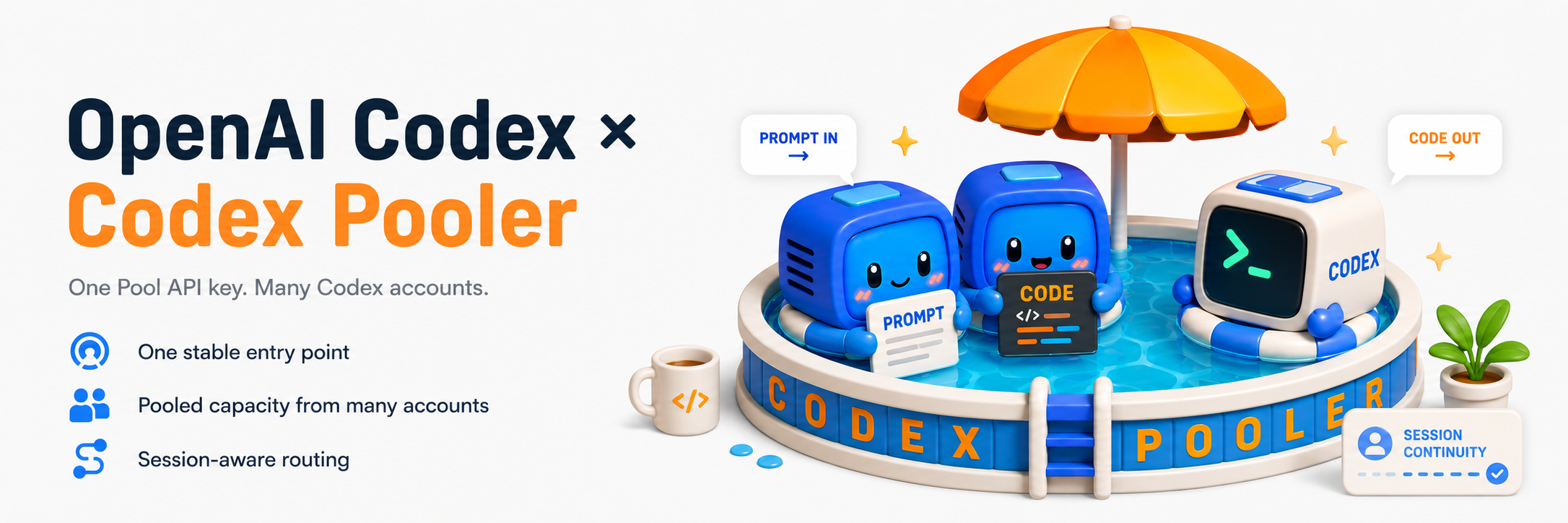
Codex Pooler is a self-hosted gateway for running Codex-compatible agents,
tools, and automation through stable Pool API keys. It works with one upstream
Codex account for credential isolation, client normalization, metadata-only
operations, and saved reset visibility; add more accounts when you want shared
capacity and routing across eligible accounts.
Clients send familiar Codex backend or OpenAI-compatible requests; Codex Pooler
selects an eligible account based on model support, quota evidence, limits,
session continuity, routing policy, and health. The Pool key stays stable while
upstream assignments, lifecycle state, reset policy, and capacity change behind
it.
The full featured self-hosted Codex gateway, for teams, agents and you
星數
242
工具
—
可用率
—
Operators get one place to manage Pools, accounts, API keys, saved resets,
routing, request accounting, audit logs, and health without storing prompts,
files, audio, images, bearer tokens, or raw Codex secrets. Instance owners keep
the global administration surface, while instance admins work only with their
assigned Pools.
Highlights
🧩 Use the tools you already know: connect Codex, OpenCode and other
supported coding agents, plus apps built with OpenAI-compatible SDKs
🔑 One key for your apps: connect tools with a Pool API key that stays the
same when you add or replace Codex accounts, without sharing account credentials
⚡ High cache reuse across protocols: over 95% cached input observed on
HTTP/SSE and WebSockets, backed by cache-aware routing and connection reuse
🎯 Automatic account selection: send requests to accounts that can serve
the chosen model, with available quota and account health taken into account
📏 Control how much each key can use: set request limits and daily or
weekly AI usage allowances
🚀 Give agents more room to work: let them use several tools at once in
Full mode, with Lite compatibility when needed
🖼️ Images and voice, too: generate and edit images or transcribe audio
through supported apps, using the same Pool API key
🛡️ Keep conversation content private: track usage and troubleshoot requests
without saving prompts, replies, uploaded files, images or audio
🔁 Keep conversations together: keep supported sessions linked to the
right account when a client reconnects
🔭 Let users track their own usage: enable a personal Observatory dashboard
for each key, showing activity, response times and estimated costs
🏦 Put saved resets to use: see available reset credits and use them to
restore account quota, manually or automatically when enabled
🖥️ Manage everything in one place: add accounts, manage keys and invites,
check usage and change settings from a browser
👥 Organize teams and projects: group accounts into Pools with their own
access rules and model choices
🤝 Connect accounts by invitation: let account owners join a Pool through
a guided browser flow, without sending you credential files
🚨 Know when attention is needed: receive alerts about low capacity,
account problems and reset events in the dashboard, by email or through webhooks
🔎 Spot model downgrades: see when the provider
reports a different model from the one sent, or changes the model name during a response
🧷 Fill in missing continuity: derive stable session identities from cache
keys or conversation IDs when a harness does not send them directly
🧱 Choose who can connect: optionally allow requests only from approved
networks
🐳 Run it on your own infrastructure: start with Docker Compose or deploy
on Kubernetes as your needs grow
Harness Configuration
Start with a running Codex Pooler instance, a Pool API key, and an installed
client. The examples include gpt-6-luna, gpt-6.1-sol and gpt-6-astra, with
Sol selected by default. Keep the models available to your Pool.
Replace <pool-api-key> with your key and run the command for your terminal
before starting the client.
macOS / Linux / Windows WSL (bash or zsh)
export CODEX_POOLER_API_KEY="<pool-api-key>"
Windows PowerShell
$env:CODEX_POOLER_API_KEY = "<pool-api-key>"
These commands set the key for the current terminal. For desktop apps, follow
the linked guide to save the key for the app.
The paths below are defaults. On macOS/Linux, ~ is your home folder.
On Windows, paste paths starting with %USERPROFILE%, %APPDATA% or
%LOCALAPPDATA% into File Explorer's address bar. If you installed a client
inside WSL, use its Linux paths and commands inside WSL. Custom configuration
folders or profiles take precedence over these defaults.
For a local instance:
Client
Base URL
Codex CLI / Desktop
http://localhost:4000/backend-api/codex
Other harnesses and SDKs
http://localhost:4000/v1
For a deployed instance, replace http://localhost:4000 with your instance's
host, such as https://codex-pooler.example.com. Merge snippets into existing
configurations. The examples use the large 828,400-token context for GPT-6.
Codex CLI and Desktop read the available context size automatically from your Pool.
Each entry covers the basic connection. Its full setup & extras link covers
installation, advanced options and troubleshooting. Operator MCP is optional
and uses a separate token; see Operator MCP Service.
System
Configuration file
macOS / Linux
~/.codex/config.toml
Windows
%USERPROFILE%\.codex\config.toml
Open config.toml at the path for your system and add the following. If you
set CODEX_HOME, use the file in that folder instead. Keep name = "OpenAI"
to preserve Codex's native features. Catalog discovery is enabled by default;
model_catalog_url points it at your Pool.
This setup includes image generation and voice-to-text. To switch the chat
model, set model.default to a model available to your Pool.
Keep all three addresses pointed at your Codex Pooler instance. Your Pool must
also offer the image and transcription models to use those features.
Full setup & extras — images, speech-to-text, priority processing and troubleshooting.
System
Configuration file
macOS / Linux
~/.pi/agent/models.json
Windows
%USERPROFILE%\.pi\agent\models.json
Open models.json at the path for your system and add this configuration:
The 80% trigger leaves room for compaction instructions and recent tool results. Keep reserveTokens aligned with the output budget. For an existing session already near its limit, see the compaction recovery notes.
In Settings → Models → API Keys, enable OpenAI API Key and
Override OpenAI Base URL. Enter your Pool API key and a public HTTPS URL
such as https://codex-pooler.example.com/v1, then select a model available
to your Pool.
Cursor BYOK requires Pro or higher. Requests pass through Cursor's
servers, so localhost and private LAN URLs do not work. Use an explicit model
instead of Auto mode.
Save your Pool API key in Continue as CODEX_POOLER_API_KEY using the
secret setup instructions.
Then open config.yaml at the path for your system and add this configuration:
Run dsh --profile headless --dump-default-config once to create the
configuration, then open cordis.patch.yml at the path for your system and
add the following. If you set DSH_HOME, use its profiles/headless folder:
Use a URL reachable from the Windmill server; private addresses require
ALLOW_PRIVATE_AI_BASE_URLS=true on that server.
Full setup & extras — resource creation, workspace configuration and supported features.
Home Assistant's OpenAI Conversation integration can use Codex Pooler's narrow
OpenAI-compatible /v1 surface from a Home Assistant Container process. Set the
endpoint in the container environment, then add the integration in Home
Assistant and enter a Pool API key:
Restart Home Assistant before adding the integration. Choose a model returned by
GET /v1/models; use Full serving mode when Assist needs tools. The integration
form has no custom endpoint field, and Home Assistant's official docs do not
endorse third-party endpoints. This is the tested Container setup for Codex
Pooler.
To configure reasoning, open OpenAI → Conversation subentry → Reconfigure conversation agent and disable Recommended model settings. Enter the exact model ID returned by GET /v1/models (for example, gpt-6-luna if listed), then choose a Reasoning effort supported by that model. Reasoning summary: Off only hides the summary; Reasoning effort: None disables reasoning where the model supports it.
Full setup & extras — container environment, model selection, request verification and compatibility limits.
In OpenHands Agent Canvas, select the native OpenHands agent. Under Settings → LLM → Add LLM Profile → Advanced, set:
Custom Model:openai/gpt-6-luna (or another exact model ID served by your Pool)
Base URL:https://codex-pooler.example.com/v1, reachable from the Canvas backend
API Key: your Pool API key
Link this LLM profile under Settings → Agent and use Full serving mode for the verified tool workflow. For a local Pooler with Canvas on Docker Desktop, use http://host.docker.internal:4000/v1.
This runs the published release image with a local Postgres database. It is the
fastest way to try Codex Pooler on a laptop or small server.
For normal use, run a versioned, tagged stable release from GitHub Releases. The latest image tag follows the most recently published release, but a version tag keeps the installation reproducible; run from source only in Local Development.
Prerequisites:
Docker with Compose
Git, if you are cloning the repository
openssl
Start Codex Pooler:
git clone https://github.com/icoretech/codex-pooler.git
cd codex-pooler

# Run the latest tagged stable release. Find its version at
# https://github.com/icoretech/codex-pooler/releases, then substitute it here.
export CODEX_POOLER_IMAGE_TAG=<release-tag>

scripts/self-host/generate-env.sh
docker compose pull
docker compose up -d
The first run pulls the app and Postgres images, waits for Postgres health, runs
the migration container, then starts the web app.
Open http://localhost:4000. On the first visit, create the owner account at
/bootstrap, then sign in and start with /admin/pools.
To verify the first-run redirect before opening a browser:
To upgrade an existing Compose install, set CODEX_POOLER_IMAGE_TAG in .env
to the target tagged stable release, then run:
docker compose pull
docker compose up -d
The Compose stack has a one-shot migrate service. It waits for Postgres, runs
release migrations, imports the bundled pricing snapshot, and exits before the
web app starts. Normal app boot does not migrate the database by itself. If a
failed migration needs to be rerun after fixing configuration or database
access, run:
docker compose up -d db
docker compose run --rm migrate
docker compose up -d app
Use http://localhost:4000 for the default Compose stack even if the Phoenix
startup banner prints an endpoint URL such as https://localhost; the Compose
port mapping is the local URL to open. The release image includes the OS
timezone database used for operator timezone display.
To remove the local database too:
docker compose down -v
First Runtime Setup
After bootstrap:
Create a Pool in /admin/pools
Link, import, or invite one or more Codex accounts in /admin/upstreams
Create a Pool API key in /admin/api-keys
Point Codex or SDK clients at one of the runtime base URLs:
One upstream account is enough for a working setup. Additional upstreams expand
the same Pool into shared capacity without changing client credentials.
Prefer OAuth in /admin/upstreams for new operator-managed upstream
accounts when browser authorization is practical. The admin dialog links the
account, stores resulting credential material through encrypted upstream secret
storage, and stays metadata-only after completion. Use Import only when an
existing Codex auth.json is the right source of credentials.
Treat an imported Codex auth.json as owned by Codex Pooler after import. Do
not keep using the same auth.json from another Codex install, machine, or
automation unless you accept that provider refresh-token rotation can invalidate
one copy and move the account to reauth_required.
Hosted invite onboarding and the OAuth device-code fallback use OpenAI's Codex
device-code authorization. This setup is only needed for hosted invites and the
OAuth device-code fallback; browser OAuth linking does not depend on it. For a
personal ChatGPT account, open chatgpt.com, go to Settings > Security, and enable
Enable device code authorization for Codex. For workspace-managed accounts,
ask a workspace admin to enable device-code login for Codex in the workspace
permissions. OpenAI's Codex authentication docs
describe device-code login. The invite or fallback flow can fail at the OpenAI
approval step when device-code authorization is off.
Codex backend base URL: http://localhost:4000/backend-api/codex
OpenAI SDK base URL:    http://localhost:4000/v1
Use the generated Pool API key as the bearer token. That key represents the
Pool, not a single Codex account, so Codex Pooler can pick the best eligible
account for each request. Raw API keys are shown only once when created or
rotated.
Operator Roles
The first bootstrap account is an instance_owner. Owners have instance-wide
administration access: they create Pools, assign operators to Pools, manage
operators, inspect global jobs, and change system settings.
Additional operators can be owners or instance_admins. Instance admins are
Pool-scoped: they can work only with active Pools assigned to them and metadata
derived from those Pools. If no Pools are assigned, the admin UI shows empty
Pool-scoped states instead of exposing global data. Archiving or deleting a Pool
removes future instance-admin visibility for that Pool; historical request and
audit rows for archived or deleted Pools remain owner-only.
Runtime Compatibility
Use the client guides when wiring a specific tool. At a glance, clients pick one
of two public shapes:
Codex backend clients use /backend-api/codex for Codex-native behavior
such as sessions, compacting, files, audio, images, and backend websockets.
OpenAI-compatible clients use /v1 for supported SDK-style Responses,
chat, files, audio, image, and model-list calls.
Both paths authenticate with Pool API keys and route through the same Pool
policy, account health, model support, quota evidence, session continuity, and
metadata-only accounting. Codex Pooler is intentionally not a wildcard OpenAI
proxy; unsupported API areas fail predictably. For exact route details, use the
Runtime Routes
reference and the
OpenAI-compatible client guide.
Operator MCP Service
Codex Pooler includes an optional metadata-only MCP endpoint at /mcp for
trusted operators who want an MCP host to inspect Pools, upstream accounts, Pool
API key metadata, operators, invites, request logs, audit logs, and MCP service
status. This operator add-on is not required for Codex Pooler runtime clients.
The service is read-only and has no mutation tools. It uses the same owner vs
assigned-Pool visibility model as the admin UI, but connected MCP hosts can read
the metadata visible to that operator, so only connect hosts you trust with that
view.
MCP access uses operator-owned bearer MCP tokens, not Pool API keys, browser
sessions, cookies, query tokens, invite tokens, upstream tokens, or custom
headers. Operators manage their own MCP account gate and tokens from
/admin/settings?tab=account; the instance-wide service gate is managed from
/admin/system. Both gates must be enabled before a token works. Raw MCP tokens
are shown only once when created, and per-key usage tracking, counters, last IP,
and user-agent history are intentionally not stored.
The /mcp route inherits the runtime ingress IP allowlist and trusted-proxy
settings. If the allowlist is empty, the firewall is off; if it is configured,
the resolved client IP must match before MCP authentication or tool dispatch.
Configuration
scripts/self-host/generate-env.sh writes a local .env with generated
secrets and local defaults. Keep that file private and don't reuse generated
values between public installs.
Environment variables are only for values the release needs before it can read
the database:
CODEX_POOLER_IMAGE and CODEX_POOLER_IMAGE_TAG, the release image to run
CODEX_POOLER_HTTP_PORT, the local host port, default 4000
DATABASE_URL, the Postgres connection used by the app
SECRET_KEY_BASE, Phoenix signing and encryption secret
PHX_HOST, PORT, and PHX_SERVER, HTTP endpoint boot settings
OBAN_MODE and OBAN_JOBS_QUEUE_LIMIT, release role and queue topology
DNS_CLUSTER_QUERY, plus release distribution variables when clustering is on
CODEX_POOLER_TOTP_ENCRYPTION_KEY and CODEX_POOLER_TOTP_KEY_VERSION, TOTP
encryption root and version
CODEX_POOLER_UPSTREAM_SECRET_KEY and
CODEX_POOLER_UPSTREAM_SECRET_KEY_VERSION, upstream secret encryption root
and version; the key must be 32 raw bytes or base64-encoded 32 bytes
Operational controls such as file limits, ingress trust, gateway diagnostics,
route-class admission, circuit thresholds, metrics auth, operator email, model
metadata, upstream timeouts, the OpenAI pricing catalog URL, and SMTP delivery
live in DB-managed Instance Settings under /admin/system. Live settings apply
to new runtime work through the settings cache. Cached settings reload after save
through PubSub invalidation; existing leases, in-flight requests, and open streams
keep the values they started with. The exception is an already-open Responses
websocket: after a locally applied runtime-firewall settings snapshot, it
re-evaluates the client IP captured during its handshake.
Secret Instance Settings stay write-only in the UI. The metrics bearer token is
stored only as a keyed HMAC digest, fingerprint, and key version. The SMTP
password is stored encrypted with key version metadata and is recovered only for
mail send or credential-test paths.
Deployment
Choose the deployment path that matches how you want to operate Codex Pooler:
Path
Use it for
Start here
Docker Compose
A quick self-hosted install on a laptop, lab server, or small single node
The Kubernetes path uses the
icoretech/codex-pooler chart
from the iCoreTech Helm repository. The chart runs one release image as separate
web, worker, scheduler, and migration roles. For a real install, pin the chart
--version; the chart defaults image.tag to the matching appVersion.
👉 codex-docker provides a
multi-arch OpenAI Codex CLI Docker image built from official upstream releases
Local Development
Local development runs Phoenix on the host and Postgres through the dev compose
file:
make dev
make dev starts Postgres, prepares the database, imports the vendored OpenAI
pricing feed, and starts the Phoenix server on http://localhost:4000. Logs
are written to the local development server log.
Development seeds are optional and only run through the explicit seed task. To
create a compact idempotent operator baseline with one owner plus four example
operators, run:
mix dev.seed compact
All seeded operators use dev-password-123.
To recreate a fuller fake dataset for exercising admin UI states without real
accounts or real request data, run:
mix dev.seed full
The full seed is idempotent and replaces only deterministic dev-* fake rows
owned by the development seed namespace. It includes active/disabled pools,
active/paused/revoked API keys, upstream accounts in active/refresh/reauth/paused
states, quota windows, request logs, invites, audit events, and job rows.
Helm chart validation lives with the published chart in the iCoreTech Helm
repository when Kubernetes deployment behavior or values change.
mix test and mix precommit serialize database-backed test runs with a
PostgreSQL advisory lock keyed by the configured test database, so concurrent
local runs wait instead of deadlocking the shared sandbox database.
C
Codex Pooler
icoretech·242 顆星·
The full featured self-hosted Codex gateway, for teams, agents and you