concurrent-browser-mcp
A multi-concurrent browser MCP (Model Context Protocol) server built with Playwright.
中文 | English
接入你的智能体
從發布者安裝。不是 PlugMCP 端點。
遠端 URL 還是本機指令? 兩種安裝方式的差異
來自發布者
A multi-concurrent browser MCP (Model Context Protocol) server built with Playwright.
中文 | English
A concurrent browser MCP server that supports multiple parallel browser instances, based on Playwright.
# Global installation
npm install -g concurrent-browser-mcp

# Or use npx directly (no installation required)
npx concurrent-browser-mcp
# Clone repository
git clone https://github.com/sailaoda/concurrent-browser-mcp.git
cd concurrent-browser-mcp

# Install dependencies
npm install

# Build project
npm run build

# Optional: Global link (for local development)
npm link
git clone https://github.com/sailaoda/concurrent-browser-mcp.git
cd concurrent-browser-mcp
./install.sh
# Start server (default configuration)
npx concurrent-browser-mcp

# Custom configuration
npx concurrent-browser-mcp --max-instances 25 --browser firefox --headless false
Choose the appropriate configuration based on your installation method:
{
  "mcpServers": {
    "concurrent-browser": {
      "command": "npx",
      "args": ["concurrent-browser-mcp", "--max-instances", "20"]
    }
  }
}
{
  "mcpServers": {
    "concurrent-browser": {
      "command": "concurrent-browser-mcp",
      "args": ["--max-instances", "20"]
    }
  }
}
If you built from source, you can reference the local build version directly:
{
  "mcpServers": {
    "concurrent-browser": {
      "command": "node",
      "args": ["/path/to/concurrent-browser-mcp/dist/index.js", "--max-instances", "20"],
      "cwd": "/path/to/concurrent-browser-mcp"
    }
  }
}
Or use relative path (if config file and project are in the same directory level):
{
  "mcpServers": {
    "concurrent-browser": {
      "command": "node",
      "args": ["./concurrent-browser-mcp/dist/index.js", "--max-instances", "20"]
    }
  }
}
If you used npm link:
{
  "mcpServers": {
    "concurrent-browser": {
      "command": "concurrent-browser-mcp",
      "args": ["--max-instances", "20"]
    }
  }
}
concurrent-browser-mcp supports flexible proxy configuration to help you use browser automation features in network environments that require proxies.
# Use specified proxy server
npx concurrent-browser-mcp --proxy http://127.0.0.1:7890
The system automatically detects proxies in the following order:
HTTP_PROXY, HTTPS_PROXY, ALL_PROXY# Auto-detection enabled by default (no additional parameters needed)
npx concurrent-browser-mcp
# Explicitly disable auto-detection
npx concurrent-browser-mcp --no-proxy-auto-detect
Using specified proxy:
{
  "mcpServers": {
    "concurrent-browser": {
      "command": "npx",
      "args": ["concurrent-browser-mcp", "--proxy", "http://127.0.0.1:7890"]
    }
  }
}
Disable proxy:
{
  "mcpServers": {
    "concurrent-browser": {
      "command": "npx",
      "args": ["concurrent-browser-mcp", "--no-proxy-auto-detect"]
    }
  }
}
The proxy detection results will be displayed at startup:
🚀 Starting Concurrent Browser MCP Server...
Max instances: 20
Default browser: chromium
Headless mode: yes
Viewport size: 1280x720
Instance timeout: 30 minutes
Cleanup interval: 5 minutes
Proxy: Auto-detection enabled  # or shows detected proxy address
http://proxy-server:porthttps://proxy-server:portsocks5://proxy-server:port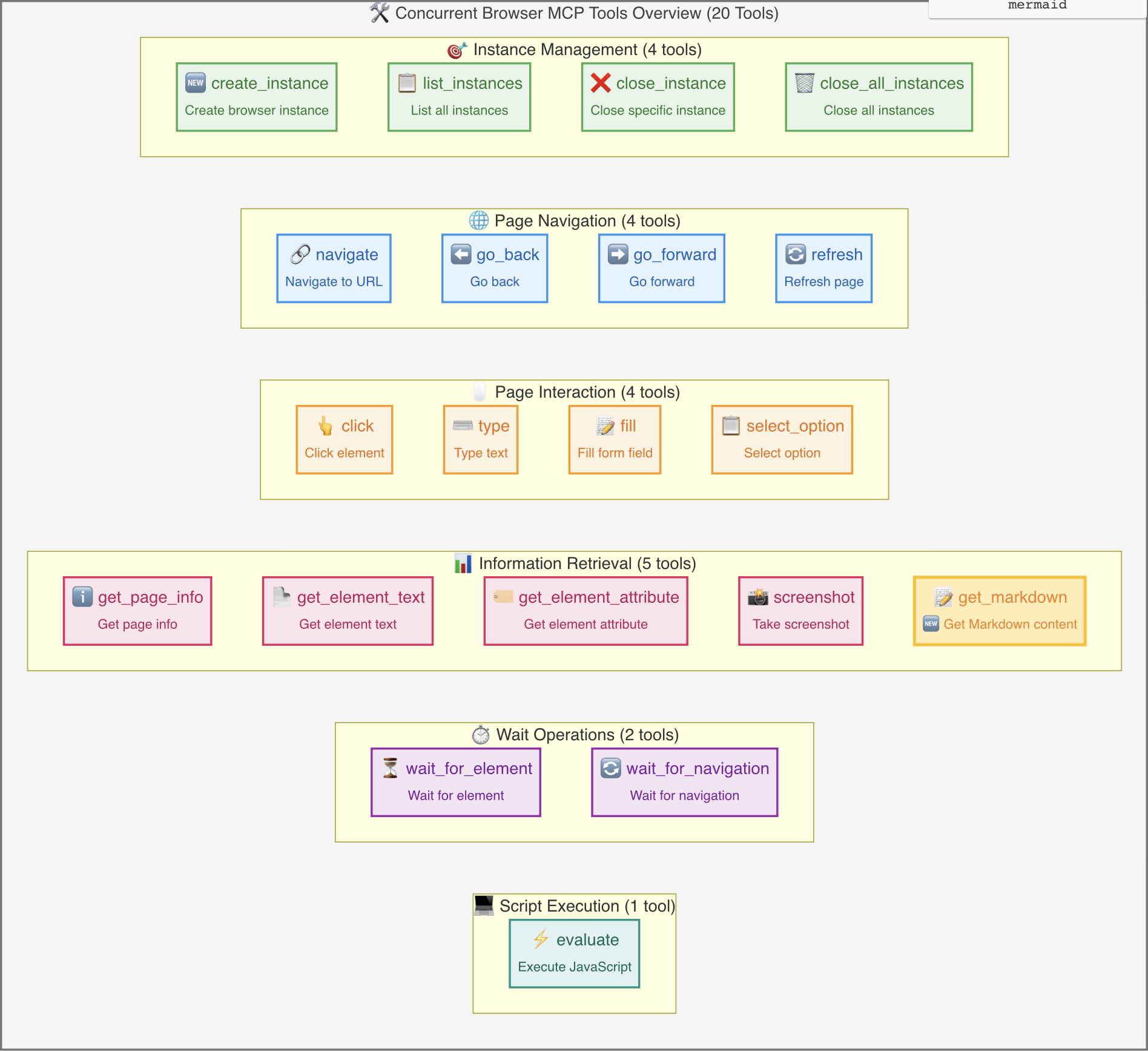
browser_create_instance: Create a new browser instancebrowser_list_instances: List all instancesbrowser_close_instance: Close a specific instancebrowser_close_all_instances: Close all instancesbrowser_navigate: Navigate to a specified URLbrowser_go_back: Go back to previous pagebrowser_go_forward: Go forward to next pagebrowser_refresh: Refresh current pagebrowser_click: Click on page elementsbrowser_type: Type text contentbrowser_fill: Fill form fieldsbrowser_select_option: Select dropdown optionsbrowser_get_page_info: Get detailed page information including full HTML content, page statistics, and metadatabrowser_get_element_text: Get element textbrowser_get_element_attribute: Get element attributesbrowser_screenshot: Take page screenshotsbrowser_get_markdown: 🆕 Get Markdown contentbrowser_wait_for_element: Wait for element to appearbrowser_wait_for_navigation: Wait for page navigation to completebrowser_evaluate: Execute JavaScript code// Create a new Chrome instance
await callTool('browser_create_instance', {
browserType: 'chromium',
headless: false,
viewport: { width: 1920, height: 1080 },
metadata: {
name: 'main-browser',
description: 'Main browser instance'
}
});
// Navigate to website
await callTool('browser_navigate', {
  instanceId: 'your-instance-id',
  url: 'https://example.com'
});

// Click element
await callTool('browser_click', {
  instanceId: 'your-instance-id',
  selector: 'button.submit'
});

// Input text
await callTool('browser_type', {
  instanceId: 'your-instance-id',
  selector: 'input[name="search"]',
  text: 'search query'
});
// Take screenshot
await callTool('browser_screenshot', {
  instanceId: 'your-instance-id',
  fullPage: true
});

// Get page information
await callTool('browser_get_page_info', {
  instanceId: 'your-instance-id'
});
// Create multiple instances for parallel processing
const instances = await Promise.all([
  callTool('browser_create_instance', { metadata: { name: 'worker-1' } }),
  callTool('browser_create_instance', { metadata: { name: 'worker-2' } }),
  callTool('browser_create_instance', { metadata: { name: 'worker-3' } })
]);

// Navigate to different pages in parallel
await Promise.all(instances.map(async (instance, index) => {
  await callTool('browser_navigate', {
    instanceId: instance.data.instanceId,
    url: `https://example${index + 1}.com`
  });
}));
┌─────────────────────────────────────────────────────────────────┐
│                         MCP Client                              │
├─────────────────────────────────────────────────────────────────┤
│                    Concurrent Browser MCP Server                │
│  ┌─────────────────┐  ┌─────────────────┐  ┌─────────────────┐  │
│  │  Browser Tools  │  │ Browser Manager │  │  MCP Server     │  │
│  │                 │  │                 │  │                 │  │
│  │ - Tool Defs     │  │ - Instance Mgmt │  │ - Request       │  │
│  │ - Execution     │  │ - Lifecycle     │  │   Handling      │  │
│  │ - Validation    │  │ - Cleanup       │  │ - Error Mgmt    │  │
│  └─────────────────┘  └─────────────────┘  └─────────────────┘  │
├─────────────────────────────────────────────────────────────────┤
│                        Playwright                              │
│  ┌─────────────────┐  ┌─────────────────┐  ┌─────────────────┐  │
│  │   Browser 1     │  │   Browser 2     │  │   Browser N     │  │
│  │   (Chromium)    │  │   (Firefox)     │  │   (WebKit)      │  │
│  └─────────────────┘  └─────────────────┘  └─────────────────┘  │
└─────────────────────────────────────────────────────────────────┘
In addition to simulation demo scripts, we also provide real browser functionality test scripts that let you see actual screenshot results:
# Run real browser screenshot test
node test-real-screenshot.js
This test script will:
🚀 Starting real browser screenshot test...
✅ Browser started
✅ Page created
🌐 Navigating to https://example.com...
✅ Page loaded successfully
📸 Taking screenshot and saving as screenshot-2025-07-19T11-04-18-660Z.png...
✅ Screenshot saved: screenshot-2025-07-19T11-04-18-660Z.png
📊 File size: 23.57 KB
📂 File location: /path/to/screenshot-2025-07-19T11-04-18-660Z.png
🌐 Visiting https://github.com...
✅ github screenshot saved: screenshot-github-2025-07-19T11-04-18-660Z.png (265.99 KB)
🛑 Browser closed
After testing, you can find actual screenshot files in the project directory:
# View generated screenshot files
ls -la screenshot-*.png

# Open in system default image viewer
open screenshot-*.png    # macOS
start screenshot-*.png   # Windows
xdg-open screenshot-*.png # Linux
# 1. Clone project
git clone https://github.com/sailaoda/concurrent-browser-mcp.git
cd concurrent-browser-mcp

# 2. Install dependencies
npm install

# 3. Build project
npm run build

# 4. Local link (optional, for global command testing)
npm link
# Build TypeScript project
npm run build

# Development mode (file watching)
npm run dev

# Run code linting
npm run lint

# Fix code formatting issues
npm run lint:fix

# Clean build artifacts
npm run clean

# Run tests
npm test
concurrent-browser-mcp/
├── src/                    # Source code directory
│   ├── index.ts           # CLI entry point
│   ├── server.ts          # MCP server main logic
│   ├── browser-manager.ts # Browser instance manager
│   └── tools.ts           # MCP tool definitions and implementation
├── dist/                  # Build artifacts directory
├── assets/                # Static resources directory
├── examples/              # Example scripts
├── test-real-screenshot.js # Real test script
├── config.example.json    # Configuration example
├── package.json           # Project configuration
├── tsconfig.json         # TypeScript configuration
└── README.md             # Project documentation
After building, you can use the local version in several ways:
# Run built files
node dist/index.js --max-instances 20

# Use absolute path in MCP configuration
{
  "mcpServers": {
    "concurrent-browser": {
      "command": "node",
      "args": ["/absolute/path/to/concurrent-browser-mcp/dist/index.js", "--max-instances", "20"]
    }
  }
}
# Execute link in project root directory
npm link

# Now you can use it like a global package
concurrent-browser-mcp --max-instances 20

# Use in MCP configuration
{
  "mcpServers": {
    "concurrent-browser": {
      "command": "concurrent-browser-mcp",
      "args": ["--max-instances", "20"]
    }
  }
}
# Run directly in project directory
cd /path/to/concurrent-browser-mcp
npm run build
node dist/index.js

# MCP configuration using relative path
{
  "mcpServers": {
    "concurrent-browser": {
      "command": "node",
      "args": ["./concurrent-browser-mcp/dist/index.js"],
      "cwd": "/parent/directory/path"
    }
  }
}
# Run real browser tests
node test-real-screenshot.js

# Run simulated MCP call tests
node examples/demo.js

# Start development server (with debug output)
node dist/index.js --max-instances 5 --browser chromium --headless false
git checkout -b feature/amazing-feature)git commit -m 'Add some amazing feature')git push origin feature/amazing-feature)A concurrent browser MCP server that supports multiple parallel browser instances, based on Playwright.
工具
尚無工具清單。遠端伺服器會在首次健康檢查後取得工具清單。
常見問題
在本頁複製適用於 Cursor、Claude Desktop、Claude Code 或 VS Code 的 stdio 設定。它使用發布者的安裝方式,而不是 PlugMCP 代理伺服器。
這筆記錄未列出必要的環境變數。
Concurrent Browser 透過 stdio 在本機執行。
上次檢查時間:2026-10-28。 A concurrent browser MCP server that supports multiple parallel browser instances, based on Playwright.
