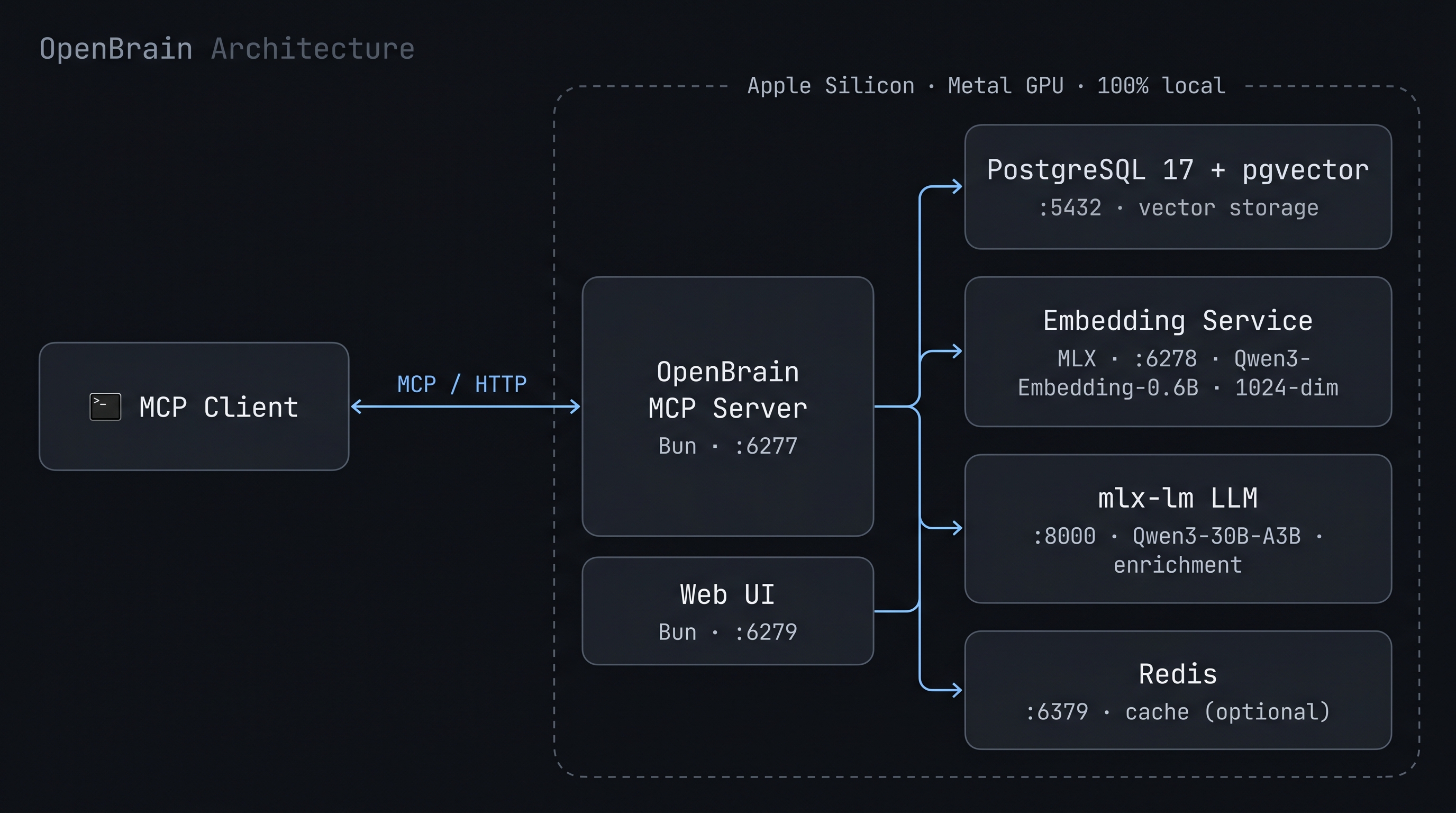
A Bun MCP server brokers requests from any MCP client to PostgreSQL+pgvector for storage, a local MLX embedding service for vectorization, and a local mlx-lm server for enrichment. Redis caches embeddings and search results. A separate Bun web UI reads directly from PostgreSQL. Everything runs on-device — no cloud APIs in the data path.
Requirements
Apple Silicon Mac (M1/M2/M3/M4) — required for MLX GPU inference
16 GB RAM minimum for the default model (Qwen3-8B-4bit, ~4.5 GB); 32 GB+ lets you run larger enrichment models
Firecrawl handles all web-page scraping (markdown extraction, JS rendering, etc.). It's a cloud service; set your key in .env:
FIRECRAWL_API_KEY=fc-...
Without a key, POST /api/ingest for web URLs will return an error.
Quick install (recommended)
bash installer/bootstrap.sh
This runs the full chain: prerequisites (Homebrew packages, Bun, Python venv with mlx-lm), database setup, schema, and launchd services. Idempotent — safe to re-run.
Manual install
If you'd rather install the prerequisites yourself:
# Homebrew packages
brew install postgresql@17 pgvector redis uv yt-dlp pnpm
brew services start postgresql@17
brew services start redis

# Node 22+ via nvm (skip if you already have one)
curl -o- https://raw.githubusercontent.com/nvm-sh/nvm/v0.40.1/install.sh | bash
. ~/.nvm/nvm.sh && nvm install --lts && nvm alias default 'lts/*'

# Optional, for Gmail integration via the agents/ subsystem
brew install gogcli

# Bun via its official installer (no Homebrew formula). We use Bun as the
# runtime (Bun.serve, Bun.spawn) but never `bun install` — that hits a
# macOS SIP/provenance issue. pnpm handles deps.
curl -fsSL https://bun.sh/install | bash
After installing Bun, restart your shell (or source ~/.zshrc) so the bun binary is on your PATH.
Quick Start
# 1. Clone and enter the repo
git clone https://github.com/sajennings79/apple-silicon-openbrain.git
cd apple-silicon-openbrain

# 2. Configure environment
cp .env.example .env
# Edit .env if needed (defaults work for local setup)

# 3. Run setup (creates database, installs Bun + Python deps)
bash scripts/setup.sh

# 4. Create a Python venv for the LLM enrichment server
python3 -m venv ~/.mlx-venv
~/.mlx-venv/bin/pip install mlx-lm

# 5. Start all services (installs as launchd daemons)
bash scripts/install-services.sh

# 6. Verify everything is running
bun run health
Or start services manually:
bun run dev                                    # MCP server (port 6277)
cd embed-service && uv run server.py           # Embedding service (port 6278)
~/.mlx-venv/bin/python -m mlx_lm.server \
  --model mlx-community/Qwen3-8B-4bit \
  --port 8000 --max-tokens 4096               # LLM enrichment (port 8000)
bun run ui                                     # Web UI (port 6279)
First Run: Model Downloads
Models are pulled from Hugging Face Hub the first time each service starts — there's no separate download step. Both services block on startup until the download completes, then come online.
Model
Size
Used by
Triggered by
mlx-community/Qwen3-Embedding-0.6B-4bit-DWQ
~400 MB
Embedding service (:6278)
FastAPI startup
mlx-community/Qwen3-8B-4bit (default)
~4.5 GB
LLM enrichment (:8000)
mlx_lm.server startup
The default LLM is sized for 16 GB RAM systems. To trade RAM for quality, override LLM_MODEL in .env (and the matching --model arg in ~/Library/LaunchAgents/com.openbrain.llm.plist):
RAM
Suggested model
Disk
16 GB (default)
mlx-community/Qwen3-8B-4bit
~4.5 GB
32 GB
mlx-community/Qwen3.6-27B-4bit (dense) or mlx-community/Qwen3.6-35B-A3B-4bit (MoE)
~17 GB
64 GB+
mlx-community/Qwen3.5-122B-A10B-4bit
~60 GB
All models are public repos — no Hugging Face token required. Files cache to ~/.cache/huggingface/hub/ and subsequent starts run fully offline.
If you installed the launchd services, the first-run download happens silently in the background. Watch progress with:
tail -f logs/embed.log   # embedding model (~30s on fast connection)
tail -f logs/llm.log     # ~2 min for the default 8B model on a fast connection
bun run health will report the LLM service as down until its download finishes. Interrupted downloads resume on the next start.
MCP Client Configuration
OpenBrain exposes both HTTP and stdio MCP transports. Configure your client to point at whichever it supports.
HTTP transport (recommended — one shared server for all clients):
Add UI: Start the web UI — browse and manage memories visually
Add ingestion: Set FIRECRAWL_API_KEY in .env and install the bookmarklet — save web content from your browser.
To skip enrichment entirely (e.g., while setting up), set DISABLE_ENRICHMENT=true in .env.
Sources (recurring ingestion)
OpenBrain pulls content into memory on a schedule. Each source is a row in the sources table with a kind (rss, mail, or webpage), config, and an interval.
# Create an RSS source via the REST API:
echo '{"kind":"rss","name":"HN","config":{"feedUrl":"https://news.ycombinator.com/rss"},"intervalSeconds":3600}' \
  | curl -X POST http://localhost:6277/api/sources -H 'content-type: application/json' --data @-

# Sync now:
curl -X POST http://localhost:6277/api/sources/<id>/sync

# Sync everything that's due:
curl -X POST http://localhost:6277/api/sources/poll-due
The Mac app (Phase 3+) drives poll-due from an hourly timer and exposes a UI for source CRUD. Until then, talk to the REST API directly. (The timer is just a heartbeat — each source's own intervalSeconds decides when it's actually due.)
Mail sources via gog
To pull Gmail into memory, install gogcli and authenticate:
Important: launchd-managed services have no TTY for gog's keyring password prompt. Set GOG_KEYRING_PASSWORD in .env (gitignored) to your gog keyring password, then restart the MCP service. Without this, mail syncs will fail with "no TTY available for keyring file backend password prompt".
Recurring agents
OpenBrain ships with a small starter pack of prompt-driven agents that run on a schedule, query the memory store, call the local LLM, and write the result back as a new memory. All of this happens locally — no API keys.
# Run a shipped agent once, see the output:
bun run agents/run-agent.ts agents/prompts/newsletter-digest.md

# Or via the wrapper:
agents/run-agent.sh newsletter-digest.md
Shipped prompts live in agents/prompts/. Bring your own by dropping additional .md files into a directory of your choice (the Mac app defaults to ~/Developer/claude-cron/prompts/). See agents/prompts/README.md for the format.
Remote Access via Tailscale
To access OpenBrain from other devices on your network:
# Expose MCP server over Tailscale HTTPS
tailscale serve --bg --https=6443 http://localhost:6277
Then update your bookmarklet URL to use https://your-machine.tail-xxxxx.ts.net:6443 and set AUTH_TOKEN in .env to protect the endpoint.
Development
bun run dev          # MCP server with auto-reload
bun run ui           # Web UI
bun run health       # Check all service health
bun run db:generate  # Generate Drizzle migration from schema changes
bun run db:migrate   # Apply pending migrations

# Re-enrich memories missing summaries
bun run scripts/enrich-backlog.ts
Managing Services
# Install as launchd daemons (auto-start on boot)
bash scripts/install-services.sh

# Uninstall all services
bash scripts/uninstall-services.sh

# Restart a single service
kill $(lsof -ti :6277)  # KeepAlive restarts it automatically

# View logs
tail -f logs/mcp.log
tail -f logs/embed.log
tail -f logs/llm.log
License
MIT
A
Apple Silicon Openbrain
sufficiently-advanced-ai·12 顆星·
Fully local AI memory for Apple Silicon. MCP server with semantic vector search, MLX embeddings, and LLM enrichment — no cloud APIs required.
上次檢查時間:2026-10-28。 Fully local AI memory for Apple Silicon. MCP server with semantic vector search, MLX embeddings, and LLM enrichment — no cloud APIs required.