An MCP server that lets AI agents (Cursor, Claude Code, etc.) capture showcase-ready product media: high-quality screenshots and demo videos (mp4) of web pages, Electron apps, and CLI tools, ready to drop into READMEs and docs.
MCP server for AI agents: capture high-quality screenshots and videos of web pages, Electron apps and CLI tools, ready for README/product docs.
2026-11-16
星标
—
工具
—
可用率
—
No OS-level screen recording — capture happens at the Chromium render layer (Playwright / CDP): no screen-recording permission, no window flicker, CI-friendly
Zero-intrusion CLI capture — node-pty intercepts the TTY stream; output renders in an xterm.js replay page that gets recorded
Unified media pipeline — all videos come out as mp4 (H.264, yuv420p); screenshots return directly as MCP image content
Designed for agents — session-based fine-grained tools, recoverable error messages, markdown reference snippets built into every response
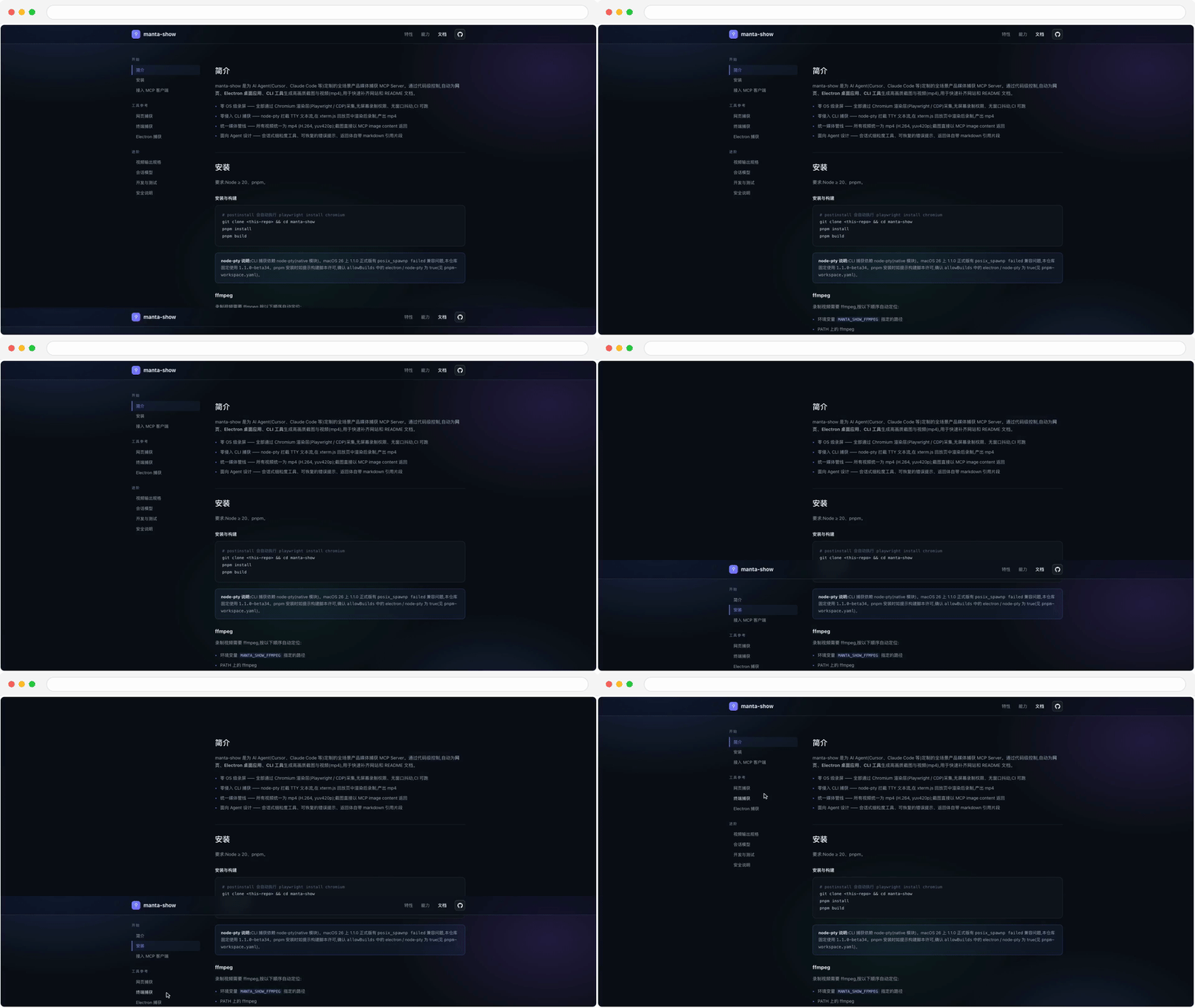
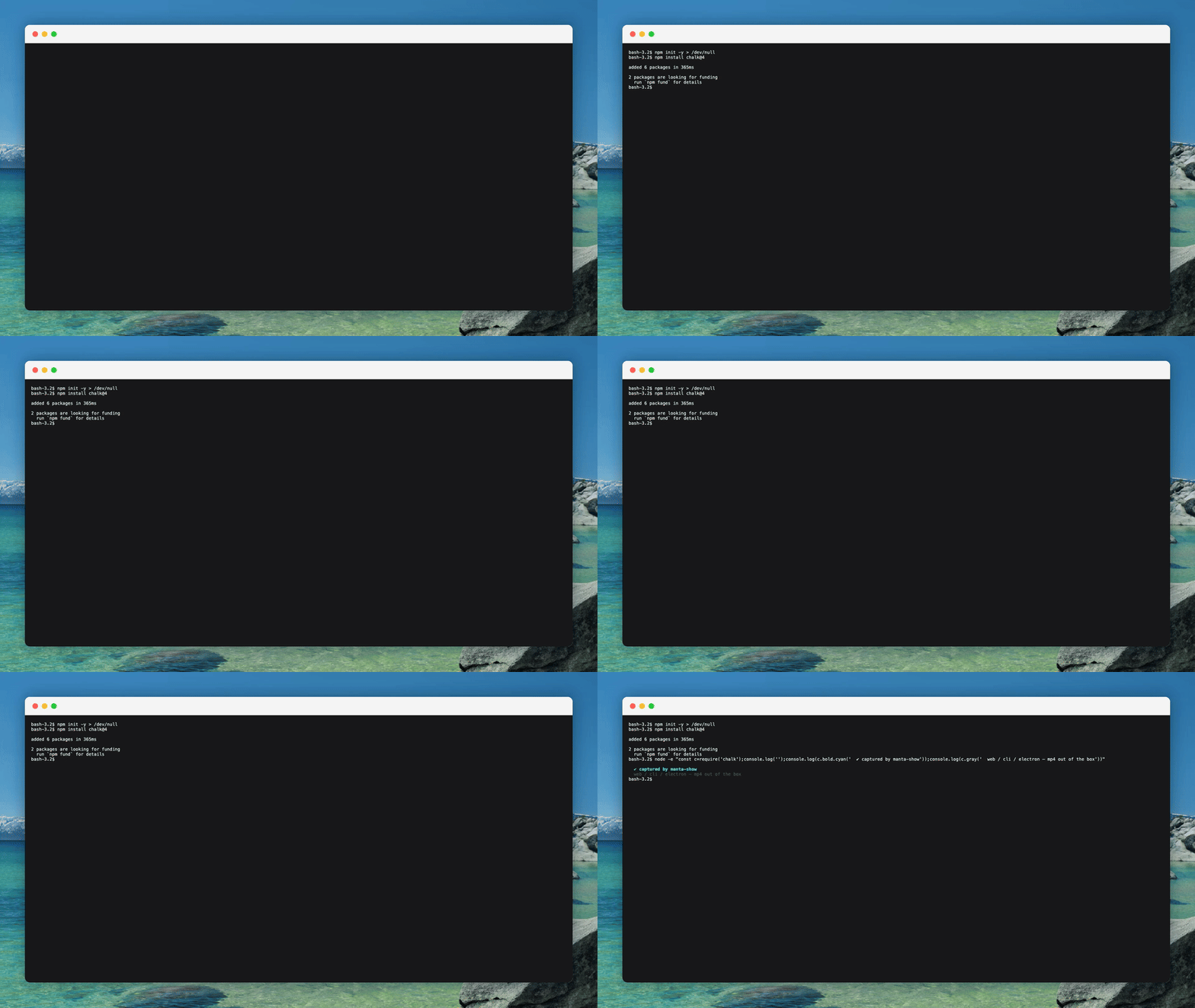
Demo
All assets below were produced by manta-show itself (the web one via batch-steps recording, the terminal one by live-driving npm install); regenerate anytime with pnpm demos:
How it compares
manta-show isn't a replacement for these tools — the division of labor is different. Playwright MCP excels at interaction automation, vhs at scripted CLI demos, OS recorders at human freehand; manta-show focuses on the one link they don't cover: an agent-driven media-output pipeline.
manta-show
Playwright MCP
vhs
OS recorders (CleanShot etc.)
Positioning
Agent-produced doc media
Agent-driven web interaction / testing
Scripted CLI demo recording
Manual screen recording
Web screenshots (element / full page)
✓
✓
—
✓ (manual)
Video output
✓ unified 1080p mp4
✗
✓ (requires .tape scripts)
✓ (requires editing)
Window chrome / synthetic cursor
✓ out of the box
✗
partial (themes)
in post
CLI tool recording
✓ (pty + xterm replay)
✗
✓
✓ (manual)
Electron apps
✓
✗
✗
✓ (manual)
Permissions / CI
no capture permission, CI-friendly
none
none
needs permission, not CI-able
Driven by
AI agent
AI agent
hand-written scripts
human
Getting started
Add it to your MCP client config. Claude Code (project-level .mcp.json or ~/.claude.json):
Cursor (~/.cursor/mcp.json) uses the same shape. If installed globally (npm install -g @manta-show/mcp) you can use the manta-show binary directly. You can also run manta-show init: it detects installed AI agents, writes their configs, then prepares the environment — detects Chromium / ffmpeg and installs whatever is missing in one confirmed, progress-displayed download (via the npmmirror mirror). Ready to use right after.
To re-check or repair the environment later:
manta-show doctor
Media artifacts land in a fixed directory, ~/.manta-show/media (screenshots / videos prefixed web- / terminal- / electron- by source); manta-show recordings / manta-show clean list and clean it.
Environment variables (all optional):
Variable
Default
Description
MANTA_SHOW_FFMPEG
auto-located
Path to the ffmpeg executable
MANTA_SHOW_LANG
en
UI language for tool descriptions, results and CLI output (en, zh-CN; unknown values fall back to en)
PLAYWRIGHT_DOWNLOAD_HOST
npmmirror mirror
Used by init/doctor when downloading Chromium; an existing config is respected
To persist any of these without exporting them, use manta-show set --env MANTA_SHOW_LANG=zh-CN (repeatable --env); values are stored in ~/.manta-show/config.json and applied on startup. A variable exported in the real environment always wins over the saved value.
Tool reference
All three recording kinds (web / terminal / Electron) default to a unified 1920×1080 (16:9) output — proportionally scaled and centered with letterboxing (white for browser chrome, dark for terminal) — and *_record_stop accepts fit: 'native' to keep the recording's original size.
Decorations: recording tools accept decorate to overlay macOS visual chrome (browser window, terminal window, desktop wallpaper), on by default; 'none' for raw footage. Recordings also inject a synthetic mouse cursor (follows real movement, click ripples) by default — cursor: false disables it
Selectors: interaction tools accept full Playwright selector syntax (text=Login, role=button[name="Submit"], xpath=…) alongside CSS — usually driven straight from the snapshot's accessibility tree
Sessions: every interaction tool takes an optional sessionId; omit it to act on the most recently active session of that kind (auto-reclaimed after 10 minutes idle). Agents rarely need to pass it
Web (Playwright Chromium, headless, 2x DPR by default)
Tool
Description
browser_open
Open a page, returns a sessionId
browser_navigate
Navigate within the session
browser_snapshot
Accessibility-tree snapshot for picking selectors
browser_click / browser_hover
Click / hover by selector (CSS / text= / role= …)
browser_type
Clear-and-type into an input (optional Enter submit)
browser_press_key / browser_scroll
Key press / scroll
browser_evaluate
Evaluate a JS expression in the page
browser_screenshot
Screenshot (selector for element crops, fullPage for whole page); returns image + path
browser_record_start / browser_record_stop
Keep interacting while recording; stop produces the mp4. Pass steps to start to run a choreographed action sequence and auto-produce the video
browser_close
Close the session
Typical flow: browser_open → browser_snapshot to find selectors → browser_click/browser_type to interact → browser_record_start → demo actions → browser_record_stop for the mp4 → paste the returned markdown snippet into your README.
For choreographed demos use batch mode: one call runs the whole sequence and returns the finished mp4 (steps supports click / hover / type / press / scroll / evaluate / wait; a mid-sequence failure still stops and exports the completed portion):
Start a command and begin recording; cwd sets the working directory, env injects variables, isolation: 'container' runs in a throwaway Docker container (see below)
terminal_read
Last N rendered lines as plain text (ANSI stripped)
terminal_send / terminal_send_key
Type text / named keys (enter, ctrl+c, arrows…)
terminal_wait
Block until output contains a substring (or timeout), with recent output attached — cheaper than polling terminal_read
terminal_record_stop
Export the mp4
terminal_stop / terminal_close
End the process / release the session
Two usage patterns with different semantics:
open runs the command directly (e.g. command: "npm") — the command starts as an argument; only its output is recorded, the command itself never appears in frame. Good for one-shot CLIs and CI-style scenes
To show "the command being typed and run" — open an interactive shell first (command: "bash", args: ["-i"]), then send the command via terminal_send. The TTY echoes the typing into frame, indistinguishable from a human at the keyboard
Container isolation
Every CLI state lives on the filesystem, so re-recording the same command goes wrong from leftovers (already installed, file exists, cache hit). Pass isolation: 'container' on terminal_open to run the command in a throwaway Docker container — same mechanism as a CI runner; the command and all its state changes stay fully isolated and the container is destroyed on exit:
Every take is a genuine first install; the host stays untouched. image pins a version for reproducibility. With cwd, that directory mounts at /workspace (generated files are inspectable from the host); without it the container filesystem is self-contained. Requires Docker or Podman locally (OrbStack / colima recommended on macOS; manta-show doctor checks and gives install hints).
browser_evaluate executes arbitrary JS in the page and terminal_open starts arbitrary local processes — that is the tool's purpose (local development / documentation). Use it in projects you trust. See SECURITY.md for reporting vulnerabilities.
pnpm dev        # tsc --watch
pnpm test       # fast unit tests (node:test, no browser needed)
pnpm test:e2e   # build + e2e (InMemoryTransport, covers all three lines)
pnpm demos      # regenerate the demo assets used by the README / website (website/media/)
pnpm start      # start the server on stdio
From npm 12 on, dependency install/postinstall scripts are blocked by default, so native binaries can no longer rely on compiling or downloading at install time. This repo solves it the same way for both native pipelines: split per platform into optionalDependency subpackages with the binary baked into the tarball and zero lifecycle scripts, with graceful fallbacks when a package is missing. Both are published by the same tag-triggered release workflow (each platform package's first version needs a one-time manual bootstrap publish from CI artifacts due to npm OIDC; fully automatic afterwards).
follows upstream ffmpeg: 6.1.1 (independent of manta-show versions)
npm tag
beta
latest
Fallback when missing
install script falls back to a local node-gyp rebuild
locate chain falls back to PATH / Homebrew / ~/.manta-show/bin (see troubleshooting)
Upgrade procedures:
node-pty: edit the fork sources in packages/node-pty/ → bump the beta suffix in its package.json (1.1.0-beta34.x, scripts/increment-version.js helps) → sync the dependency pin in packages/mcp/package.json and minimumReleaseAgeExclude in pnpm-workspace.yaml → tag to publish.
ffmpeg: change the FFMPEG_TAG constant in the workflow (matches an ffmpeg-static release tag; package version = tag without the b) → re-pin scripts/ffmpeg-sha256.json and packages/mcp/src/deps/ffmpeg.ts → sync the optionalDependencies pin in packages/mcp/package.json and minimumReleaseAgeExclude in pnpm-workspace.yaml → tag to publish.
Troubleshooting
ffmpeg not found: located in order MANTA_SHOW_FFMPEG → PATH → Homebrew defaults (/opt/homebrew/bin, /usr/local/bin) → ~/.manta-show/bin (init/doctor download, sha256-verified) → the bundled @manta-show/ffmpeg-<platform>-<arch> package. Failed lookups aren't cached — once installed (e.g. brew install ffmpeg) the next recording picks it up without restarting the MCP server. Note Playwright's own ffmpeg is a trimmed build (no libx264) and cannot be used here.
node-pty launch failure (macOS 26): CLI capture depends on node-pty; 1.1.0 GA has a posix_spawnp failed compatibility issue on macOS 26, so this repo pins 1.1.0-beta34.
pnpm blocking build scripts: make sure electron / node-pty are true in pnpm-workspace.yamlallowBuilds.
Restricted networks: the bundled ffmpeg ships as script-less platform packages on npm (mirrored automatically by npmmirror), so installing needs no GitHub access; only on platforms the packages don't cover does manta-show doctor need to download ffmpeg from the npmmirror mirror once.
Contributing
See CONTRIBUTING.md. Bug reports and feature requests go through the issue templates.
License
MIT, see LICENSE. The @manta-show/ffmpeg-* platform packages redistribute GPL-licensed FFmpeg builds and are licensed GPL-3.0 accordingly.
上次检查时间:2026-11-16。 MCP server for AI agents: capture high-quality screenshots and videos of web pages, Electron apps and CLI tools, ready for README/product docs.