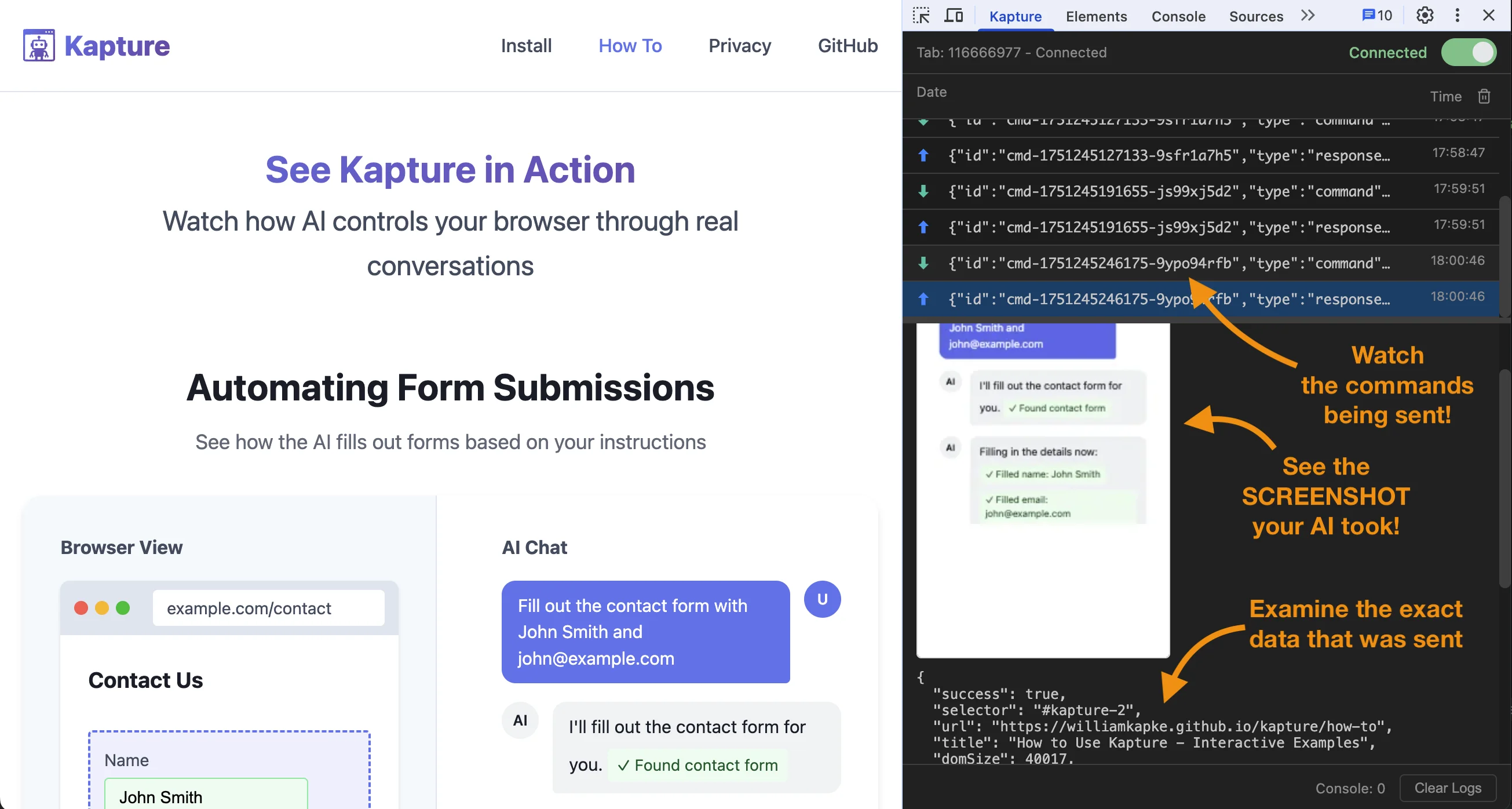
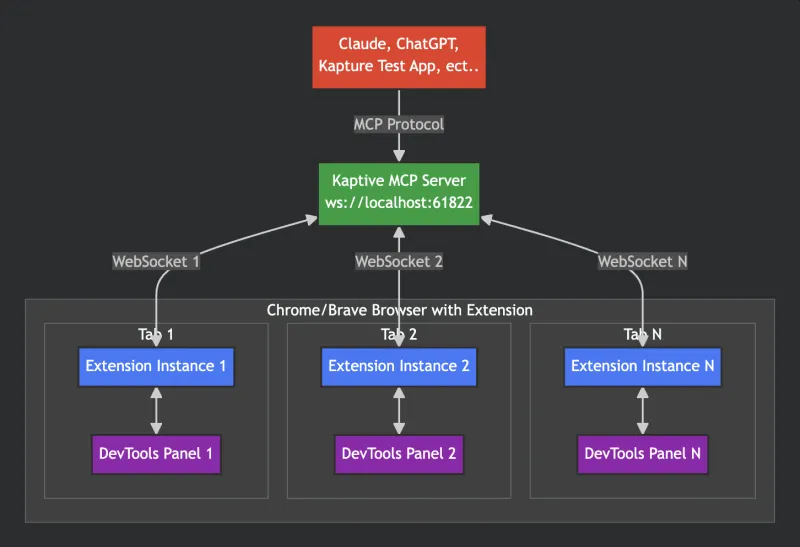
Kapture is a Chrome DevTools Extension that enables browser automation through the Model Context Protocol (MCP). It allows AI applications like Claude to control web browsers via a three-layer architecture.
✨ Key Feature: Multiple AI clients can connect to the same server! Claude Desktop, Cline, and other MCP clients can all control browser tabs through a single server instance.
Note: This approach requires manually managing the server lifecycle. Use Option 1 (bridge command) for most use cases.
🚀 Run Multiple AI Assistants Simultaneously
Kapture supports multiple MCP clients connecting to the same server! You can run Claude Desktop, Cline, and other MCP clients simultaneously through a single server instance.
How It Works
All MCP clients connect via WebSocket to ws://localhost:61822/mcp
All MCP clients share access to the same browser tabs
Notifications are broadcast to all connected clients
Smart Server Detection
When running npx kapture-mcp, the command automatically detects if a server is already running:
No existing server: Starts a new server on port 61822
Server already running: Shows connection information and exits gracefully
This prevents errors and confusion when multiple clients try to start servers.
Setting Up Multiple Clients
Each client should use the same bridge command configuration:
keypress - Send keyboard events to the page or specific elements (supports modifier keys)
scroll - Scroll an element into view (selector/xpath) or to an absolute x/y document coordinate
elements - Query all elements matching a CSS selector or XPath with optional visibility filtering
console_logs - Get the tab's console contents (console messages, uncaught exceptions, browser-generated entries)
watch_console - Watch the console in real time for a required timeout (ms), then return everything logged during the window
network_monitor - Turn network monitoring on/off for a tab (enabled boolean). While on, every request's metadata is captured into a per-tab buffer. Watchers are tracked by client identity: enable is idempotent, monitoring stays on until every watcher disables (or force:true), and disconnected clients are released automatically. The buffer clears when monitoring fully stops. Enable it before the traffic you want to observe — capture has no history. (Extension 1.1.0+)
network_requests - List the captured requests; each carries a requestId, a monotonic seq, and hasPostData when the request had a payload. Poll incrementally by passing the prior call's cursor as since.
network_body - Fetch a request's bodies by requestId (monitoring must be on): the requestBody POST payload and the response body. Truncated to maxBytes (default 65536) with bodyTruncated:true while size reports the full length; returns bodyError if the response body was evicted or is streaming (text/event-stream can't be read via CDP).
evaluate - Execute JavaScript in the page and return the result. Off by default: only available after enabling the "Allow JS execution" toggle in the extension popup or DevTools panel for a connected tab. The grant resets on disconnect.
compose - Run a sequence of commands against one tab in a single call. Script is one command per line as <tool>?<query-string> (plus wait?t=<ms>); runs in order, stops on first failure, returns an array of per-command responses.
Note on Selectors: Tools that accept a selector parameter (click, hover, fill, type, insertText, clear, select, keypress, scroll, screenshot, dom) will only operate on the first element that matches the CSS selector. The tool response includes the unique selector of the actual element that was used, which may include an auto-generated ID if the element didn't have one.
XPath Support: All tools that accept a selector parameter also accept an xpath parameter as an alternative. This is particularly useful for:
Finding elements by text content: xpath: "//button[contains(text(), 'Submit')]"
Complex element relationships: xpath: "//div[@class='container']//span[2]"
When CSS selectors are insufficient
Use either selector OR xpath, not both. If both are provided, selector takes precedence.
Keypress Tool
The keypress tool simulates keyboard events. It accepts:
key (required): The key combination to press. Can be:
With modifiers: "Control+a", "Shift+Tab", "Alt+F4", "Meta+Shift+p"
Modifier names: Control (or Ctrl), Shift, Alt, Meta (or Cmd/Command)
Note: When sending just a modifier key (e.g., "Shift"), it's treated as pressing that key alone
Duplicate modifiers are ignored (e.g., "Shift+Shift+a" is same as "Shift+a")
selector or xpath (optional): Target a specific element. If not provided, sends to document.body
Examples:
// Press Enter
{ "key": "Enter", "selector": "#login-form" }
// Select all text (Ctrl+A)
{ "key": "Control+a", "selector": "#username" }
// Zoom in (Ctrl+Plus)
{ "key": "Control++", "selector": "body" }
// Zoom out (Ctrl+Minus)
{ "key": "Control+-", "selector": "body" }
// New tab (Ctrl+T)
{ "key": "Control+t" }
// Close tab (Ctrl+W or Cmd+W on Mac)
{ "key": "Meta+w" }
MCP Resources
kapture://tabs - List all connected browser tabs
kapture://tab/{tabId} - Get detailed information about a specific tab
kapture://tab/{tabId}/console - Get console logs from a specific tab (with pagination support)
kapture://tab/{tabId}/screenshot - Capture screenshots of a tab or element
kapture://tab/{tabId}/dom - Get HTML content of a tab or element
kapture://tab/{tabId}/elementsFromPoint - Get elements at specific coordinates
kapture://tab/{tabId}/elements?selector={selector}&visible={true|false|all} - Query all elements matching a CSS selector or XPath with optional visibility filtering
Development
Server Development
cd server
npm run dev # Development with hot-reload
Test App
cd test-app
npm run dev # Run Electron test app
Extension Development
After making changes:
Go to chrome://extensions/
Click refresh on Kapture extension
Key Components
Server (/server/src):
mcp-server-manager.ts - MCP protocol implementation (one server instance per client)
browser-websocket-manager.ts - WebSocket server for extension connections
tab-registry.ts - Tab tracking
tool-handler.ts + tools.yaml - MCP tool definitions and dispatch
Extension (/extension):
background.js + modules/ - Service worker: owns WebSocket connections and executes commands (via chrome.debugger and chrome.tabs APIs)
Noch keine Tool-Liste. Remote-Server erhalten eine nach dem ersten Health-Check.
FAQ
Fragen
Wie installiere ich Kapture?
Kopieren Sie auf dieser Seite die stdio-Konfiguration für Cursor, Claude Desktop, Claude Code oder VS Code. Sie nutzt die Installation des Herausgebers, keinen PlugMCP-Proxy.
Benötigt Kapture einen API-Schlüssel?
In diesem Eintrag ist keine erforderliche Umgebungsvariable aufgeführt.
Welchen Transport verwendet Kapture?
Kapture läuft lokal über stdio.
Wann wurde Kapture zuletzt geprüft?
Zuletzt geprüft: 2026-11-17. MCP server for Kapture browser automation