DDC/CI Control Bridge
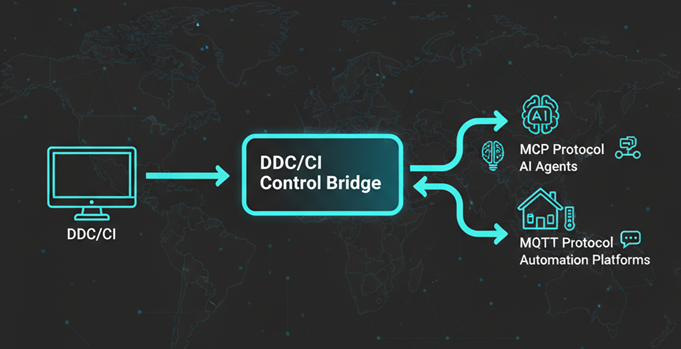
Multi-protocol server for DDC/CI monitor control with MCP and MQTT support.
Features
- DDC/CI Monitor Control: Read and write VCP codes to control monitor brightness, contrast, input source, and more
- Model Context Protocol (MCP): Server with resources and tools for AI/agent integration
- MQTT Client: Connect to any MQTT broker for IoT/automation platforms
- Home Assistant auto-discovery support
- Generic MQTT pub/sub for custom integrations
- Cross-Platform: Works on Windows, Linux, and macOS
- Dual Distribution: Available as standalone executable or npm package
Quick Start
Installation
Option 1: NPM Package (Global)
npm install -g ddc-ci-control-bridge
ddc-ci-bridge
Option 2: NPX (No Install)
npx ddc-ci-control-bridge
Option 3: Standalone Executable
Download the binary for your platform from GitHub Releases:
- Windows:
ddc-ci-bridge-win.exe - Linux:
ddc-ci-bridge-linux - macOS:
ddc-ci-bridge-macos
⚠️ Note: The executable requires DDC_API_KEY environment variable to be set, or it will exit immediately.
Windows:
# Set API key (required)
set DDC_API_KEY=your-secret-key

# Run the executable
ddc-ci-bridge-win.exe

# Or set multiple environment variables
set DDC_API_KEY=your-secret-key
set MQTT_ENABLED=true
set MQTT_HOST=192.168.1.100
ddc-ci-bridge-win.exe
Linux/macOS:
# Make executable (first time only)
chmod +x ddc-ci-bridge-linux  # or ddc-ci-bridge-macos

# Run with API key (required)
DDC_API_KEY=your-secret-key ./ddc-ci-bridge-linux

# Or with multiple environment variables
DDC_API_KEY=your-secret-key MQTT_ENABLED=true MQTT_HOST=192.168.1.100 ./ddc-ci-bridge-linux
Using with MCP Clients:
Configure your MCP client to use the executable path:
{
  "mcpServers": {
    "ddc-ci-bridge": {
      "command": "C:\\path\\to\\ddc-ci-bridge-win.exe",
      "args": [],
      "env": {
        "MQTT_ENABLED": "false"
      }
    }
  }
}
MCP Client Setup
Choose between Local (stdio) or Remote (HTTP) setup depending on your needs:
- Local Setup: Run MCP server on the same machine as your monitors (recommended for most users)
- Remote Setup: Run MCP server on a monitor-connected machine, access from other devices
🖥️ Local Setup (stdio - Same Machine)
Use this if your MCP client is on the same machine as your monitors.
Go to: Settings → Cursor Settings → MCP → Add new global MCP server

Or paste the following configuration into your ~/.cursor/mcp.json file:
{
  "mcpServers": {
    "ddc-ci-bridge": {
      "command": "npx",
      "args": ["-y", "ddc-ci-control-bridge"],
      "env": {
        "MQTT_ENABLED": "false",
        "MQTT_HOST": "localhost",
        "MQTT_PORT": "1883"
      }
    }
  }
}
Optional MQTT: Set MQTT_ENABLED=true and configure MQTT_HOST to your MQTT broker IP for automation platform integration.
Add this to your VS Code MCP config file:
"mcp": {
  "servers": {
    "ddc-ci-bridge": {
      "type": "stdio",
      "command": "npx",
      "args": ["-y", "ddc-ci-control-bridge"],
      "env": {
        "MQTT_ENABLED": "false"
      }
    }
  }
}
Open Claude Desktop developer settings and edit your claude_desktop_config.json file:
{
  "mcpServers": {
    "ddc-ci-bridge": {
      "command": "npx",
      "args": ["-y", "ddc-ci-control-bridge"],
      "env": {
        "MQTT_ENABLED": "false"
      }
    }
  }
}
Run this command:
claude mcp add ddc-ci-bridge -- npx -y ddc-ci-control-bridge
Add this to your Windsurf MCP config file:
{
  "mcpServers": {
    "ddc-ci-bridge": {
      "command": "npx",
      "args": ["-y", "ddc-ci-control-bridge"],
      "env": {
        "MQTT_ENABLED": "false"
      }
    }
  }
}
Add this to your Cline MCP configuration:
{
  "mcpServers": {
    "ddc-ci-bridge": {
      "command": "npx",
      "args": ["-y", "ddc-ci-control-bridge"],
      "env": {
        "MQTT_ENABLED": "false"
      }
    }
  }
}
Add this to your Zed settings.json:
{
  "context_servers": {
    "DDC/CI Bridge": {
      "source": "custom",
      "command": "npx",
      "args": ["-y", "ddc-ci-control-bridge"],
      "env": {
        "MQTT_ENABLED": "false"
      }
    }
  }
}
Add this to your Roo Code MCP configuration:
{
  "mcpServers": {
    "ddc-ci-bridge": {
      "command": "npx",
      "args": ["-y", "ddc-ci-control-bridge"],
      "env": {
        "MQTT_ENABLED": "false"
      }
    }
  }
}
Option A: Using the UI
- Click the hamburger menu
- Select Settings
- Navigate to Tools section
- Click + Add MCP button
- Enter command:
npx -y ddc-ci-control-bridge - Name: DDC/CI Bridge
- Click Add
Option B: Manual Configuration
Add to settings.json:
"augment.advanced": {
  "mcpServers": [
    {
      "name": "ddc-ci-bridge",
      "command": "npx",
      "args": ["-y", "ddc-ci-control-bridge"],
      "env": {
        "MQTT_ENABLED": "false"
      }
    }
  ]
}
- Go to
Settings→Tools→AI Assistant→Model Context Protocol (MCP) - Click
+ Add - Select As JSON from the dropdown
- Add this configuration:
{
  "mcpServers": {
    "ddc-ci-bridge": {
      "command": "npx",
      "args": ["-y", "ddc-ci-control-bridge"],
      "env": {
        "MQTT_ENABLED": "false"
      }
    }
  }
}
- Click
Applyto save changes
- Navigate
Settings→AI→Manage MCP servers - Click
+ Addbutton - Paste this configuration:
{
  "DDC/CI Bridge": {
    "command": "npx",
    "args": ["-y", "ddc-ci-control-bridge"],
    "env": {
      "FASTMCP_API_KEY": "your-api-key-here",
      "MQTT_ENABLED": "false"
    },
    "working_directory": null,
    "start_on_launch": true
  }
}
- Click
Save
Add to your Codex MCP configuration:
[mcp_servers.ddc-ci-bridge]
command = "npx"
args = ["-y", "ddc-ci-control-bridge"]

[mcp_servers.ddc-ci-bridge.env]
MQTT_ENABLED = "false"
Windows Users: Use full paths if you encounter timeout errors:
[mcp_servers.ddc-ci-bridge]
command = "cmd"
args = ["/c", "npx", "-y", "ddc-ci-control-bridge"]
startup_timeout_ms = 20_000

[mcp_servers.ddc-ci-bridge.env]
SystemRoot = "C:\\Windows"
FASTMCP_API_KEY = "your-api-key-here"
MQTT_ENABLED = "false"
- Navigate to
Program(right side) →Install→Edit mcp.json - Add this configuration:
{
  "mcpServers": {
    "DDC/CI Bridge": {
      "command": "npx",
      "args": ["-y", "ddc-ci-control-bridge"],
      "env": {
        "MQTT_ENABLED": "false"
      }
    }
  }
}
- Click
Save - Toggle the MCP server on/off from the right side panel
- Open Qodo Gen chat panel in VSCode or IntelliJ
- Click Connect more tools
- Click + Add new MCP
- Add this configuration:
{
  "mcpServers": {
    "ddc-ci-bridge": {
      "command": "npx",
      "args": ["-y", "ddc-ci-control-bridge"],
      "env": {
        "MQTT_ENABLED": "false"
      }
    }
  }
}
- Navigate
Perplexity→Settings - Select
Connectors - Click
Add Connector - Select
Advanced - Enter Server Name: DDC/CI Bridge
- Paste this JSON:
{
  "command": "npx",
  "args": ["-y", "ddc-ci-control-bridge"],
  "env": {
    "FASTMCP_API_KEY": "your-api-key-here",
    "MQTT_ENABLED": "false"
  }
}
- Click
Save
- Navigate
Kiro→MCP Servers - Click
+ Addbutton - Paste this configuration:
{
  "mcpServers": {
    "DDC/CI Bridge": {
      "command": "npx",
      "args": ["-y", "ddc-ci-control-bridge"],
      "env": {
        "MQTT_ENABLED": "false"
      },
      "disabled": false,
      "autoApprove": []
    }
  }
}
- Click
Save
- Open Settings → Plugins
- Enter this JSON:
{
  "mcpServers": {
    "ddc-ci-bridge": {
      "command": "npx",
      "args": ["-y", "ddc-ci-control-bridge"],
      "env": {
        "MQTT_ENABLED": "false"
      }
    }
  }
}
- Save and restart if needed
- Go to Zencoder menu (...)
- Select Agent tools
- Click Add custom MCP
- Add name and server configuration:
{
  "command": "npx",
  "args": ["-y", "ddc-ci-control-bridge"],
  "env": {
    "FASTMCP_API_KEY": "your-api-key-here",
    "MQTT_ENABLED": "false"
  }
}
- Click Install
Add to your Amazon Q configuration:
{
  "mcpServers": {
    "ddc-ci-bridge": {
      "command": "npx",
      "args": ["-y", "ddc-ci-control-bridge"],
      "env": {
        "MQTT_ENABLED": "false"
      }
    }
  }
}
Bun:
{
  "mcpServers": {
    "ddc-ci-bridge": {
      "command": "bunx",
      "args": ["-y", "ddc-ci-control-bridge"],
      "env": {
        "MQTT_ENABLED": "false"
      }
    }
  }
}
Deno:
{
  "mcpServers": {
    "ddc-ci-bridge": {
      "command": "deno",
      "args": [
        "run",
        "--allow-env",
        "--allow-net",
        "npm:ddc-ci-control-bridge"
      ],
      "env": {
        "MQTT_ENABLED": "false"
      }
    }
  }
}
On Windows, use this format (example with Cline):
{
  "mcpServers": {
    "ddc-ci-bridge": {
      "command": "cmd",
      "args": ["/c", "npx", "-y", "ddc-ci-control-bridge"],
      "env": {
        "MQTT_ENABLED": "false"
      },
      "disabled": false,
      "autoApprove": []
    }
  }
}
🌐 Remote Setup (HTTP - Different Machines)
Use this if you want to access monitor controls from a different machine on your network.
- On the machine with monitors, create a
.envfile:
DDC_API_KEY=your-secure-random-api-key-here
MCP_TRANSPORT=sse
MCP_PORT=8000

# Optional: Enable MQTT for automation platforms
MQTT_ENABLED=false
MQTT_HOST=localhost
MQTT_PORT=1883
- Start the server:
npm install -g ddc-ci-control-bridge
ddc-ci-bridge
Or using npx:
npx ddc-ci-control-bridge
- The server will display:
🔌 MCP Server: http://192.168.1.100:8000
   Transport: sse
   API Key: your-api...
Note the IP address and port for client configuration.
Cursor:
{
  "mcpServers": {
    "ddc-ci-bridge": {
      "url": "http://192.168.1.100:8000",
      "headers": {
        "Authorization": "Bearer your-secure-random-api-key-here"
      }
    }
  }
}
VS Code:
"mcp": {
  "servers": {
    "ddc-ci-bridge": {
      "type": "http",
      "url": "http://192.168.1.100:8000",
      "headers": {
        "Authorization": "Bearer your-secure-random-api-key-here"
      }
    }
  }
}
Claude Desktop:
{
  "mcpServers": {
    "ddc-ci-bridge": {
      "url": "http://192.168.1.100:8000",
      "headers": {
        "Authorization": "Bearer your-secure-random-api-key-here"
      }
    }
  }
}
Windsurf:
{
  "mcpServers": {
    "ddc-ci-bridge": {
      "serverUrl": "http://192.168.1.100:8000",
      "headers": {
        "Authorization": "Bearer your-secure-random-api-key-here"
      }
    }
  }
}
Note: Replace 192.168.1.100 with the actual IP address of your monitor-connected machine, and use the same API key you configured in the server's .env file.
Configuration
- Create a
.envfile:
cp .env.example .env
- Edit
.envand configure:
DDC_API_KEY=your-secret-api-key-here

# Enable MQTT for automation platforms (optional)
MQTT_ENABLED=false
MQTT_HOST=localhost
MQTT_PORT=1883
To enable MQTT: Set MQTT_ENABLED=true and change MQTT_HOST to your MQTT broker IP (e.g., Home Assistant IP).
- Start the server:
npm run dev
MQTT Integration
This server acts as an MQTT client and can connect to any MQTT broker.
Supported Platforms
- Home Assistant: Auto-discovery via MQTT Discovery Protocol → See Home Assistant Guide
- openHAB: MQTT binding with manual thing configuration
- Node-RED: Subscribe to topics for custom flows
- Domoticz: MQTT integration
- Generic MQTT: Any platform that supports MQTT pub/sub
MQTT Topics
ddc-monitor/{index}/brightness/set|get
ddc-monitor/{index}/contrast/set|get
ddc-monitor/{index}/vcp/{code}/set|get
ddc-monitor/{index}/power/set
ddc-monitor/{index}/state
ddc-monitor/bridge/status
MCP Resources
monitor://list- List all available monitorsmonitor://{index}/capabilities- Full VCP code scan resultsmonitor://{index}/current-values- Current values of all supported codesmonitor://{index}/info- Monitor metadata
MCP Tools
get_vcp_code- Read a specific VCP code valueset_vcp_code- Write a value to a VCP codeget_brightness- Get monitor brightness (0-100)set_brightness- Set monitor brightness (0-100)refresh_monitors- Re-scan monitors and VCP capabilities
Development
Build
npm run build
Build Executables
npm run build:executables
This creates standalone executables in dist/bin/ for Windows, Linux, and macOS.
Run in Development
npm run dev
Requirements
- DDC/CI Support: Your monitor must support DDC/CI (most modern monitors do)
- DDC/CI Enabled: Enable DDC/CI in your monitor's OSD settings
- Permissions: On Linux, you may need to add your user to the
i2cgroup
Linux Setup
sudo usermod -a -G i2c $USER
sudo modprobe i2c-dev
Log out and log back in for group changes to take effect.
Environment Variables
See .env.example for all available configuration options.
Key variables:
DDC_API_KEY- API key for server authentication (required)MCP_TRANSPORT- Transport type:sseorstdio(default:sse)MCP_PORT- HTTP port for SSE transport (default:8000)MQTT_ENABLED- Enable MQTT client (default:false)MQTT_HOST- MQTT broker IP/hostname (default:localhost)MQTT_PORT- MQTT broker port (default:1883)MQTT_USERNAME- Auto-configured asddc-mcpMQTT_PASSWORD- Auto-configured fromDDC_API_KEY
Architecture
┌─────────────────────────────────────────┐
│       DDC/CI Control Bridge             │
│                                         │
│  ┌─────────────────┐  ┌──────────────┐ │
│  │  MCP Server     │  │ MQTT Client  │ │
│  │  - Resources    │  │ - Pub/Sub    │ │
│  │  - Tools        │  │ - Discovery  │ │
│  └────────┬────────┘  └──────┬───────┘ │
│           │                  │         │
│           └────────┬─────────┘         │
│                    │                   │
│           ┌────────▼────────┐          │
│           │ DDC Controller  │          │
│           │ - VCP Scanning  │          │
│           │ - Read/Write    │          │
│           └────────┬────────┘          │
└────────────────────┼───────────────────┘
                     │
            ┌────────▼────────┐
            │ Physical Monitor│
            │   (DDC/CI)      │
            └─────────────────┘

External Clients:
┌──────────────┐  ┌──────────────┐  ┌──────────────┐
│ AI Agents    │  │ MQTT Broker  │  │ Automation   │
│ (via MCP)    │  │ (any broker) │  │ Platforms    │
└──────────────┘  └──────────────┘  └──────────────┘
License
MIT
Documentation
- Home Assistant Integration Guide - Complete HA setup
- Development Guide - Technical architecture and development details
Contributing
Contributions welcome! Please open an issue or PR.
Troubleshooting
No monitors found
- Ensure DDC/CI is enabled in your monitor's OSD settings
- On Linux, check if i2c devices are available:
ls -l /dev/i2c-* - Try running with elevated permissions (not recommended for production)
MQTT connection failed
- Verify MQTT broker is running
- Check credentials match the server output
- Ensure firewall allows MQTT port (1883)
Commands not working
- Check server logs for errors
- Verify monitor supports the VCP code
- Some codes may be read-only
- Try restarting both server and Home Assistant