Architecture Review Agent Sample
What is the Architecture Review Agent?
The Architecture Review Agent is an open-source AI agent sample that reviews software architectures and generates interactive diagrams - automatically. Feed it any architectural description (YAML, Markdown, plain text, code, design docs) and it returns a structured review with risk analysis, actionable recommendations, and an Excalidraw diagram you can edit and share.
For a structured docs map (setup, deployment, scripts, scenarios, testing), see docs/README.md.
Architecture
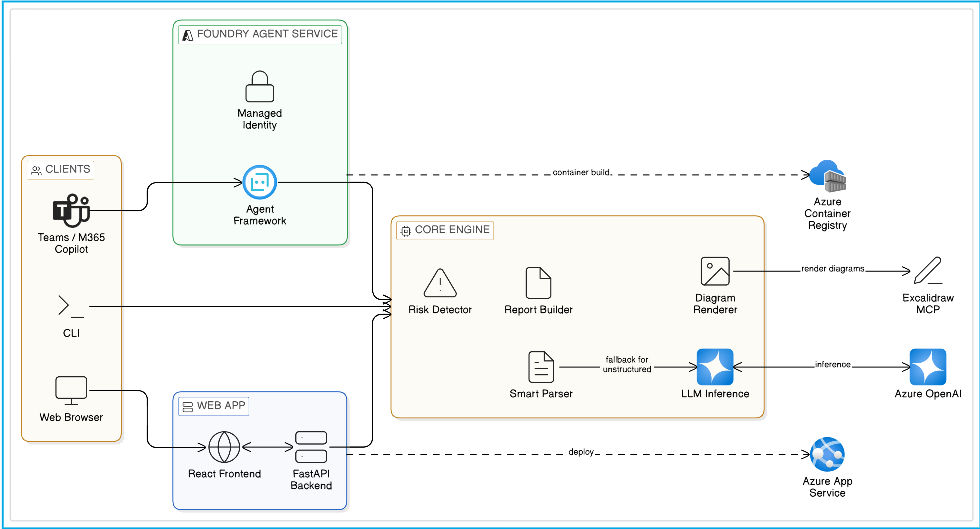
Clients (Teams/M365 Copilot, CLI, Web Browser) → Foundry Agent Service or Web App → Core Engine (Smart Parser, Risk Detector, Report Builder, Diagram Renderer, LLM Inference) → Azure OpenAI / Excalidraw MCP / ACR / Azure App Service
Internal Data Flow
flowchart TB
    subgraph Agent["Architecture Review Agent<br/>"]
        review_architecture
        infer_architecture
    end

    subgraph Tools["tools.py"]
        Parser["Parser<br/>YAML / MD / Plaintext"]
        LLMInference["LLM Inference<br/>AzureOpenAIChatClient"]
        RiskDetector["Risk Detector<br/>Template + LLM"]
        DiagramRenderer["Diagram Renderer<br/>Excalidraw + PNG"]
        ComponentMapper["Component Mapper"]
        ReportBuilder["Report Builder"]
        MCPClient["MCP Client<br/>(Excalidraw Server)"]
    end

    review_architecture --> Tools
    infer_architecture --> Tools
    Tools --> LocalOutputs[".excalidraw / .png / .json"]
    MCPClient --> ExcalidrawMCP["Excalidraw MCP<br/>(Interactive View)"]
Why use it?
- Instant architecture feedback - get a prioritised risk assessment and improvement plan in seconds, not days.
- Works with what you already have - paste a YAML spec, drag in a README, or describe your system in plain English. The LLM infers structure when the input isn't formal.
- Interactive diagrams - auto-generated Excalidraw diagrams render components, connections, and data flows. Edit them in-browser or export to PNG.
- Two deployment options - run as a full-stack Web App (FastAPI + React) on Azure App Service, or as a Hosted Agent on Microsoft Foundry with Teams / M365 Copilot integration.
- Built for developers - runs locally with a single script, deploys to Azure with one command, and exposes a REST API for pipeline integration.
Demo
Microservices Banking Architecture — full end-to-end review: file upload → risk detection → interactive Excalidraw diagram → recommendations.
If the video does not render inline, download and watch it here.
Features
Two Deployment Options
This sample ships with two production deployment paths. Both share the same core analysis engine (tools.py) choose the one that fits your operational model.
Option A - Web App (Azure App Service)
A traditional full-stack web application: FastAPI backend + React frontend, packaged in a single Docker image and deployed to Azure App Service.
- You own the API surface - custom REST endpoints (
/api/review,/api/infer, etc.) - Interactive browser UI - React + Excalidraw with drag-and-drop file upload, tabbed results, PNG/Excalidraw downloads
- Standard App Service model - bring-your-own infrastructure, scale via App Service Plan (manual or auto-scale rules)
- Authentication - API key or Azure AD, configured by you
Best for: Teams that want a custom UI, need to embed the API in existing tooling, or prefer full control over infrastructure and scaling.
Key files: api.py · Dockerfile.web · frontend/ · scripts/windows/deploy-webapp.ps1
Option B - Hosted Agent (Microsoft Foundry Agent Service)
A managed agent deployed to Microsoft Foundry's Hosted Agent infrastructure via the VS Code Foundry extension. The platform handles containerisation, identity, scaling, and API compliance.
- OpenAI Responses API - your agent automatically exposes the OpenAI-compatible
/responsesendpoint - Managed infrastructure - Microsoft Foundry builds, hosts, and scales the container (0 → 5 replicas, including scale-to-zero)
- Managed identity - no API keys in the container; the platform assigns a system-managed identity with RBAC
- Conversation persistence - the Foundry Agent Service manages conversation state across requests
- Channel publishing - publish your agent to Microsoft Teams, Microsoft 365 Copilot, a Web App preview, or a stable API endpoint - no extra code required
- Observability - built-in OpenTelemetry tracing with Azure Monitor integration
- Stable deployment workflow - the VS Code Foundry extension provides step-by-step guidance with automatic ACR integration, managed identity assignment, and built-in validation
Best for: Teams that want a managed, scalable API with zero infrastructure overhead, or need to publish the agent to Teams / M365 Copilot channels. The extension-based deployment flow is more reliable than script-based approaches and provides real-time feedback.
Key files: main.py · agent.yaml · Dockerfile · docs/deployment.md
Comparison
Tip: You can run both simultaneously use the Web App for your internal team's browser-based reviews, and the Hosted Agent for API consumers and Teams/Copilot integration.
Installation
Prerequisites
- Python 3.11+
- (Optional) Azure OpenAI access for LLM inference & hosted agent mode
Quick Setup (recommended)
Setup scripts are provided that create a .venv virtual environment, install all dependencies, and initialise the .env file in one step:
Windows (PowerShell):
# Clone the repository
git clone https://github.com/Azure-Samples/agent-architecture-review-sample
cd agent-architecture-review-sample

# Run the setup script (creates .venv, installs deps, copies .env.template → .env)
.\scripts\windows\setup.ps1
Linux / macOS (Bash):
# Clone the repository
git clone https://github.com/Azure-Samples/agent-architecture-review-sample
cd agent-architecture-review-sample

# Run the setup script
chmod +x scripts/linux-mac/setup.sh
bash scripts/linux-mac/setup.sh
Manual Setup
If you prefer to set things up manually:
# Clone the repository
git clone https://github.com/Azure-Samples/agent-architecture-review-sample
cd agent-architecture-review-sample

# Create virtual environment
python -m venv .venv

# Activate virtual environment
# Windows (PowerShell):
.\.venv\Scripts\Activate.ps1
# Windows (cmd):
.\.venv\Scripts\activate.bat
# Linux/macOS:
source .venv/bin/activate

# Upgrade pip & install dependencies
python -m pip install --upgrade pip
pip install -r requirements.txt

# Create .env from template
cp .env.template .env   # then edit .env with your settings
Environment Configuration
# Copy the template
cp .env.template .env
Edit .env with your settings:
# Microsoft Foundry / OpenAI Configuration
# Use PROJECT_ENDPOINT for Microsoft Foundry projects, or AZURE_OPENAI_ENDPOINT for Azure OpenAI
PROJECT_ENDPOINT=https://your-project.services.ai.azure.com/api/projects/your-project
AZURE_OPENAI_ENDPOINT=https://your-resource.openai.azure.com/
MODEL_DEPLOYMENT_NAME=gpt-4.1
AZURE_OPENAI_API_KEY="your-azure-openai-api-key"

# SSL: Set to "1" if behind a corporate proxy or experiencing SSL certificate errors
# ARCH_REVIEW_NO_SSL_VERIFY=1
Note: The
ARCH_REVIEW_NO_SSL_VERIFY=1flag disables SSL verification for the Excalidraw MCP server connection. Use this if you're behind a corporate proxy or firewall that intercepts HTTPS traffic. You can also set it inline:# PowerShell $env:ARCH_REVIEW_NO_SSL_VERIFY="1"# Bash export ARCH_REVIEW_NO_SSL_VERIFY=1
Usage
Local CLI (no Azure required for structured inputs)
The local runner executes the full pipeline parse, risk analysis, diagram generation, component mapping, and structured report output.
# Analyse a YAML architecture file (rule-based parser)
python run_local.py scenarios/ecommerce.yaml

# Analyse a Markdown architecture file
python run_local.py scenarios/event_driven.md

# Inline plaintext (chained arrows supported)
python run_local.py --text "Load Balancer -> Web Server -> App Server -> PostgreSQL DB"

# With Excalidraw MCP server rendering (interactive diagram)
python run_local.py scenarios/ecommerce.yaml --render

# Feed ANY file - auto-falls back to LLM inference if not structured
python run_local.py README.md
python run_local.py design_doc.txt

# Force LLM inference (requires Azure OpenAI configured in .env)
python run_local.py some_readme.md --infer
python run_local.py --infer "We have a React frontend, Kong gateway, three microservices, and PostgreSQL"
python run_local.py --text "We have a React frontend, Kong gateway, three microservices, and PostgreSQL" --infer
Outputs (saved to output/):
architecture.excalidraw- Excalidraw file for local viewingarchitecture.png- High-resolution PNG diagramreview_bundle.json- Full structured review report (JSON)
For the web app workflow, use the OS-specific scripts in scripts/README.md. For the hosted-agent workflow, use docs/azd-local.md for local azd runs and docs/deployment.md for Foundry deployment.
Model Deployment (Azure OpenAI)
This sample requires a deployed model (GPT-4.1 recommended) on Azure OpenAI or Microsoft Foundry.
Option 1: Microsoft Foundry (recommended)
- Go to Microsoft Foundry and create or open a project.
- Navigate to Models + endpoints → Deploy model → Deploy base model.
- Select gpt-4.1 (or your preferred model) and click Deploy.
- Copy the Project endpoint (e.g.,
https://<project>.services.ai.azure.com). - Note the Deployment name (e.g.,
gpt-4.1). - Set the environment variables:
PROJECT_ENDPOINT=https://<your-project>.services.ai.azure.com
MODEL_DEPLOYMENT_NAME=gpt-4.1
Option 2: Azure OpenAI
- In the Azure Portal, create an Azure OpenAI resource.
- Go to Microsoft Foundry → select the resource → Deployments → Create deployment.
- Choose gpt-4.1, set the deployment name, and deploy.
- Copy the Endpoint (e.g.,
https://<resource>.openai.azure.com/). - Set the environment variables:
AZURE_OPENAI_ENDPOINT=https://<your-resource>.openai.azure.com/
AZURE_AI_MODEL_DEPLOYMENT_NAME=gpt-4.1
Authentication
The Architecture Review Agent supports two authentication methods:
- API Key (simplest) - Set
AZURE_OPENAI_API_KEYin.env. Used automatically when present. - DefaultAzureCredential (fallback) - Supports Azure CLI (
az login), Managed Identity, and service principal env vars (AZURE_CLIENT_ID/AZURE_TENANT_ID/AZURE_CLIENT_SECRET).
For local development with API key:
AZURE_OPENAI_ENDPOINT=https://your-resource.openai.azure.com/
AZURE_OPENAI_API_KEY=your-key-here
Or with Azure CLI:
az login
az account set --subscription <your-subscription-id>
Input Formats
The Architecture Review Agent accepts any input - structured or unstructured. Component names, types, and architectures are fully dynamic.
How it works
flowchart LR
    A["ANY INPUT<br/>(YAML, MD, README,<br/>code, prose, etc.)"] --> B{Smart Parser}
    B -- "Structured" --> C["Rule-based<br/>(fast)"]
    B -- "Unstructured" --> D["LLM Inference<br/>(auto-fallback)"]
    C --> E["Structured Architecture<br/>(components + connections)"]
    D --> E
    E --> F[Risk Analysis]
    F --> G[Diagram Generation]
    G --> H[Report]
- Structured formats (YAML with
components/connections, Markdown with## Componentsheaders, plaintext arrows) → fast rule-based parser. - Unstructured inputs (any other file, prose, code, config) → when rule-based parsing yields ≤1 component, the LLM automatically analyses the content, infers components/types/connections, and proceeds.
- Force LLM → use
--inferflag to always use LLM inference, even on structured inputs.
Structured: YAML
name: My Architecture
components:
    - name: API Gateway
        type: gateway
        technology: Kong
        replicas: 2
    - name: User Service
        type: service
        replicas: 3
    - name: User Database
        type: database
        technology: PostgreSQL

connections:
    - from: api_gateway
        to: user_service
        protocol: REST
    - from: user_service
        to: user_database
        protocol: TCP
Accepted keys: components/services/nodes and connections/edges/flows/links.
Structured: Markdown
## Components

### API Gateway
- **Type:** gateway
- **Technology:** Kong
- **Replicas:** 2

### User Service
- Handles user authentication and profiles

## Connections
- API Gateway -> User Service (REST)
- User Service -> User Database (TCP)
Structured: Plaintext
API Gateway -> User Service -> User Database
API Gateway -> Product Service -> Product DB
Product Service -> Redis Cache
Chained arrows (A -> B -> C) are auto-expanded into individual connections.
Unstructured: Anything Else
Feed it a README, design document, code file, Terraform config, meeting notes - the LLM analyses it:
Our platform uses React for the frontend, served through CloudFront CDN.
All API calls go through a Kong API Gateway which routes to three microservices:
User Service, Order Service, and Inventory Service. Each service has its own
PostgreSQL database. Order Service publishes events to a Kafka topic that
Inventory Service consumes. We use Redis for session caching and Datadog
for monitoring.
The model will infer:
- 10 components - React Frontend, CloudFront CDN, Kong API Gateway, User Service, Order Service, Inventory Service, 3× PostgreSQL DBs, Kafka, Redis, Datadog
- Component types - frontend, cache, gateway, service, database, queue, monitoring
- ~12 connections - Frontend→CDN→Gateway→Services→DBs, Order→Kafka→Inventory, etc.
Then proceeds with full risk analysis, diagram generation, and report.
Agent Tools
Risk Detection
The Architecture Review Agent uses two risk engines depending on the parsing path:
Template-based (rule-based inputs)
Fast pattern-matching across four categories:
LLM-generated (inferred inputs)
When the LLM infers the architecture (auto-fallback or --infer), it also produces context-aware risks with concise 1-liner issues and actionable recommendations - covering SPOFs, redundancy gaps, security concerns, observability, compliance (e.g. PCI DSS), and architecture-specific bottlenecks.
Risks are severity-bucketed: critical → high → medium → low.
Component Type Detection
When types aren't explicitly set, the Architecture Review Agent infers them from component names:
Tech Stack
- Microsoft Agent Framework (
azure-ai-agentserver-agentframework) - Hosted agent runtime - Excalidraw MCP Server - Interactive diagram rendering via MCP protocol
- Azure OpenAI - LLM backend (GPT-4.1 recommended) via
AzureOpenAIChatClient(API key orDefaultAzureCredential) - Pillow - PNG diagram export
- PyYAML - YAML parsing
- Rich - CLI output formatting