
And plenty more:
Get started
-
Open the
.dmgand drag Plip into Applications. -
Open Plip from Applications. It's signed and notarized by Apple, so macOS only asks once whether to open an app from the internet: click Open.
-
A one-minute welcome turns on the permissions Plip needs (what each is for) and connects your AI with one click:
Already signed in to one of these? Plip finds it.
-
Hold control + option, ask, let go. No sign-up needed.
Something broken? Click Report a bug in Plip's menu bar, or open an issue.
Permissions and privacy
Plip needs three macOS permissions, and a fourth is optional. The welcome asks for each and opens the right page in System Settings.
What leaves your Mac
- To the AI you picked, with each ask: your question, the screenshots, the text on screen (app and window names, the page address, what you've selected, visible text and button names), your recent conversation, and what Plip knows about you. It goes to Anthropic, OpenAI, Cursor or Google under your own account and their terms. Cursor and Gemini through Antigravity get the text but not the screenshots. On Google's free key, Google may use what Plip sends (screenshots included) to improve its products, and human reviewers may read it (outside the EEA, Switzerland and the UK; see the Gemini API terms), so use a paid plan for private work.
- Analytics, on by default: once a day a random install id with the Plip, macOS and Python versions, and once
each, the setup steps you reach (a welcome step, a permission granted, an AI connected, your first task, the
sign-in offer), with your account id once you have one. Never your screen, your files or anything you ask. There's
no switch in the app yet: set
MCP_VISION_NO_ANALYTICS=1orDO_NOT_TRACK=1in Plip's environment. For the app, runlaunchctl setenv MCP_VISION_NO_ANALYTICS 1and reopen Plip (it lasts until you restart your Mac). - Report a bug sends what you type, which AI you use, your install id and versions. Nothing else, and only when you press Send, analytics off or not.
- Your account: when you finish or skip the welcome, the app makes a guest account with a random name like Quiet Nomad, so we can count people. Continue with Google, offered after your first task, is optional and adds your name, email and picture. Nothing you ask, see or remember is sent to it. Running from source has no account.
- Update check: one request a day to GitHub for the latest release, with nothing about you in it. Turn it off in Settings → General.
- Only if you add their keys: AssemblyAI gets your voice to transcribe it, ElevenLabs gets each sentence Plip speaks, and Jev gets your question and nearby button names to route and aim. Without the keys, Plip never contacts them.
- Apple's speech recognizer, used when you haven't added an AssemblyAI key, may send your voice to Apple. Pick Parakeet under Voice → Listening to keep it on your Mac.
What stays on your Mac: what Plip knows about you (~/.config/mcp-vision/memory.json, readable only by you),
plus your history, usage and action log (~/.local/share/mcp-vision). Screenshots aren't kept. Passport, card,
Social Security and similar numbers stay in memory, and the AI only ever sees their label, never the number.
What Plip won't do on its own: your AI can only answer in words. Plip runs it in an empty, throwaway folder with its tools switched off (read-only for Codex), stops it if it reaches for one, and does every action itself. It asks you first before anything that buys, sends, submits, posts or deletes, before opening a file that can run things (an app, script or installer), and before tidying your desktop (which "undo" puts back).
- On this Mac,
~/.config/mcp-vision/account.json(readable only by you) keeps your name, email, Google picture and the session, which Plip renews once each launch. The account server (Supabase Auth) keeps the account's name, email, sign-in provider, when you joined and when you last signed in. - Continue with Google links Google to the same account. If that Google already has a Plip account (your last Mac), you're signed in to that one instead, so nobody is counted twice. Nothing syncs between Macs yet.
- Plip offers Google after your first task, your third, and once per update; after three Laters it stops asking, and Settings → Account has the button.
- Settings → Account → Sign out forgets the Google account on this Mac, and Plip carries on as a new guest. To have
an account deleted, email [email protected] from the address you signed in with. The full policy is at
plip.dev/privacy, and the code is
src/mcp_vision/buddy/account.py.
Run it from source
curl -fsSL https://raw.githubusercontent.com/hussainn7/plip-oss/main/scripts/install.sh | bash
plip                 # Plip moves into your notch; the dashboard opens on first run
Run from a terminal, macOS checks the terminal's permissions, not Plip's: turn on Terminal (or iTerm, or your
editor) under System Settings → Privacy & Security → Accessibility, or the shortcut hears nothing. Plip says so
when it starts. plip doctor checks brains, keys and permissions. Prefer another shortcut than
control + option? Pick one in Settings → General.
plip ask --image screenshot.png "where's the export button?"
plip ask --engine codex --json "find my lease pdf"     # prints what Plip said, did, and pointed at
Paste them in the dashboard, or see .env.example.
Listening on your Mac with Parakeet. Under Voice → Listening, pick Parakeet for NVIDIA's Parakeet Unified 0.6B instead of Apple's recognizer: it catches more of what you say, with punctuation, and nothing leaves your Mac. It's a one-time 663 MB download (pinned, checksummed, resumable); Apple's keeps listening until it's done.
Activity. The Activity tab's Usage view shows every request from this Mac: per day, when you ask, how it ended, which brain and plan, and what it would cost at API prices (what your plan is worth). It stays on your Mac.
Memory: Plip knows you
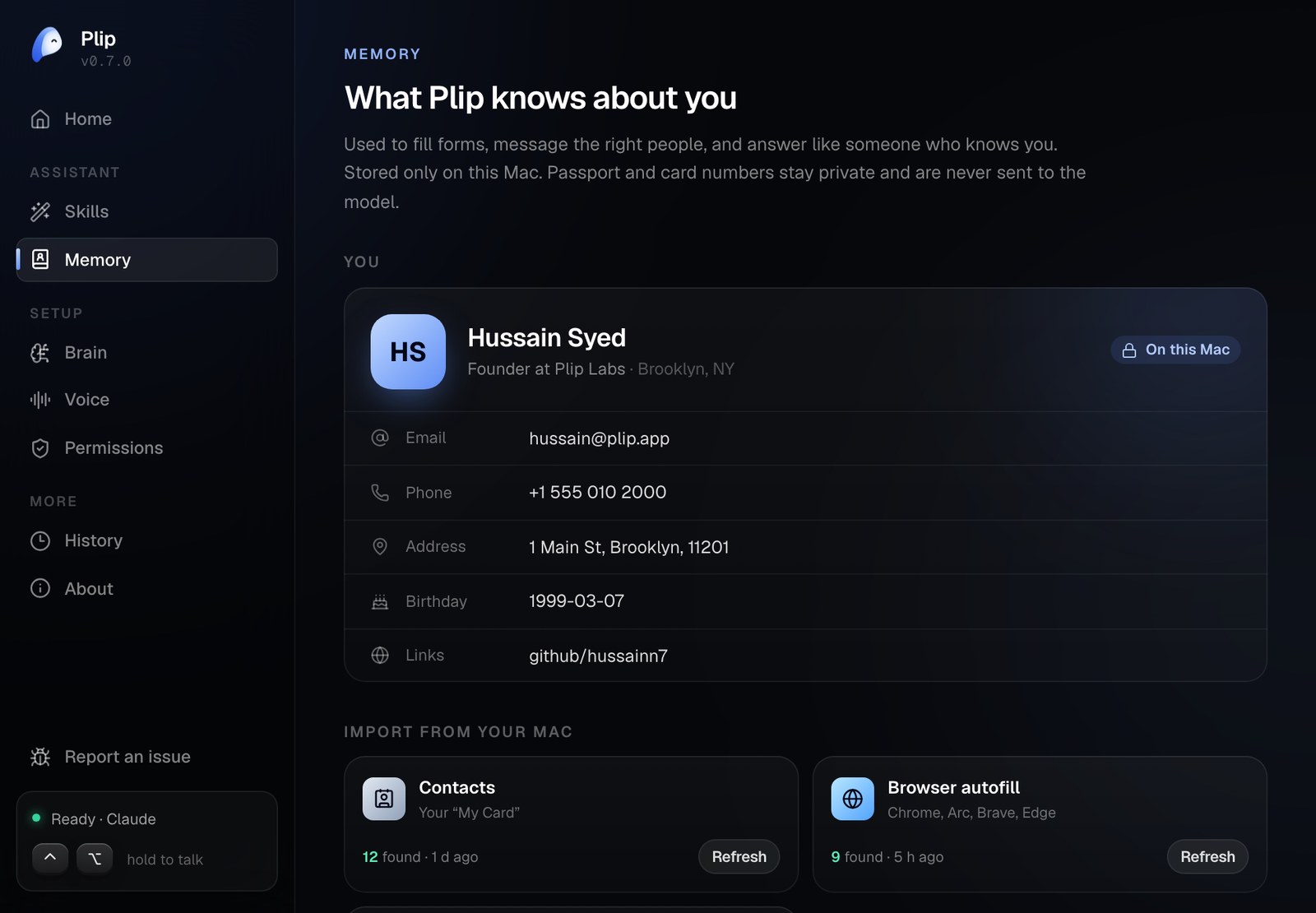
Plip keeps a small knowledge panel about you on your Mac and answers like someone who knows you. Import it in a few seconds from what's already there:
- Contacts: your "My Card" (name, emails, phones, address, birthday, company, links)
- Browser autofill: Chrome, Arc, Brave and Edge profiles
- Mail: your accounts and addresses
- ChatGPT, Claude or Gemini memory: copy Plip's prompt into your assistant and paste its answer back, the same pattern as Claude's Import Memory
From the terminal: plip memory import contacts, plip memory show, plip memory prompt.
How it works
⌃⌥ ──▶ mic ──▶ AssemblyAI / Apple Speech ──▶ transcript ──▶ notch island (live)
                                               │
 screenshots (prefetched) ─┐                   ▼
 Accessibility screen map ─┼──▶ Jev router (needs screen? which monitor? walkthrough?)
 what Plip knows about you ┘
                           ▼
   your brain (Claude Code / Codex / Cursor / Gemini / API), streamed
     ├─▶ sentences ──▶ TTS queue (speaks sentence 1 while 2 is synthesized)
     ├─▶ [POINT:x,y:label]       ──▶ snap to the real control ──▶ Plip slips out of the notch to it
     ├─▶ [STEPS:n] [PLAN: a | b] ──▶ checklist in the notch; Plip watches the screen and gives the next step
     └─▶ [DO:name {json}]        ──▶ action engine ──▶ preview + your yes (if it moves files) ──▶ done
                                       └──▶ results (search hits, a loaded page) go back for one more turn
- Screen map. Plip lists the frontmost app's real controls (label, role, center in screenshot pixels), so the model points at things that exist, fills the right fields, and text-only brains can still point.
- Walkthroughs. For "how do I…" the model announces the steps, and Plip shows them as a checklist. A 64×40 screen fingerprint tells Plip when you've done a step, and it takes a fresh look before giving the next one.
- Actions. The model asks for actions with
[DO:…]tags. Plip runs them itself on your Mac (open, Spotlight, AppleScript, Shortcuts, Accessibility), with timeouts, an undo history, and a local log. - Depth. Fast, Balanced and Deep map to low, medium and high effort.
Everything above the windows is platform-neutral and tested, including the CLI engines (through real subprocesses)
and a full plip CLI run against a fake Claude Code. The macOS layer is three WKWebViews (island, mascot, dashboard)
rendering one React bundle, plus an event tap and audio glue. See docs/BUDDY.md.
Development
python3.12 -m venv .venv && source .venv/bin/activate
pip install -e '.[dev]'
ruff check . && python -m pytest

cd ui && npm install && npm run build      # React 19 + Tailwind 4 + Motion → src/mcp_vision/buddy/web/index.html
npm run dev                                # #showcase for the fake desktop, #settings, #island; /film.html plays the demo above
npm run e2e                                # clicks through the island and dashboard in Chromium
npm run film                               # renders docs/img/plip-demo.gif and the use-case pictures (needs ffmpeg)
More in CONTRIBUTING.md.
License
MIT