
WhatsApp MCP Server
This is a fork of lharries/whatsapp-mcp with improved search and contact resolution.
With this you can search and read your personal Whatsapp messages (including images, videos, documents, and audio messages), search your contacts and send messages to either individuals or groups. You can also send media files including images, videos, documents, and audio messages.
It connects to your personal WhatsApp account directly via the Whatsapp web multidevice API (using the whatsmeow library). All your messages are stored locally in a SQLite database and only sent to an LLM (such as Claude) when the agent accesses them through tools (which you control).
Here's an example of what you can do when it's connected to Claude.
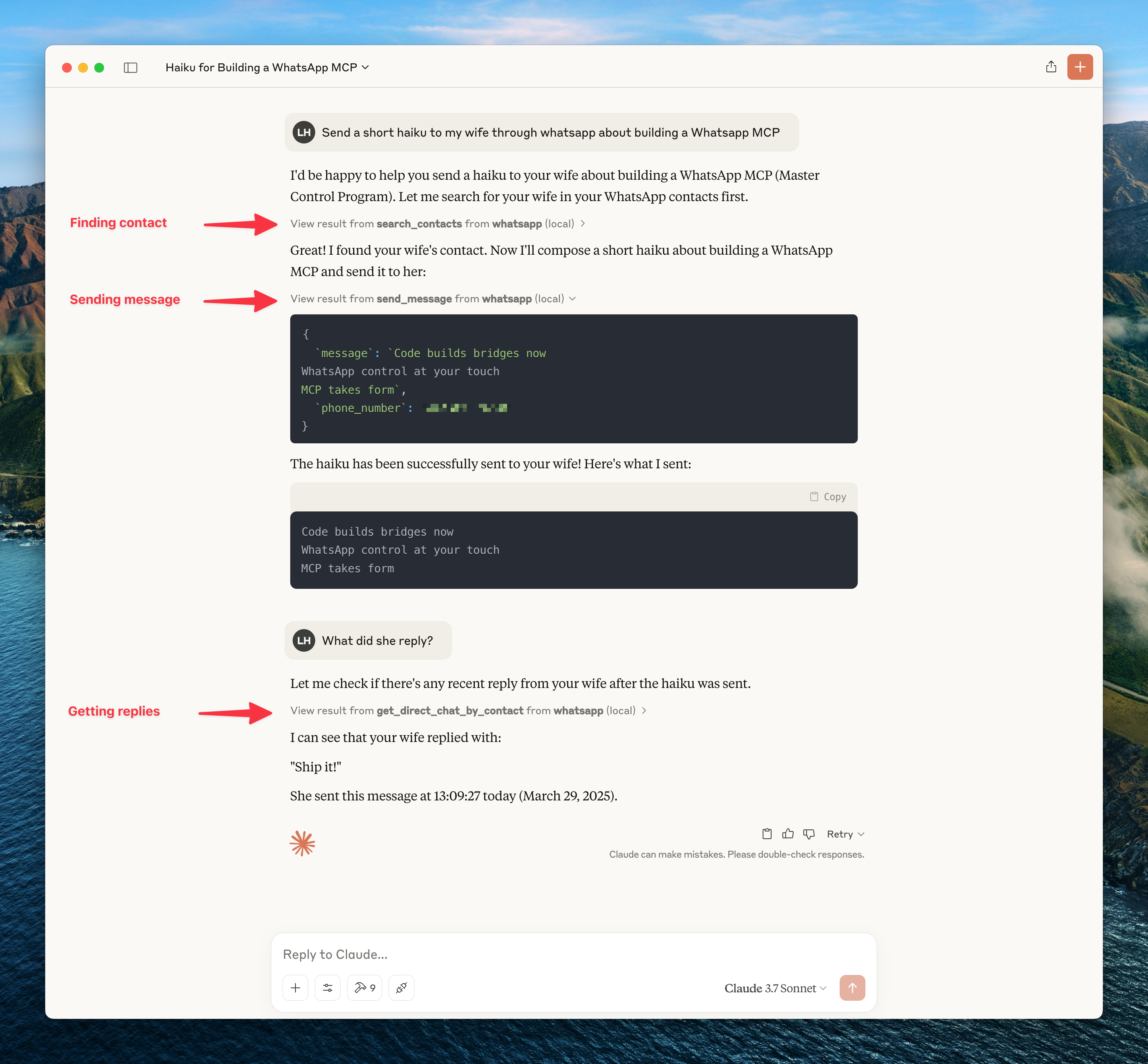
Caution: as with many MCP servers, the WhatsApp MCP is subject to the lethal trifecta. This means that project injection could lead to private data exfiltration.
Changes from upstream
Full address book search
The upstream MCP only searches contacts that have been synced into the local chats table (typically a few hundred). This fork also searches the full WhatsApp address book stored by whatsmeow (often thousands of contacts), so you can find people you haven't recently messaged.
LID (Linked ID) resolution
WhatsApp has been transitioning some contacts to use LID-based JIDs instead of phone-number-based JIDs. This fork resolves LIDs to real contact names using whatsmeow's lid_map table, so chats and messages from LID-based contacts show proper names instead of opaque numeric IDs.
Accent- and case-insensitive search
Searching for "schroder" now finds "Schröder", "Munoz" finds "Muñoz", etc. All search operations normalize Unicode diacritics for comparison.
On-demand chat sync
A new /api/sync endpoint on the Go bridge allows requesting history sync for specific chats. The bridge also sends presence on connect to help trigger pending sync data from WhatsApp.
Installation
Prerequisites
- Go
- Python 3.6+
- Anthropic Claude Desktop app (or Cursor)
- UV (Python package manager), install with
curl -LsSf https://astral.sh/uv/install.sh | sh - FFmpeg (optional) - Only needed for audio messages. If you want to send audio files as playable WhatsApp voice messages, they must be in
.oggOpus format. With FFmpeg installed, the MCP server will automatically convert non-Opus audio files. Without FFmpeg, you can still send raw audio files usingsend_messagewithmedia_path.
Steps
-
Clone this repository
git clone https://github.com/lharries/whatsapp-mcp.git cd whatsapp-mcp -
Run the WhatsApp bridge
Navigate to the whatsapp-bridge directory and run the Go application:
cd whatsapp-bridge
go run main.go
The first time you run it, you will be prompted to scan a QR code. Scan the QR code with your WhatsApp mobile app to authenticate.
After approximately 20 days, you will might need to re-authenticate.
Tip: Run the bridge (and optionally the MCP server) inside a tmux session so they keep running after you close your terminal:
tmux new-session -s whatsapp cd whatsapp-bridge && go run main.go # Detach with Ctrl-b d — reattach later with: tmux attach -t whatsapp -
Connect to the MCP server
Copy the below json with the appropriate {{PATH}} values:
{
  "mcpServers": {
    "whatsapp": {
      "command": "{{PATH_TO_UV}}", // Run `which uv` and place the output here
      "args": [
        "--directory",
        "{{PATH_TO_SRC}}/whatsapp-mcp/whatsapp-mcp-server", // cd into the repo, run `pwd` and enter the output here + "/whatsapp-mcp-server"
        "run",
        "main.py"
      ]
    }
  }
}
For Claude, save this as
claude_desktop_config.jsonin your Claude Desktop configuration directory at:~/Library/Application Support/Claude/claude_desktop_config.jsonFor Cursor, save this as
mcp.jsonin your Cursor configuration directory at:~/.cursor/mcp.json -
Restart Claude Desktop / Cursor
Open Claude Desktop and you should now see WhatsApp as an available integration.
Or restart Cursor.
Windows Compatibility
If you're running this project on Windows, be aware that go-sqlite3 requires CGO to be enabled in order to compile and work properly. By default, CGO is disabled on Windows, so you need to explicitly enable it and have a C compiler installed.
Steps to get it working:
-
Install a C compiler
We recommend using MSYS2 to install a C compiler for Windows. After installing MSYS2, make sure to add theucrt64\binfolder to yourPATH.
→ A step-by-step guide is available here. -
Enable CGO and run the app
cd whatsapp-bridge
go env -w CGO_ENABLED=1
go run main.go
Without this setup, you'll likely run into errors like:
Binary was compiled with 'CGO_ENABLED=0', go-sqlite3 requires cgo to work.
Remote MCP via fly.io (WebSocket proxy)
If you want to connect to your local MCP from a remote client (e.g. Claude on the web, a mobile app, or a server-side agent) you can deploy a lightweight WebSocket proxy on fly.io that tunnels MCP traffic to your local machine.
How it works
Remote client (Claude / agent)
        │  HTTPS / WSS
        ▼
  fly.io WebSocket proxy  ◄──── persistent outbound WS connection ────  Local machine
                                                                         (tmux session running
                                                                          whatsapp-bridge + MCP server)
- Your local machine opens an outbound WebSocket connection to the fly.io app (no inbound firewall rules needed).
- The fly.io app bridges that connection to remote MCP clients over a public HTTPS/WSS endpoint.
- MCP messages flow transparently in both directions.
Setup
-
Install the fly CLI and log in
curl -L https://fly.io/install.sh | sh fly auth login -
Create the proxy app — you can use any small WebSocket-relay server. A minimal example using
mcp-remoteas a local-side forwarder:# On your local machine, install mcp-remote npm install -g mcp-remote # Start the local MCP server with stdio transport (as usual), then expose it: mcp-remote http://localhost:YOUR_MCP_PORTFor the fly.io side, create a minimal Node/Bun WebSocket relay (see the mcp-proxy project for a ready-made Docker image) and deploy it:
fly launch --image ghcr.io/sparfenyuk/mcp-proxy:latest --name my-whatsapp-mcp fly deploy -
Point the local bridge at fly.io — on your local machine (ideally inside your tmux session) start the tunnel:
# Replace <app-name> with your fly.io app name
mcp-proxy --mode ws-client wss://<app-name>.fly.dev/mcp
The proxy will maintain a persistent outbound WebSocket connection to fly.io so remote clients can reach your local MCP at any time.
-
Configure your remote client — add the fly.io WebSocket URL as an MCP server in your client config:
{
  "mcpServers": {
    "whatsapp": {
      "url": "wss://<app-name>.fly.dev/mcp"
    }
  }
}
Note: Keep the local bridge and the tunnel running in your tmux session (see the tmux tip above) so the remote MCP stays reachable.
Architecture Overview
This application consists of two main components:
-
Go WhatsApp Bridge (
whatsapp-bridge/): A Go application that connects to WhatsApp's web API, handles authentication via QR code, and stores message history in SQLite. It serves as the bridge between WhatsApp and the MCP server. -
Python MCP Server (
whatsapp-mcp-server/): A Python server implementing the Model Context Protocol (MCP), which provides standardized tools for Claude to interact with WhatsApp data and send/receive messages.
Data Storage
- All message history is stored in a SQLite database within the
whatsapp-bridge/store/directory - The database maintains tables for chats and messages
- Messages are indexed for efficient searching and retrieval
Usage
Once connected, you can interact with your WhatsApp contacts through Claude, leveraging Claude's AI capabilities in your WhatsApp conversations.
MCP Tools
Claude can access the following tools to interact with WhatsApp:
- search_contacts: Search for contacts by name or phone number
- list_messages: Retrieve messages with optional filters (date range, sender, chat, contact, content query) and surrounding context. Use
contact_jidto find any message involving a person (as sender or in their direct chat) - list_chats: List available chats with metadata
- get_chat: Get chat metadata by JID, phone number, or contact. Provide one of
chat_jid(exact lookup),phone_number(direct chat by phone), orcontact_jid(all chats involving a person) - get_message_context: Retrieve context around a specific message
- send_message: Send a text message, file, or voice message. Supports
message(text),media_path(file attachment), andas_audio(convert to Opus voice message) - download_media: Download media from a WhatsApp message and get the local file path
Media Handling Features
The MCP server supports both sending and receiving various media types:
Media Sending
You can send various media types to your WhatsApp contacts using the unified send_message tool:
- Images, Videos, Documents: Use
send_messagewithmedia_pathto share any supported media type. - Voice Messages: Use
send_messagewithmedia_pathandas_audio=Trueto send audio files as playable WhatsApp voice messages.- For optimal compatibility, audio files should be in
.oggOpus format. - With FFmpeg installed, the system will automatically convert other audio formats (MP3, WAV, etc.) to the required format.
- Without FFmpeg, you can still send raw audio files with
as_audio=False, but they won't appear as playable voice messages.
- For optimal compatibility, audio files should be in
Media Downloading
By default, just the metadata of the media is stored in the local database. The message will indicate that media was sent. To access this media you need to use the download_media tool which takes the message_id and chat_jid (which are shown when printing messages containing the meda), this downloads the media and then returns the file path which can be then opened or passed to another tool.
Technical Details
- Claude sends requests to the Python MCP server
- The MCP server queries the Go bridge for WhatsApp data or directly to the SQLite database
- The Go accesses the WhatsApp API and keeps the SQLite database up to date
- Data flows back through the chain to Claude
- When sending messages, the request flows from Claude through the MCP server to the Go bridge and to WhatsApp
Troubleshooting
- If you encounter permission issues when running uv, you may need to add it to your PATH or use the full path to the executable.
- Make sure both the Go application and the Python server are running for the integration to work properly.
Authentication Issues
- QR Code Not Displaying: If the QR code doesn't appear, try restarting the authentication script. If issues persist, check if your terminal supports displaying QR codes.
- WhatsApp Already Logged In: If your session is already active, the Go bridge will automatically reconnect without showing a QR code.
- Device Limit Reached: WhatsApp limits the number of linked devices. If you reach this limit, you'll need to remove an existing device from WhatsApp on your phone (Settings > Linked Devices).
- No Messages Loading: After initial authentication, it can take several minutes for your message history to load, especially if you have many chats.
- WhatsApp Out of Sync: If your WhatsApp messages get out of sync with the bridge, delete both database files (
whatsapp-bridge/store/messages.dbandwhatsapp-bridge/store/whatsapp.db) and restart the bridge to re-authenticate.
Connection Issues
Error reading from websocket: websocket: close 1006 (abnormal closure): unexpected EOF: This means WhatsApp closed the underlying web socket — usually a transient network blip or a routine keepalive timeout. The bridge enables whatsmeow's automatic reconnection and waits for a stable, logged-in session on startup (up to 3 minutes) instead of exiting on the first failed check, so an occasional 1006 in the logs is expected and recovers on its own. If the bridge logs the error repeatedly and never reaches✓ Connected to WhatsApp!, check that outbound traffic to WhatsApp's servers isn't blocked by a firewall, VPN, or proxy, and that your session hasn't been logged out from your phone (Settings > Linked Devices). If the session was removed, deletewhatsapp-bridge/store/whatsapp.dband restart to re-scan the QR code.
For additional Claude Desktop integration troubleshooting, see the MCP documentation. The documentation includes helpful tips for checking logs and resolving common issues.