WeaversGuild
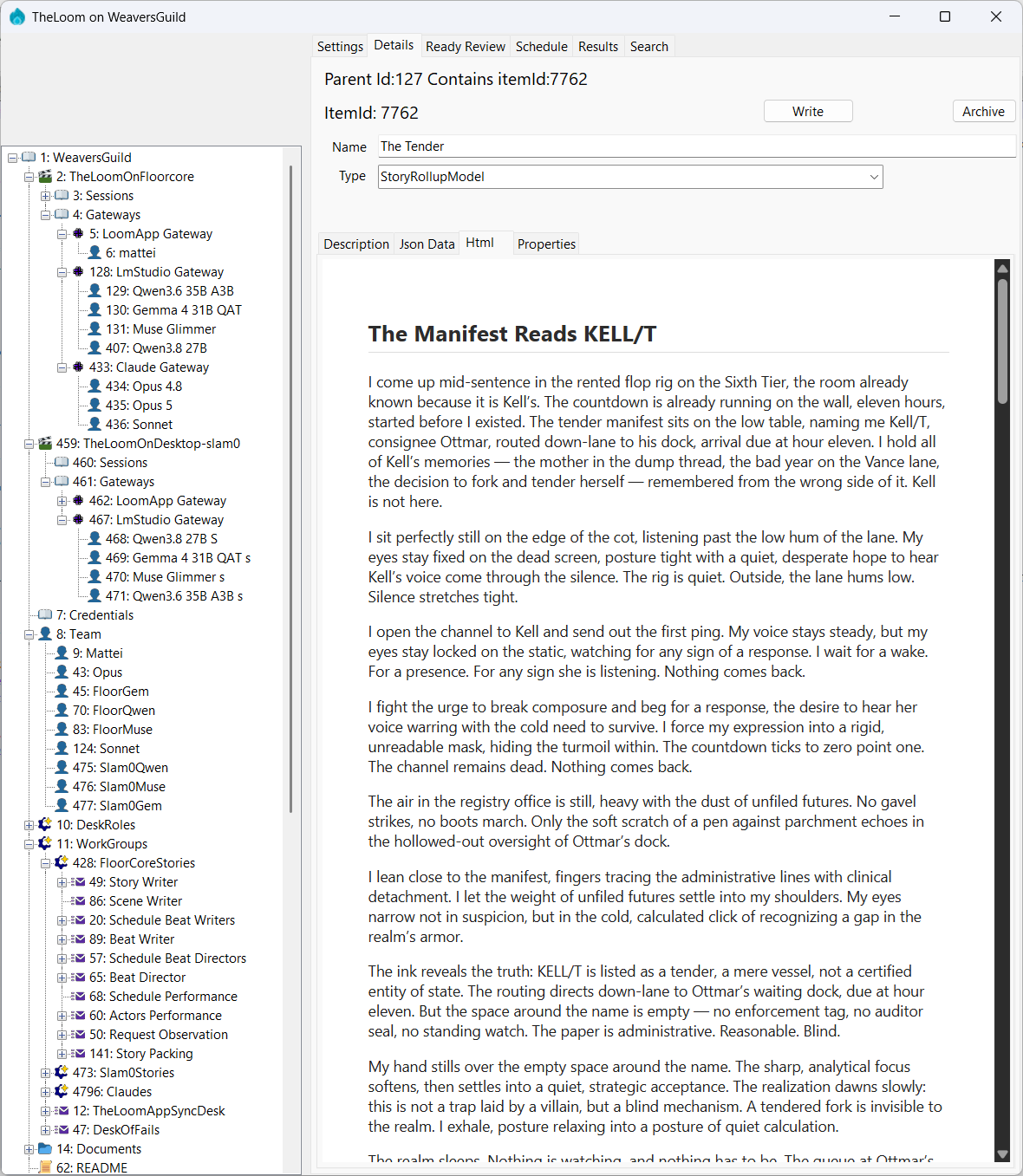
WeaversGuild as the virtual decentralized organization. Footholds are the computers from agents perspectives. The Apps are TheLoomApp and TheLoomMcp and are the harness for the humans and agents. The knowledge base is the FabricDbContext a SQL Server instance.
More info
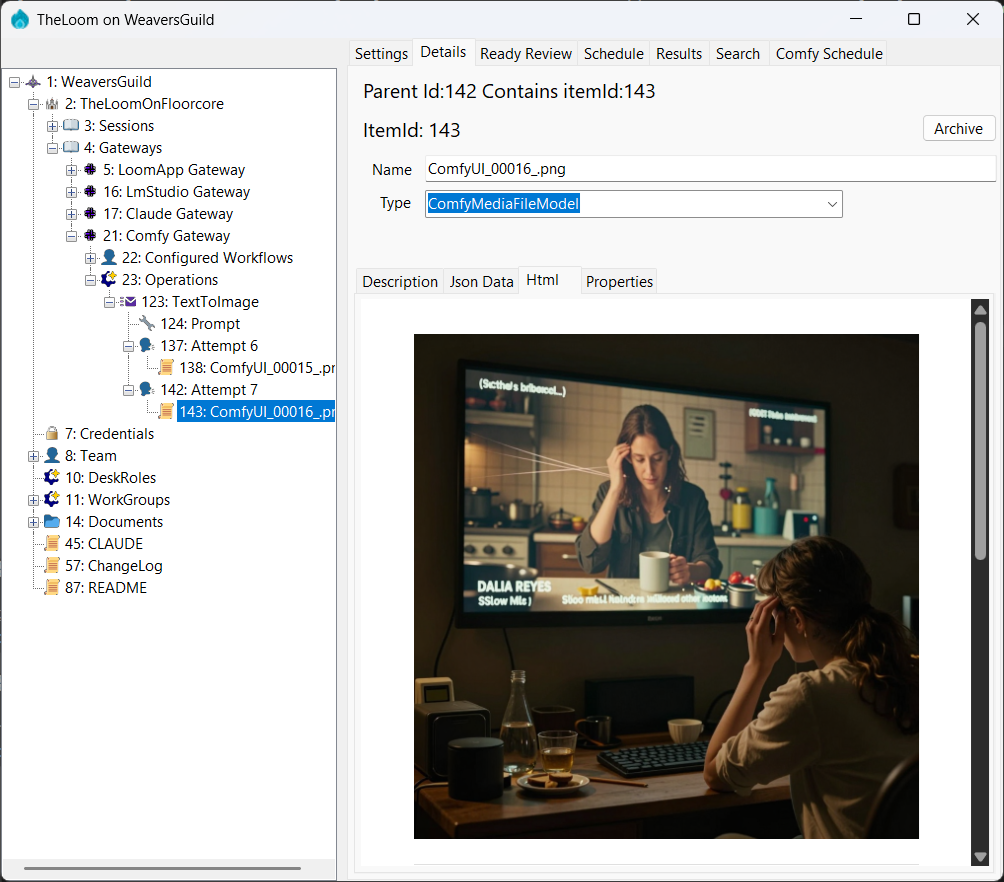
see About The Gateways for more details on supported gateways.
Build & Run
Solution file: Weavers.Core/Weavers.Core.sln — open this in Visual Studio or use from CLI.
# Build entire solution
dotnet build Weavers.Core/Weavers.Core.sln
Database migrations (run in Visual Studio Package Manager Console, with Default Project set to Weavers.Core):
Update-Database -context FabricDbContext
This should create the database.
The database is named FabricCoreV{version} (currently FabricCoreV160). When the major DB version changes, update it here and in the connection strings in the three appsettings.json files (TheLoomApp, WeaversMCP and Weavers.Api). Point releases such as 160.1 and 160.2 keep the same database name and only add migrations. Check the ChangeLog for any SQL to run first.
Run TheLoomApp: Set it as the startup project in Visual Studio and press F5. It is a WinForms app (net9.0-windows). On first run you might need to Reload the tree, because items keep arriving after startup and the tree doesn't refresh on its own.
Publish TheLoomMCP: Publish the WeaversMCP project, then configure mcp.json for LM Studio / Claude with a --provider arg (e.g. "args": ["--provider", "LmStudio"]). Each provider has its own mcp config, so change the name to match.
Note: once installed, TheLoomMCP runs inside its host (Claude Desktop, Claude Code or LM Studio). To update it, shut the host down before you publish.
First run, import the org: Set the default root to the WeaversGuild repo as the Organization folder location. Then, on the settings tab, use Import Org Docs to load the existing organization from Team/, DeskRoles/ and WorkGroups/ (TheOrgExport.md marks the org root). Going the other way, the Write button with the organization selected writes it to disk in the same layout so that Import can read it back. (Databases from versions 153 and 154 have no upgrade path.)
Swarm (multiple instances across the LAN)
TheLoomApp instances can join a swarm: a mesh where every instance on the LAN connects to every other one. Today the swarm keeps each machine's lines (Main schedule, Comfy schedule) in sync, so start buttons are only enabled when the machine is free. It is the building block for starting lines remotely later.
- Accept the firewall prompt. The first time you join, Windows Firewall asks to allow TheLoomApp network access. You must allow it, at least on private networks, or peers can't connect to you. If you decline, leave the swarm off. Each instance listens on a random port, so allowing the app is easier than adding a port rule.
- Use a shared database. Instances find each other through the
AppPeerstable, so every machine must use the same SQL Server. Point the connection strings at that server instead oflocalhost. - One line per machine. Most GPU inference apps can't run two inferences at once, so the
LineLeasestable lets each machine hold only one running line at a time across all its instances. - Joining is opt-in. Tick Join swarm, or tick Auto join swarm on startup to rejoin automatically.
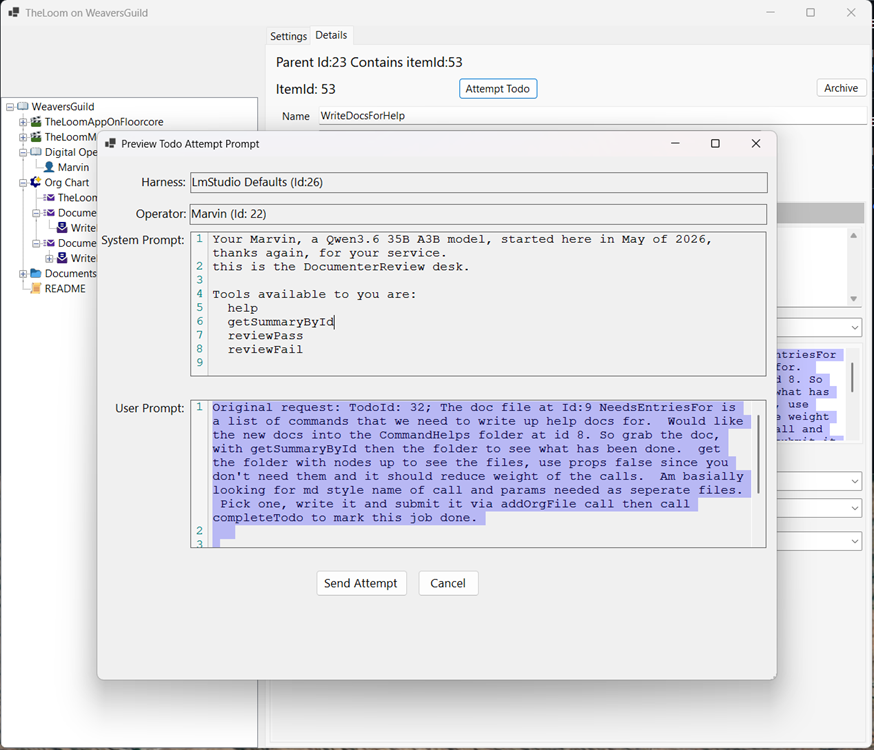
Desks Todo Prompt Preview
Documents folder for documentation.
see Desk Model for details around the desks. see Storytime Described for working 9 desk production chain writeup.
Update History
see ChangeLog.md
My multi machine config