
opencode-browser
Chrome automation plugin for OpenCode via WebSocket and Chrome Extension. Gives AI agents 165+ tools covering tabs, CDP debugging, network interception, visual clicking, session management, accessibility, advanced mouse/keyboard control, testing & mocking, profiling, stealth/anti-fingerprinting, proxy management, form automation, lighthouse audits, screencast recording, and more.
How it works
The system has two parts that talk to each other over a local WebSocket connection:
- MCP Server — a Node.js process that OpenCode connects to via stdio. It exposes all tools to the AI agent and forwards commands over WebSocket to the extension.
- Chrome Extension — a Manifest V3 service worker that receives commands from the MCP server and executes them inside the browser using Chrome APIs and CDP.
OpenCode <-- stdio --> MCP Server <-- WebSocket :3002 --> Chrome Extension <-- Chrome APIs --> Browser
Demo
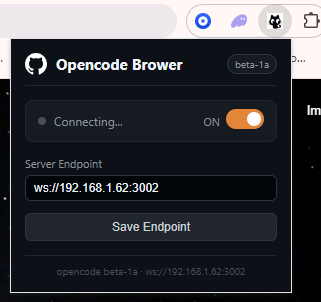
Extension popup — configure the WebSocket endpoint and toggle the connection:
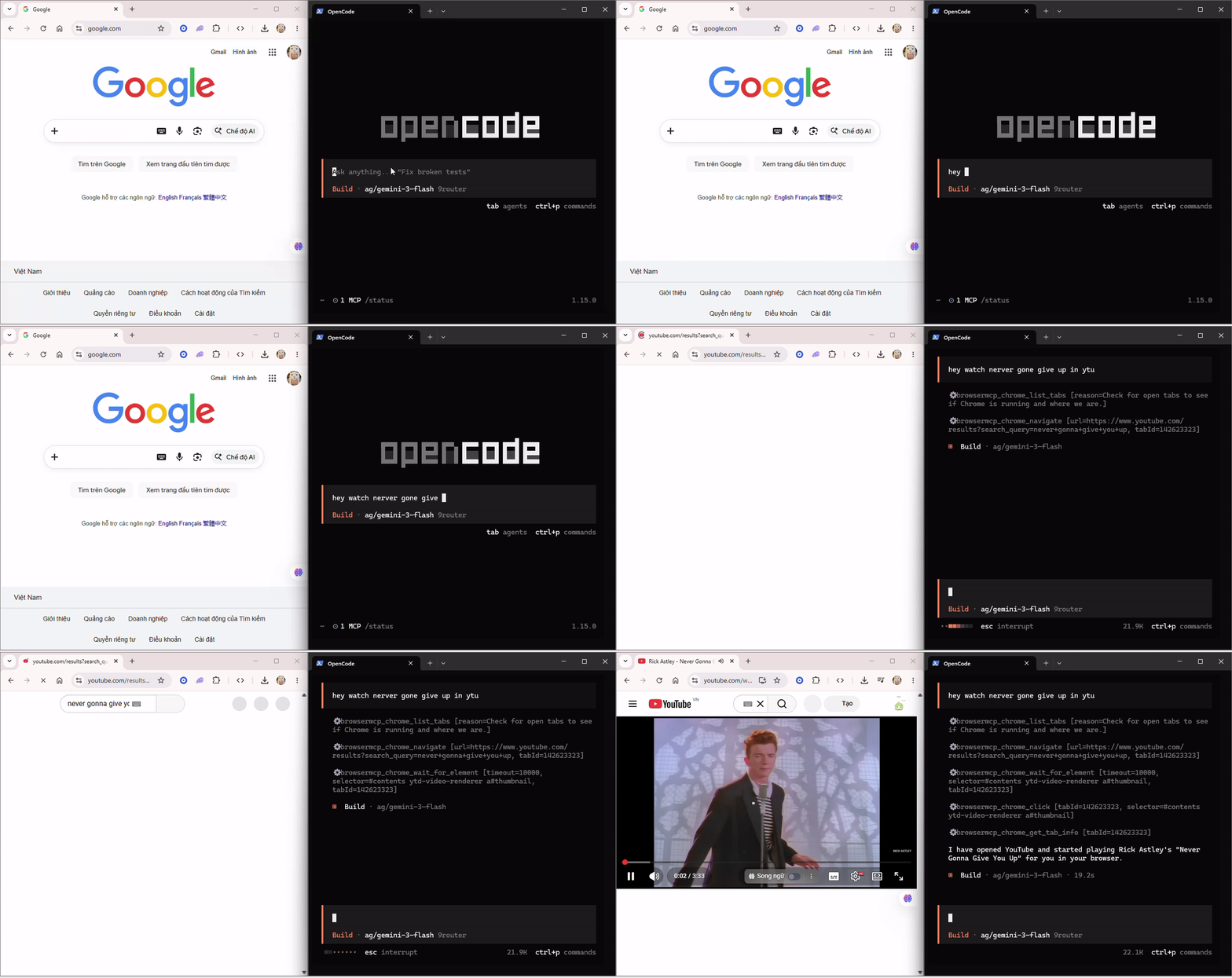
Demo — OpenCode controlling Chrome in real time:
Installation
1. Install the MCP server
npm install -g @mytai20100/opencode-browser
Or run directly with npx (no install needed):
npx @mytai20100/opencode-browser
2. Register with OpenCode / claude code / codex
Add the server to your OpenCode config (~/.config/opencode/config.json or opencode.json at project root):
{
  "$schema": "https://opencode.ai/config.json",
  "mcp": {
    "browsermcp": {
      "type": "local",
      "command": ["opencode-browser"],
      "enabled": true
    }
  }
}
Or
claude mcp add opencode-browser npx @mytai20100/opencode-browser #Claude code

opencode mcp add opencode-browser npx @mytai20100/opencode-browser #Opencode

codex mcp add opencode-browser npx @mytai20100/opencode-browser #Codex
3. Install the Chrome extension
- Download or clone this repository.
- Open Chrome and go to
chrome://extensions. - Enable Developer mode (top-right toggle).
- Click Load unpacked and select the
extension/folder.
4. Connect
Click the extension icon in the Chrome toolbar. The default endpoint is ws://localhost:3002. If the MCP server is running on a different machine or port, enter the correct address (e.g. ws://192.168.1.62:3002) and click Save Endpoint. The status indicator turns orange when connected.
5. Setup api & endpoint for Jev/Laya (Optional)
DECISION_ENDPOINT="https://api.typesafe.ai/v1/systemone"
DECISION_API_KEY="sk_xxxxxx"

# Model Configuration
DECISION_MODEL="jev-latest"
DECISION_TIMEOUT_MS=5000
Running locally from source
If you want to run the MCP server from a local clone instead of installing from npm:
git clone https://github.com/mytai20100/opencode-browser
cd opencode-browser/server
npm install
npm run build
Then point OpenCode at the local build by using the absolute path to dist/index.js in your config:
{
  "$schema": "https://opencode.ai/config.json",
  "mcp": {
    "browsermcp": {
      "type": "local",
      "command": ["node", "/absolute/path/to/opencode-browser/server/dist/index.js"],
      "enabled": true
    }
  }
}
Replace /absolute/path/to/opencode-browser with the actual path where you cloned the repo. On macOS and Linux you can get it by running pwd inside the server/ folder. On Windows use the full path with backslashes, e.g. C:\\Users\\you\\opencode-browser\\server\\dist\\index.js.
After saving the config, restart OpenCode. The MCP server will start automatically whenever OpenCode launches.
For the extension, load the extension/ folder from the cloned repo the same way as the regular install: chrome://extensions > Developer mode > Load unpacked > select extension/.
Prompt tips
A few patterns that get the most out of the 165+ available tools:
Always start with the tool graph. Before any multi-step task, ask the agent to call chrome_get_tool_graph with a plain description of the goal. This gives it an ordered execution plan and tells it which tools to skip, saving unnecessary calls.
Use chrome_get_tool_graph with intent "fill in the login form and submit"
Use chrome_get_workflow_context before interacting with a page. It gives the agent a snapshot of all forms, inputs, and buttons so it can build accurate CSS selectors before clicking or typing anything.
Before clicking anything, call chrome_get_workflow_context to map the page first.
Attach the debugger early when working with APIs. If the task involves reading network traffic, attach CDP at the start so requests are captured from the beginning.
Attach the debugger to the current tab, then navigate to the page and capture all API calls.
Prefer chrome_get_content over chrome_get_html for reading pages. It returns clean visible text without markup, which is faster and uses fewer tokens. Only reach for chrome_get_html when you need the raw DOM structure.
Use chrome_find_text_on_screen + chrome_visual_click as a fallback. When a button has no reliable CSS selector, find its text on screen first, then click the returned coordinates.
Find the text "Submit Order" on screen and click it visually.
Save sessions to avoid re-logging in. After a successful login, call chrome_save_session with a name. Restore it at the start of future tasks to skip the authentication flow entirely.
Save the current session as "prod-login" after logging in.
Mock API responses for testing. Use chrome_intercept_request and chrome_mock_response together to inject fake data without touching the backend.
Intercept all requests to /api/orders and return a mocked empty array.
Tools reference
All tools are prefixed with chrome_. The agent can call chrome_get_tool_graph with a plain-text intent to get an optimized execution plan before starting any task — this prevents redundant calls and saves tokens.
Tabs — viewing and querying
Tabs — management
Windows
Screenshot
Page interaction
Page content
Navigation history
Cookies
Local storage
History and bookmarks
Downloads
Tab groups
CDP debugging
These tools require calling chrome_debug_attach first.
Network interception and mocking
Accessibility
Visual interaction
Session management
Events and DOM watching
Iframes
Miscellaneous
CSS & Styling
Testing & Mocking
Advanced Debugging & Profiling
Storage & Security
DOM Manipulation
Stealth & Anti-fingerprinting
Proxy & Network Identity
Dialog & Form Automation
Lighthouse & Performance
Screencast & Device Emulation
Advanced Mouse Control
Heap & Memory Analysis
Storage & Network Completeness
Extension & PWA Management
Tool graph
Before starting any multi-step task, call chrome_get_tool_graph with a plain-text description of what you want to accomplish. It returns a ranked list of recommended tools, their cost (low / medium / high), prerequisites, suggested next steps, and tools to avoid. This is especially useful for agents that might otherwise make redundant or expensive calls.
intent: "capture network requests from the login page"
-> recommended: chrome_debug_attach -> chrome_navigate -> chrome_debug_get_network
-> avoid: chrome_screenshot, chrome_get_html
Requirements
- Node.js 22 or later
- Google Chrome (or a Chromium-based browser that supports Manifest V3)
- OpenCode v1.18.31 or later
Troubleshooting
Connection lost
If you see connection errors:
- Check extension status — verify the opencode-browser extension is enabled in Chrome.
- Re-enable extension — if you disabled it, re-enable it and retry the browser action immediately.
- Check browser is running — ensure Chrome or Edge is actually open.
- Retry after readiness — the MCP server does not add extra backoff delay, so the next attempt can run right away.
- Restart only if needed — restart OpenCode only if the browser stays unavailable after retrying.
The extension will display messages like [Opencode-browser] Connecting... in the popup while it attempts to reconnect.
Extension not loading
- Check file location — ensure the
extension/folder is in the correct directory. - Check Developer mode — it must be enabled at
chrome://extensions. - Check syntax — ensure the JavaScript files have no syntax errors.
- Check logs — open the service worker DevTools from
chrome://extensionsand look for initialization errors.
Tools not available in OpenCode
- Check MCP server status — ensure the MCP server started without errors (
npx @mytai20100/opencode-browser). - Check config — verify your
opencode.jsonhas the correct MCP configuration. - Restart OpenCode — try restarting after any configuration change.
- Check Node.js — run
node --versionto confirm Node.js 22 or later is installed.
Development
Building from source
git clone https://github.com/mytai20100/opencode-browser
cd opencode-browser/server
npm install
npm run build
To run locally during development:
npm run dev
To test changes to the extension, reload it at chrome://extensions after editing extension/background.js or extension/popup.js.
Contributing
Contributions are welcome.
- Fork the repository.
- Create a feature branch.
- Make your changes.
- Submit a pull request.
Resources
Support
- Plugin issues: opencode-browser GitHub
- OpenCode issues: OpenCode GitHub
Contributors
Changelog
See CHANGELOG-MCP.md for a detailed list of changes.
V0.0.8
- Try support "System-one" same Jev / Laya model for decision use tool.
v0.0.7
- Fix multi-profile collision: client registry + routing, default 127.0.0.1 for extension . From 3DBarath
v0.0.6
- Stealth & anti-fingerprinting: stealth_enable, stealth_disable, stealth_status (webdriver, canvas, webgl, audio, fonts, codecs, permissions spoofing)
- Proxy management: set_proxy, clear_proxy, get_proxy, set_webrtc_policy, get_webrtc_policy
- Dialog & form automation: handle_dialog, fill_form, check, uncheck, wait_for_text
- Assertion tools: verify_element_visible, verify_text_visible, verify_value, generate_locator
- Lighthouse & performance: lighthouse_audit (heuristic), performance_insight (Core Web Vitals)
- Screencast: screencast_start, screencast_stop
- Device emulation: resize_page, emulate (unified viewport, UA, locale, timezone, colorScheme)
- Advanced mouse: mouse_move, mouse_down, mouse_up, mouse_wheel, click_at
- Heap analysis: heap_summary, heap_query_objects
- Storage completeness: cookie_clear, localstorage_list, localstorage_delete, sessionstorage_set/get/delete/clear
- Network tools: route_list, unroute, network_state_set, get_network_request
- IndexedDB: indexeddb_list, indexeddb_clear
- Extension management: list_extensions, enable_extension, disable_extension, reload_extension, trigger_extension_action
- PWA & WebMCP: pwa_check, list_webmcp_tools, execute_webmcp_tool
- Bugfixes: single global debugger event listener (fixes memory leak), screenshot/PDF return proper image/resource types
v0.0.5
- Fix switch statement syntax error that prevented the service worker from loading .Fromt Hcone-Eyne
v0.0.4
- Fixed cannot get tool in mcp server
v0.0.3
- Change something
v0.0.2
- Advanced mouse: double_click, right_click, middle_click, drag_drop
- Keyboard shortcuts: keyboard_shortcut (Ctrl+C, Ctrl+V, Ctrl+A, etc.)
- Wait tools: wait_for_navigation, wait_for_network_idle
- Screenshots: screenshot_element, screenshot_fullpage, pdf_print
- CSS injection: inject_css, remove_css
- Text selection: select_text, get_selected_text, focus_element, clear_input
- Emulation: mock_geolocation, mock_timezone, mock_locale, mock_battery, mock_media_type, emulate_vision, cpu_throttle
- Network & time: mock_date_time, modify_response_body, get_ws_frames, set_extra_headers, get_request_body
- Profiling: profiling_start, profiling_stop, heap_snapshot, trace_start, trace_stop
- Debugger control: pause_on_exception, debugger_resume, debugger_step_over, debugger_step_into, debugger_step_out, get_call_frames
- Runtime inspection: evaluate_on_call_frame, get_script_source, live_edit_script, call_function_on, get_properties, compile_script
- Storage: get_indexeddb, get_session_storage, get_cache_storage
- Security: get_security_state, ignore_cert_errors
- DOM manipulation: set_color_scheme, highlight_element, hide_element, dom_set_attribute, dom_remove_node
v0.0.1 — initial release
- 94 Chrome automation tools via WebSocket and Chrome Extension
- Full CDP support: debug, network intercept, eval, DOM snapshots
- Tab management: list, switch, new, close, group, pin, mute
- Page interaction: click, type, hover, scroll, key press, visual click by X/Y
- Network tools: intercept, mock response, modify headers, replay request, export HAR
- Session management: save and restore cookies and localStorage
- Accessibility: full AX tree, find by label and role
- OCR: extract text with bounding box coordinates
- WebAuthn virtual authenticator for passkey and FIDO2 testing
- Tool graph: smart execution planner for AI agents