swsd-mcp
MCP server for SolarWinds Service Desk (SWSD / Samanage). Works with any Model Context Protocol client to handle tickets, service requests, knowledge-base work, change/release workflows, assets/CMDB context, procurement records, risks, time entries, and attachments using each user's own SWSD API token. See the client compatibility matrix for the tested list.
📖 Full docs: mcp-swsd.pages.dev
The server holds zero credentials at rest. Tokens are forwarded per-request, never persisted, never logged, and only sent to the configured SWSD API host.
Upgrading to 3.0.0
MCP SDK v2 preserves all 66 tools, five profiles, seven widgets and four legacy
HTTP/STDIO protocol revisions. Unknown tool names now raise JSON-RPC -32602
errors; SDK callers should catch those rejected calls. Known-tool validation
errors still return isError: true, with updated error text. Strict schema
validators and tool-list snapshots should accept the new JSON Schema 2020-12
serialization. Node 24 requirements and launch configuration are unchanged.
See the changelog for details.
Quick start
You need:
- An MCP client installed: any MCP-compatible client works (compatibility matrix)
- A SolarWinds Service Desk admin token (JWT): generate one in the SWSD UI: Setup → Users & Groups → Users → click your user → Actions → Generate JSON Web Token (Service Desk administrator rights required)
VS Code
- Open the Command Palette: Ctrl+Shift+P on Windows/Linux or Shift+Command+P on macOS.
- Run MCP: Add Server....
-
Install with either supported local option:
- Command (stdio): enter
npx -y swsd-mcp. - NPM Package: enter
swsd-mcp, confirm that the publisher ismikimatsub, then select Allow.
- Command (stdio): enter
- Name the server
swsd, then choose Global for your VS Code profile or Workspace for the current project. - Add the SWSD token securely and verify the connection.
Other stdio clients
1. Add the config
The non-VS-Code clients listed below use this common JSON shape. Add it under mcpServers in your client's config file:
{
  "mcpServers": {
    "swsd": {
      "command": "npx",
      "args": ["-y", "swsd-mcp"],
      "env": {
        "SWSD_TOKEN": "your-jwt-here",
        "SWSD_BASE_URL": "https://api.samanage.com"
      }
    }
  }
}
Replace your-jwt-here with your token. EU tenants use https://apieu.samanage.com instead. To customize behavior, add any configuration variable (most common: SWSD_PROFILE to choose the tool set) into the same env block.
2. Drop it in the right file
Create the file if it doesn't exist. Then restart your client.
Claude Code shortcut: skip editing the file by hand. This single line pastes verbatim into any shell (bash, zsh, PowerShell, cmd):
claude mcp add swsd --env SWSD_TOKEN="your-jwt-here" --env SWSD_BASE_URL="https://api.samanage.com" -- npx -y swsd-mcp
Microsoft Copilot Studio: different path. Copilot Studio can't spawn local processes, so it needs an HTTP-transport server. See copilot-studio/README.md and the Azure Container Apps recipe.
3. Verify it works
In your MCP client, ask:
"Use swsd to check if you can connect."
The agent should call swsd_health_check and report success. If it does, you're set up. Try a few more:
- "Show me incident 60310": id-keyed tools accept either the internal id (≥7 digits) or the human-facing number visible in the SWSD UI (≤6 digits).
- "List incidents updated in the last 7 days":
updated_within: "7d"(also"24h","1w","30d"). - "What tickets are assigned to me?":
swsd_list_my_incidentscallsswsd_get_meinternally, so you don't have to spell out an email.
Tools (66 across 15 categories)
Each tool's input schema, description, and output shape is auto-discovered by your MCP client at runtime. See the Tools reference for full per-tool documentation.
MCP Apps widgets (rich UI)
Seven read tools ship interactive UI bundles using the MCP Apps capability. On capable hosts (Claude Desktop, Claude Web, VS Code Copilot Chat, ChatGPT, Goose, Postman), the tool returns a rendered widget alongside the structured response. On text-only hosts (Claude Code, LM Studio), the same tools return their normal structured payload.
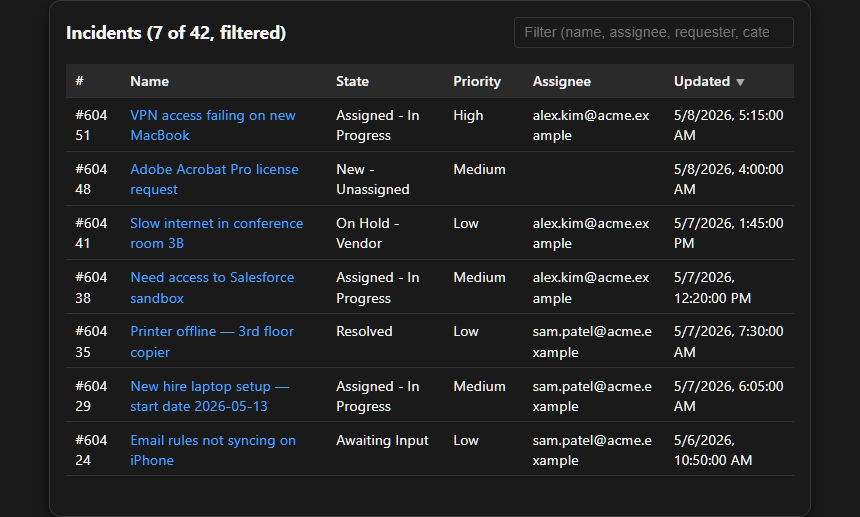
Example: swsd_list_incidents rendering the incident-list widget. Synthetic data; no real tenant info. See the full gallery for screenshots of all seven widgets.
See the Widgets reference for screenshots and per-widget detail.
Configuration
Most users only need SWSD_TOKEN and SWSD_BASE_URL:
For the full env-var reference (HTTP transport, retries, rate limits, allowlists), see Configuration.
Profiles
Profiles control which tools are registered at startup. Cannot be changed mid-session.
Use SWSD_ENABLE_EXTRAS=swsd_foo,swsd_bar to add specific tools on top of a profile.
Hosting an HTTP server (advanced)
Quick Start above runs swsd-mcp on your own machine: your MCP client spawns it on demand via npx. Most users stop there.
Set up an HTTP-mode server only if you need:
- Microsoft Copilot Studio integration: Copilot Studio can't spawn local processes
- One shared instance for a team: one deploy, many users, each providing their own token per-request
- Stricter network control: private VNet, IP allowlist, custom domain
The Docker image runs anywhere: Azure, AWS, GCP, Render, Fly.io, your own VM. See Deployment for the full guide and the Azure Container Apps recipe (recommended for Copilot Studio; scale-to-zero pricing).
Documentation
SECURITY.md: vulnerability reporting via GitHub Security Advisoriesdocs/SECURITY-POSTURE.md: security controls, supply-chain hardening, verification methodsCONTRIBUTING.md: bug reports, PR review criteria, local development setupCHANGELOG.md: version historycopilot-studio/: Microsoft Copilot Studio Swagger connector specs and import guidedocs/deployment/: cloud deployment recipes
License
MIT: see LICENSE. Provided "as is" without warranty.
Trademarks
SolarWinds, Samanage, and Service Desk are trademarks of SolarWinds Worldwide, LLC. This project is not affiliated with, endorsed by, or sponsored by SolarWinds. It wraps the publicly documented SWSD REST API.