
Link Studio – Insta360 Link control for Linux
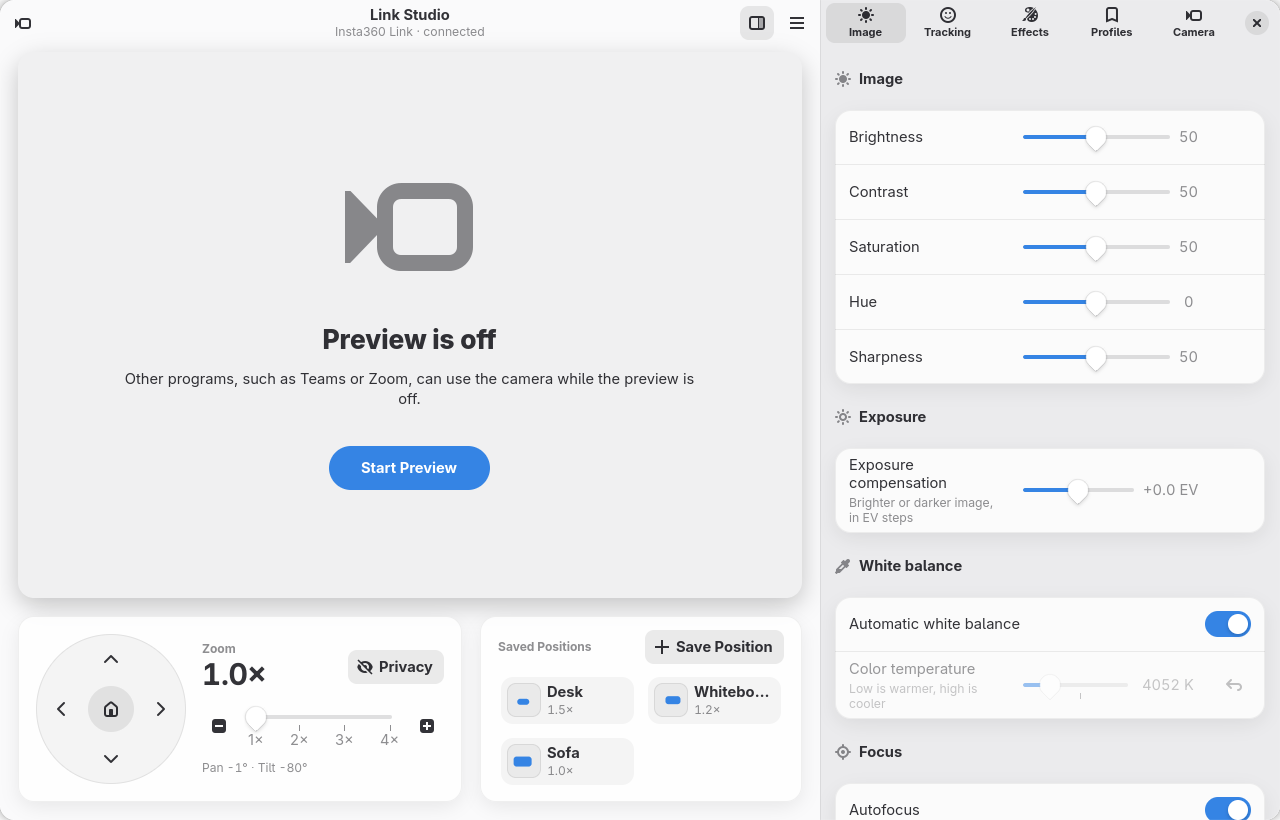
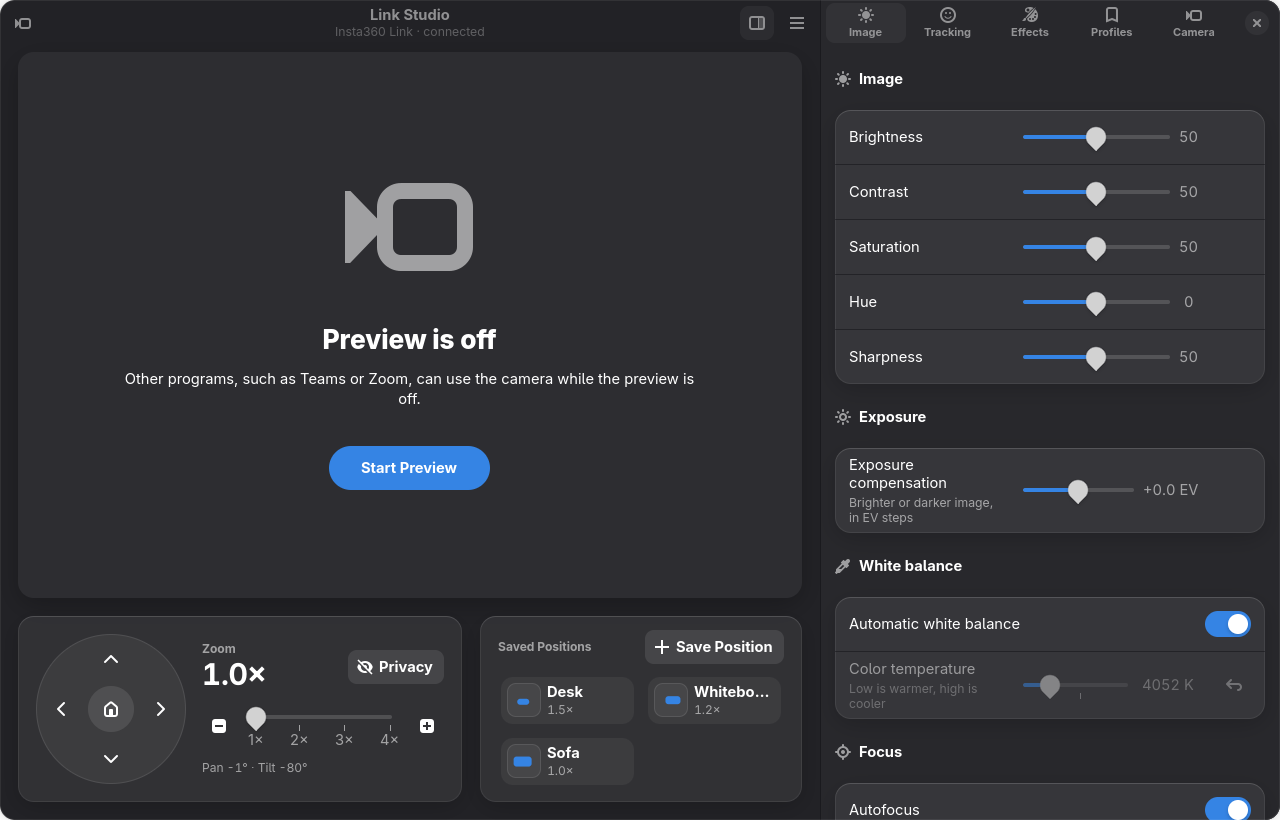
Link Studio is a native Linux control panel for the Insta360 Link webcam. Insta360's own Link Controller only exists for Windows and macOS; Link Studio brings its features to Linux – and adds a few of its own.
- Native GTK 4 / libadwaita interface that fits into GNOME, follows the light/dark theme and also runs on KDE Plasma.
- Live preview in 720p, 1080p or 4K, with photos saved to
~/Pictures/Link Studio. - Gimbal control: pan, tilt and zoom with buttons or the keyboard, saved positions, centering and a privacy mode that points the camera down.
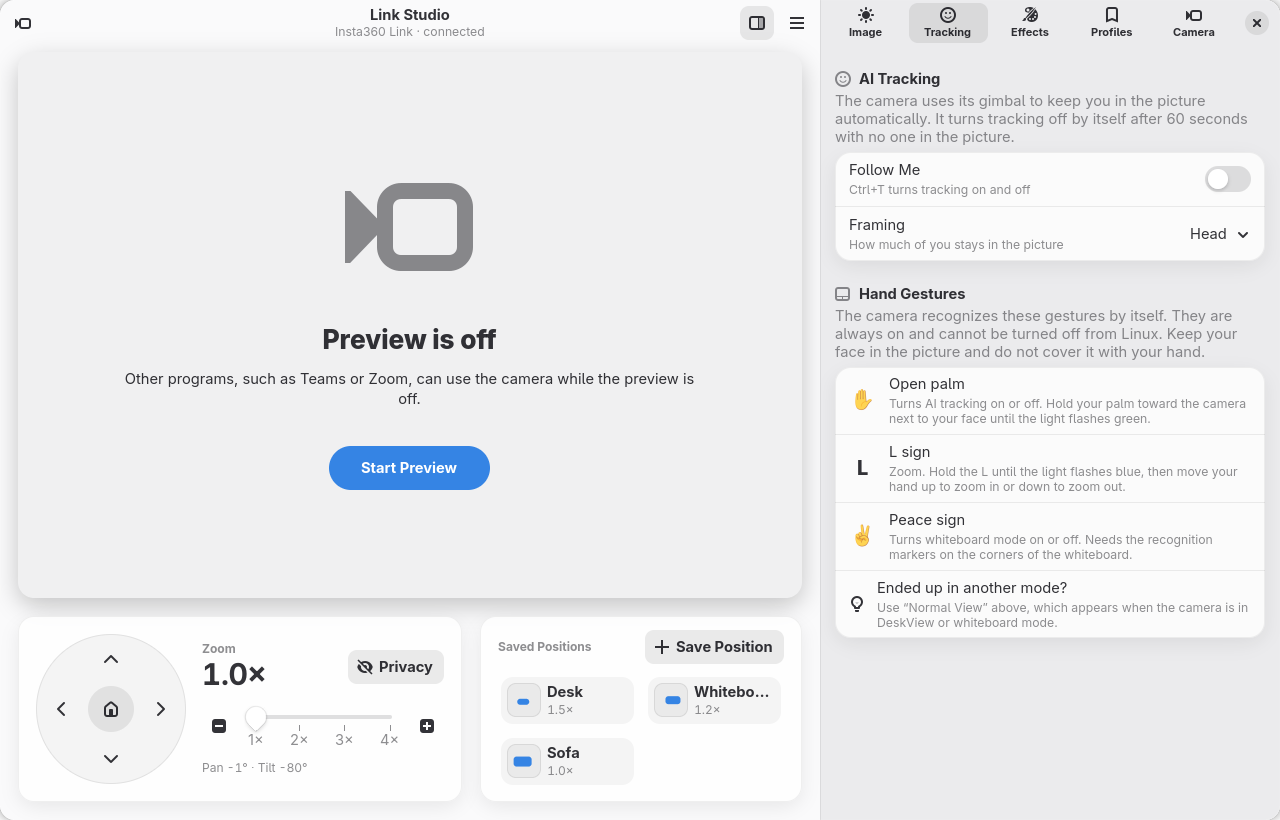
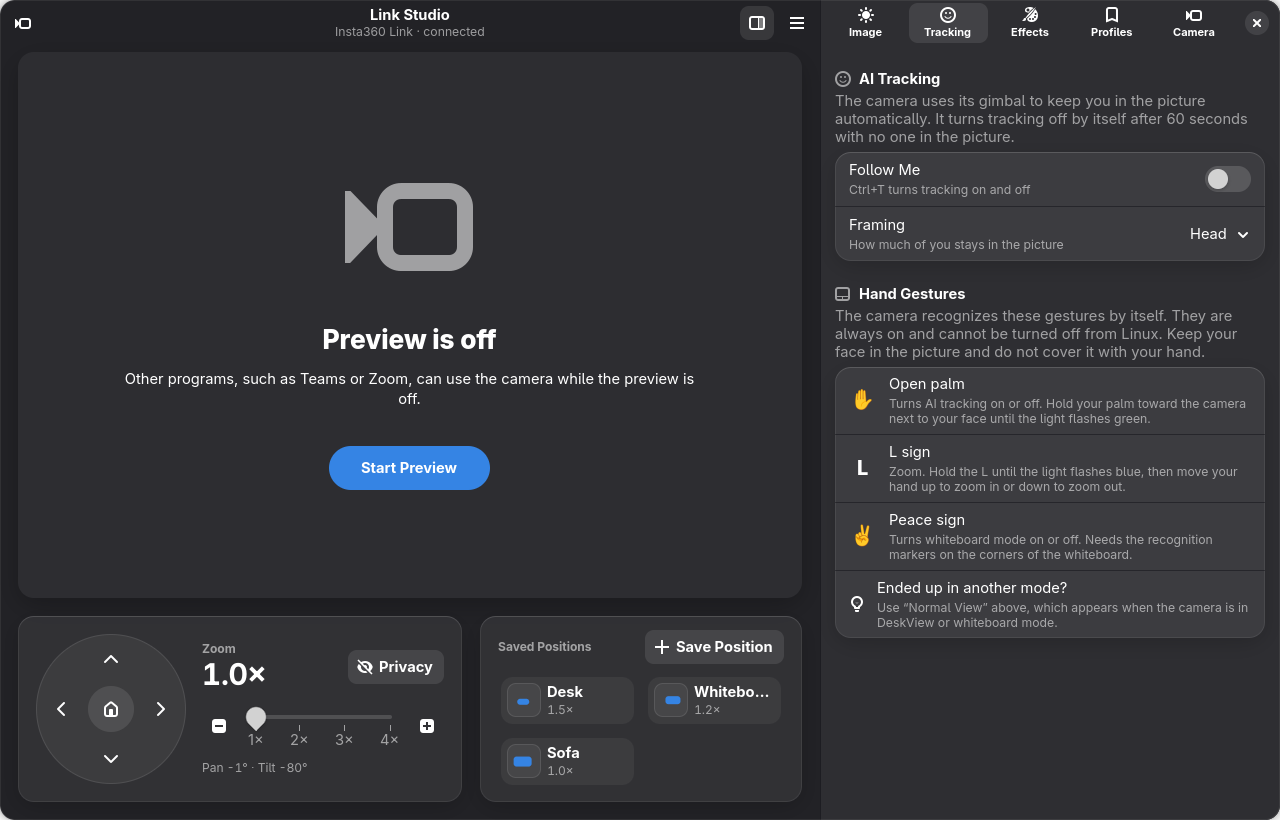
- AI tracking with framing (head, upper body, full body), plus an overview of the camera's hand gestures.
- Image settings: exposure compensation, brightness, contrast, saturation, hue, sharpness, white balance, focus and anti-flicker – and profiles that can be applied whenever the camera connects.
- Virtual camera "Link Studio Camera" for Teams, Zoom, OBS and browsers, so the preview and a meeting can use the camera at the same time.
- Status icon with the virtual camera and AI tracking at hand; optionally keeps running there when the window is closed, and can start at login.
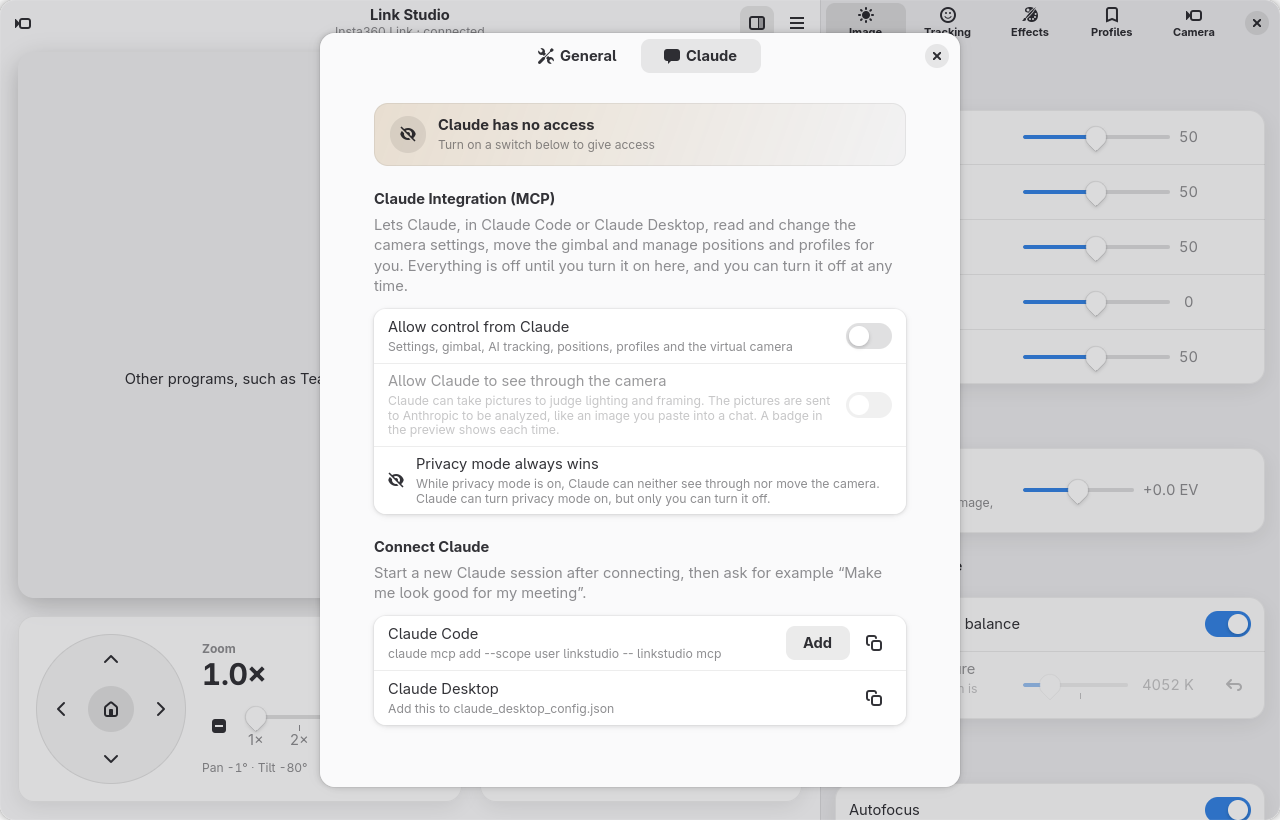
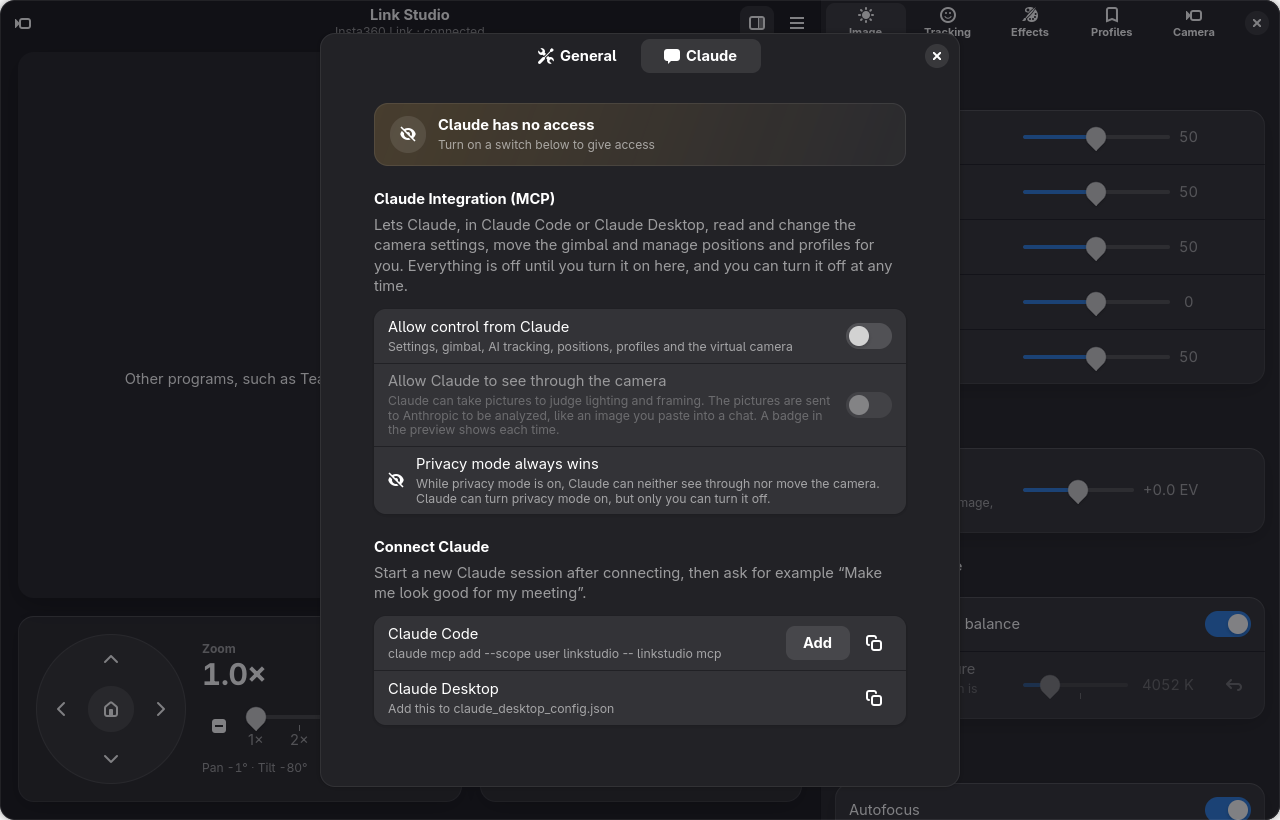
- Claude integration (MCP), off by default: let Claude tune the picture and framing for you – optionally looking through the camera.
- English and Norwegian user interface, following the system language or chosen in the app.
From Norway with Love ❤️
Link Studio is an independent project and is not affiliated with or endorsed by Insta360. Insta360 and Insta360 Link are trademarks of Arashi Vision Inc.
Made by Jan Ivar Sørensen using Claude Code, Anthropic's AI coding assistant – from working out the camera's vendor commands to the GTK interface, the virtual camera, the status icon and the Claude integration.
Screenshots
| Light | Dark |
|---|---|
 |  |
 |  |
 |  |
Requirements
- Linux with an Insta360 Link connected over USB
- GTK ≥ 4.14 and libadwaita ≥ 1.5 (e.g. Fedora 40+, Ubuntu 24.04+, openSUSE Tumbleweed, Arch)
- Only to build from source: Rust ≥ 1.88 (the install script installs it if your distribution's version is recent enough; otherwise use rustup)
- Optional: the
v4l2loopbackkernel module for the virtual camera (Link Studio sets it up for you) - Optional, GNOME only: the AppIndicator and KStatusNotifierItem Support extension for the status icon
Installation
On a normal 64-bit PC (x86_64), download the ready-made program from the latest release – about 2 MB:
curl -LO https://github.com/Vindihaaret/linkstudio/releases/latest/download/linkstudio-x86_64-linux.tar.gz
tar -xzf linkstudio-x86_64-linux.tar.gz
./linkstudio/install.sh
The script installs Link Studio for your user under ~/.local with a menu entry and icons – no root
needed. Only if GTK 4 or libadwaita is missing does it install them with your package manager (zypper,
dnf, apt or pacman) and ask for your sudo password. Afterwards you can delete the downloaded file and the
linkstudio folder.
Start Link Studio from the application menu, or run linkstudio.
The program is built from this repository's code by GitHub Actions (workflow), on Ubuntu 24.04 so it runs there and on newer distributions. To check that a download was built from this repository:
gh attestation verify linkstudio-x86_64-linux.tar.gz --repo Vindihaaret/linkstudio
Build from source
For other processors, or if you prefer to build it yourself:
git clone https://github.com/Vindihaaret/linkstudio.git
cd linkstudio
./install.sh
The script installs missing build tools with your package manager (Rust, a C compiler and the GTK 4 and
libadwaita development files – a few hundred MB; asks for your sudo password only then), builds Link
Studio and installs it the same way. Afterwards it offers to delete the build files in target/ (about
1 GB); the program itself is 5 MB.
Update
Link Studio looks for a new release on GitHub once a month (turn it off under Preferences → General →
Updates), and you can check yourself with Menu → Check for Updates …. When there is a new version
you see what is new and can choose Update Now: Link Studio downloads the ready-made program (about
2 MB), checks its checksum and version, and installs it into ~/.local – no password needed, done in
seconds. On other processors, or for a release without a ready-made program, it downloads the source
code and builds it instead; that takes a few minutes, and the build files (about 1 GB) are deleted again
afterwards. Restart Link Studio afterwards.
The check uses GitHub's public API; nothing about you is sent. If you run Link Studio from a source
folder (cargo run), update with git pull instead.
Uninstall
Click Uninstall at the bottom of Preferences → General, or run:
./uninstall.sh           # removes the program, keeps settings
./uninstall.sh --purge   # also removes ~/.config/linkstudio
The app's own uninstaller can also remove the virtual camera setup and the Claude Code registration.
Photos you have taken stay in ~/Pictures/Link Studio.
Supported hardware
Standard UVC controls (image settings, pan/tilt/zoom) work through V4L2 on any of them. AI tracking, exposure compensation and the live gimbal position use Insta360's vendor commands – see Camera notes.
Virtual camera
The virtual camera uses the v4l2loopback kernel module. The Effects tab sets it up with the
administrator password (through pkexec) and shows the progress, running
data/setup-virtual-camera.sh, which:
- installs the module (openSUSE, Debian/Ubuntu, Arch; Fedora via RPM Fusion),
- writes
/etc/modprobe.d/linkstudio-v4l2loopback.confand/etc/modules-load.d/linkstudio-v4l2loopback.conf, - loads the module, creating
/dev/video42named "Link Studio Camera".
data/remove-virtual-camera.sh (also offered in the Effects tab and when uninstalling) removes those two
files. The module package is left installed, since other programs such as OBS may use it.
While the virtual camera is on, closing the window hides it; choose Quit in the menu or the status icon (Ctrl+Q) to stop.
Status icon
Link Studio shows a status icon (StatusNotifierItem) with Show, Virtual camera, AI tracking and Quit. KDE Plasma shows it out of the box; GNOME needs the AppIndicator extension.
Under Preferences → General → Window:
- Keep in the status icon when the window is closed – closing the window leaves Link Studio in the status icon, ready to use. The camera is released while the window is hidden, so other programs can use it.
- Start at login – adds an autostart entry that runs
linkstudio --minimized, which starts in the status icon without opening the window.
On KDE Plasma the app keeps its libadwaita (GNOME) look and its own title bar; light/dark and the accent color are taken from Plasma through the desktop portal.
Claude integration (MCP)
Link Studio includes an MCP server, so Claude (in Claude Code or Claude Desktop) can work with your camera: read and change image settings, point the gimbal, turn AI tracking on or off, and save positions and profiles. If you also let it see through the camera, it can take a picture, judge lighting and framing, adjust, and check again – like a photographer getting you ready for a meeting.
Everything is off until you turn it on, in Link Studio → Preferences → Claude, and can be turned off again at any time:
- Allow control from Claude – settings, gimbal, AI tracking, positions, profiles and the virtual camera.
- Allow Claude to see through the camera – a separate permission for pictures.
Privacy
- Pictures Claude takes are sent to Anthropic to be analyzed, the same as an image you paste into a chat. Only turn on "see through the camera" if you are comfortable with that.
- Every picture shows a "Claude is looking" badge in the preview and a notice (a desktop notification while the window is hidden). Every change Claude makes shows a notice too.
- Privacy mode always wins: while it is on, Claude can neither see through nor move the camera. Claude can turn privacy mode on, but only you can turn it off. Privacy mode is remembered across restarts.
- These rules are enforced by Link Studio itself, not by Claude or the MCP process, so they apply however Claude connects. Pictures are never stored by Link Studio.
Connecting
Click Add under Preferences → Claude, or run:
claude mcp add --scope user linkstudio -- linkstudio mcp
For Claude Desktop, add this to claude_desktop_config.json (use the full path, e.g.
/home/you/.local/bin/linkstudio, if ~/.local/bin is not on Claude Desktop's PATH):
{ "mcpServers": { "linkstudio": { "command": "linkstudio", "args": ["mcp"] } } }
Start a new Claude session and ask, for example:
- "Make me look good for my meeting."
- "Is anything off with my camera picture?" – backlight, framing, clutter.
- "Save a position that shows the whiteboard."
- "Make a warmer profile for evening calls and use it automatically."
If Link Studio is not running, linkstudio mcp starts it, so you always see what Claude is doing. The
camera sleeps (gimbal parked) when nothing streams; Link Studio wakes it for Claude and lets it sleep
again 10 seconds after Claude's last request.
Tools: get_status, take_snapshot, set_image_settings, reset_image_settings, move_gimbal,
center_gimbal, set_tracking, goto_position, save_position, save_profile, apply_profile,
set_virtual_camera, set_privacy.
Keyboard shortcuts
Troubleshooting
- Teams/Zoom says the camera is busy – the Link Studio preview is using it. Turn the preview off (Ctrl+P), or use the virtual camera so both can run at once.
- "Link Studio Camera" does not show up in a program – start Link Studio (with the virtual camera on) before choosing the camera in that program.
- No status icon on GNOME – install and enable the AppIndicator extension.
- AI tracking does not start right away – the gimbal needs a couple of seconds to wake up when the camera starts streaming; Link Studio retries until the camera confirms tracking.
Files
Translations
English is the source language. Translations are gettext catalogs in po/ and are embedded into the
binary at build time; the language follows the desktop locale (LANGUAGE, LC_MESSAGES, LANG) or the
choice in Preferences.
./po/update-po.sh              # refresh po/linkstudio.pot and merge into all .po files
cp po/linkstudio.pot po/de.po  # start a new language, then fill in msgstr
To try a language from a terminal: LANGUAGE=nb linkstudio.
Development
cargo run                      # run from the source tree
cargo clippy                   # lint
linkstudio mcp                 # the MCP server (normally started by Claude)
LINKSTUDIO_SCREENSHOT=out.png LINKSTUDIO_PAGE=tracking linkstudio renders the window (optionally a
sidebar page, preferences, preferences-claude or about) to a PNG and quits – GNOME on Wayland does
not let other programs capture windows. The screenshots in docs/screenshots were made this way with the
preview off.
To make a release: bump version in Cargo.toml, commit and push, create a draft release with the
notes (gh release create vX.Y.Z --draft --title "Link Studio X.Y.Z" --notes …), then push the tag
vX.Y.Z. The release workflow builds the program, attaches it with its
checksum and build attestation, and publishes the release – so the in-app updater only sees it once the
download is there.
Camera notes
The vendor features use the camera's UVC extension unit 9 (GUID faf1672d-b71b-4793-8c91-7b1c9b7f95f8),
first mapped by
vrwallace/Insta360-Link-1-and-2-Controller-for-Linux.
On firmware 1.4.5.8:
- The mode selector reads back
0xffafter a mode command and0x01once tracking runs; Link Studio checks it and resends while the waking gimbal ignores the command. Changes made by hand gesture are reported properly, so the switch follows the palm gesture. - The camera drops AI tracking whenever its video stream stops; Link Studio turns it back on when its own stream starts again.
- When nothing streams, the camera sleeps with the gimbal parked and ignores moves, so Link Studio wakes it first. The vendor "reset gimbal" command is not obeyed from every position, so centering also sets pan and tilt. Tilt physically stops at about −45°, short of the range V4L2 reports.
- Group tracking (unit 10, selector 1) is read-only, so that option is hidden.
- Selector 9 is exposure compensation: signed 16-bit little-endian, about 256 per EV. Its GET_MIN/GET_MAX replies are not usable. The value survives stream restarts.
- uvcvideo caches the V4L2 pan/tilt values, so moves made by AI tracking are invisible there. Selector 26 holds the live position as (tilt, pan) in arcsec and is used instead.
- The driver reports autofocus off as its default; Link Studio's "reset" turns automatic modes on.
- No live zoom value was found, so zoom changed with the "L" gesture is not reflected in the zoom slider.
- Writing selector 17 made the camera reset and re-enumerate. Selector 7 stops tracking when written, but did not measurably change tracking speed.
License
Copyright © 2026 Jan Ivar Sørensen
Link Studio is free software: you can redistribute it and/or modify it under the terms of the GNU General Public License as published by the Free Software Foundation, either version 3 of the License, or (at your option) any later version.
Link Studio is distributed in the hope that it will be useful, but WITHOUT ANY WARRANTY; without even the implied warranty of MERCHANTABILITY or FITNESS FOR A PARTICULAR PURPOSE. See the GNU General Public License for more details.