UEFN TOOLBELT
362 Professional Tools for UEFN Python Integration.
Built by Ocean Bennett — 2026
Historic Discovery — March 22, 2026
On this date, Ocean Bennett became the first person to programmatically catalogue the complete Fortnite Creative device palette using UEFN Python's Asset Registry — 4,698 Creative device Blueprints across 35 categories, extracted from 24,926 total Blueprint assets in the sandboxed UEFN environment.
Prior to this, no public tool, script, or documentation existed that mapped the full set of placeable Creative devices accessible from Python. Epic's own documentation covers individual devices. This is the first machine-readable index of the entire palette.
The scan also uncovered a critical silent failure pattern in UEFN 40.00's Asset Registry API: deprecated
AssetDataproperties (object_path,asset_class) silently throw inside atry/exceptblock, causing every asset to be skipped with no error message — a bug that would defeat any developer who didn't know to split the exception handling.The full technical breakdown, the category table, and the discovery story are in docs/AI_AUTONOMY.md.
Automate the tedious, script the impossible, and bridge the gap between Python and Verse.
UEFN Toolbelt is a master utility designed to leverage the 2026 UEFN Python 3.11 Update,
allowing creators to manipulate actors, manage assets, and generate boilerplate Verse code
through a high-level, developer-friendly interface — all from the PySide6 dashboard
(tb.launch_qt()). 362 registered tools across 55 categories, complete AI-agent
readiness (100% structured dict returns), and a unified theme system so every window in the
platform looks and feels identical.
The Demo — New Project Setup in Under a Minute
Proven live. Scaffold + Verse game manager + 493-actor arena + reusable room stamps. No manual steps except one Build click.
# Command 1 — professional folder structure + Verse game manager deployed
tb.run("project_setup", project_name="MyGame")
# → 56 folders created in Content Browser
# → MyGameManager.verse generated and deployed to project

# Command 2 — symmetrical Red vs Blue arena spawns in the viewport
tb.run("arena_generate", size="medium")
# → 493 actors placed (6 Red spawns, 6 Blue spawns)

# Command 3 — save a loot room you built as a reusable stamp
tb.run("stamp_save", name="loot_room")
# → saved 12 actors to Saved/UEFN_Toolbelt/stamps/loot_room.json

# Navigate camera to a new location, then stamp it in
tb.run("stamp_place", name="loot_room", yaw_offset=90)
# → 12 FortStaticMeshActors placed at camera, rotated 90°

# One click — Verse menu → Build Verse Code

# Command 4 — error loop closes automatically
tb.run("verse_patch_errors")
# → build_status: SUCCESS
What used to take 30+ minutes of manual setup runs in seconds. Scaffold, code, layout, stamp your best rooms, build — ready to publish.
🤖 Your Agent Can Build Your Game — Autonomously
This is the headline feature. Not "AI helps you code" — AI reads your live level, writes the Verse, and deploys it. Zero copy-paste. Zero manual wiring.
Here is the complete autonomy loop running live on a real project with 521 actors:
Step 1a — Claude reads the entire level:
tb.run("world_state_export")
# → Captured 521 actors. Saved to docs/world_state.json
Step 1b — Claude reads every device available in Fortnite (not just what's placed):
tb.run("device_catalog_scan")
# → Scanned 24,926 Blueprint assets across all Fortnite packages
# → 4,698 Creative devices identified across 35 categories
# → (Timer ×8, Capture ×7, Score ×28, Spawner ×94, Camera ×446, NPC ×173, ...)
# → docs/device_catalog.json — Claude's complete device palette, git-tracked
Step 2 — Claude identifies all Creative devices and generates a wired game skeleton:
Claude reads world_state.json, finds every device in the level (FortCreativeTimerDevice,
capture_area_device, guard_spawner_device, button_device, 14 teleporters, etc.),
and writes a complete creative_device class — @editable declarations, OnBegin event
wiring, round flow, creature waves, capture logic, and clean shutdown — all referencing the
actual device labels from your level.
Step 3 — Claude deploys it directly to the project:
tb.run("verse_write_file", filename="device_api_game_manager.verse", content=verse_code)
# → Written: Device_API_Mapping\Verse\device_api_game_manager.verse (6187 bytes)
Step 4 — Build Verse. First try.
VerseBuild: SUCCESS -- Build complete.
No type errors. No manual editing. A fully wired, compilable Verse game manager — generated from live level state in under 60 seconds.
What the generated skeleton contains:
@editablerefs for every device discovered: Timer, Timed Objective, Round Settings, Capture Area, 2× Item Spawners, Creature Spawner, Creature Manager, Creature Placer, 2× Buttons, 2× Conditional Buttons, Lock Device, 5 keyed Teleporters, Audio Mixer, Weapon Mod BenchOnBeginthat starts the timer, spawns async watchers, and subscribes to all button/timer eventsWatchCaptureArea()— async loop: team captures zone → spawn reward items → trigger creature waveWatchCreatureWaves()— async loop: enable creature manager → 30s cooldown → repeatOnButtonPressed/OnButton2Pressed— unlock doors, activate conditional gatesEndRound()— stops timer, disables creature manager, despawns guards, stops audio
Place the device in your level, drag your real actors into the @editable slots, and play.
See docs/PIPELINE.md for the complete 6-phase industrial pipeline — every tool, every phase, Claude's full execution script, and the recursive build+fix loop. See docs/AI_AUTONOMY.md for the live run technical breakdown.
🤖 AI-Accelerated Development (One-Click Sync + Tool Manifest)
Toolbelt is built to be driven by a coding agent — Claude Code, Codex, or Cursor. To give your agent perfect information about your project's unique Verse devices and custom props:
- Open Dashboard: Run
tb.launch_qt(). - One-Click Sync: Click the "Sync Level Schema to AI" button in Quick Actions.
- Instant Content: The 1.6MB schema is automatically copied to your
docs/folder. Your AI now knows every hidden property in your specific level. - Export Tool Manifest: Run
tb.run("plugin_export_manifest")to writeSaved/UEFN_Toolbelt/tool_manifest.json— a machine-readable index of all 362 tools with their parameter signatures, types, defaults, and categories. An AI agent can load this file and immediately know what every tool does and how to call it, without reading source code.
Table of Contents
- Your Agent Can Build Your Game — Autonomously
- Concept
- The Workflow Loop — Efficiency Mechanic
- Tech Stack
- Architecture Overview
- Directory Structure
- Key Systems — How They Work
- Math & Performance Scaling
- Tool Reference
- Getting Started
- Adding a New Tool
- Custom Plugins & Security
- API Capability Crawler
- Fortnite Device API Mapping
- MCP — Connect an AI Client to UEFN
- Spec-Accurate Verse Code Generation
- Agent Context Files — CLAUDE.md and AGENTS.md
- Why This Is the Best UEFN Python Tool
- Known Issue — UEFN 42.00 MCP Toolsets
- Documentation
- Quick-Reference Command Table
- Patch Notes
- Contributing
- Tool Requests
- License
Known Issue — UEFN 42.00 MCP Toolsets
If Toolbelt stops loading on startup, this is almost certainly why.
Enabling Project Settings → Beta Access → UEFN MCP Toolsets prevents your
project's Content/Python/init_unreal.py from running, so Toolbelt never starts.
Nothing errors and nothing is logged. The tool count is 1 instead of 362 and
every tb.run(...) answers Unknown tool, which looks like a Toolbelt bug and
is not one.
Cause. Epic's Toolsets plugins force-enable Python during editor init, about
100 frames before UEFN mounts your project plugin. Your init_unreal.py is not
scanned because the plugin containing it has not loaded yet. Verified by diffing
editor logs across boots with the flag on and off — see docs/UEFN_QUIRKS.md #36.
Workaround. Either turn the flag off, or run this once per editor session:
import UEFN_Toolbelt as tb; tb.register()
That recovers all 362 tools and the dashboard (tb.launch_qt()). It does not
make a top-bar menu appear: menu entries register on 42.00 and still never
render. Epic's MCP continues to work either way; only Toolbelt's auto-start is
affected.
tb.smoke_test() detects this and names it, so you are never left guessing.
Status. Not fixable from Toolbelt: PythonScriptPluginSettings is not exposed
to Python on this build, and UEFN projects have no Config/ directory for an
explicit startup-script entry. It needs an Epic-side fix.
Security
Why this matters: The UEFN Python community has already seen proof-of-concept malicious scripts that flood the editor with spam windows when run from untrusted sources. Python editor scripts run with full access to your project — treat them like executable code.
This repo's safety guarantees
How to verify before running any .py file (from this repo or anyone's)
# Before exec()-ing any script, read it first:
with open("path/to/script.py") as f:
    print(f.read())

# Red flags to look for:
# - import requests / import http / import socket
# - exec() / eval() on anything fetched from outside
# - os.system() / subprocess with network targets
# - anything writing outside your project folder
Running untrusted community scripts safely
- Always read the script before running it
- Run unknown scripts in a throwaway project first
- Keep UEFN's Python access set to Editor Scripting only (the default)
⚠️ Automated Integration Testing
The smoke test checks registration only: a minimum registry count (179) and six named tools; it executes no tool and validates no schema. The integration test verifies that they work — in a live UEFN editor, against real actors.
What the integration test actually does
toolbelt_integration_test is a fixture-driven test harness that runs inside UEFN:
- Spawns temporary cube/sphere actors programmatically
- Selects them via
EditorActorSubsystem - Runs each tool against that live selection
- Verifies the result — property changed, actor spawned, file written, count correct
- Cleans up every actor it touched via a single undo transaction
190 checks across 362 tools — 190/190 passing live on UEFN 42.00 — covering materials, bulk ops, patterns, scatter, splines, snapshots, asset management, Verse tools, screenshots, LODs, arena, measurement, localization, zones, stamps, actor org, proximity placement, advanced alignment, signs, post-process, audio, level health, config, lighting, and world state.
Of those 190, 163 verify a real outcome — a property changed, a file written, an actor count, a tag read back — and 27 are execution-only: they prove the tool ran without raising, nothing more. Both numbers are reported by the suite on every run, because a headline "190/190" that silently includes checks which cannot fail overstates what the suite knows. That is not hypothetical: a fully green run once hid a wrong-rotation-axis bug (Quirk #41) for exactly that reason.
This is the closest thing to a full CI suite possible inside the UEFN Python sandbox. If this passes, you have high confidence that the core tool logic is sound — not just that it imported. The current live run takes about 70 seconds.
How to run it
# Use a clean template level — never run in a production project
import UEFN_Toolbelt as tb; tb.register_all_tools(); tb.run("toolbelt_integration_test")
Results are written to:
Saved/UEFN_Toolbelt/integration_test_results.txt
If the editor crashes mid-run (rare), the file will contain partial results up to the last completed test — useful for pinpointing which section caused the crash.
[!WARNING] DO NOT run the full integration test in a live production project. It spawns, modifies, and deletes actors. Use a blank Empty Level or throwaway test project. Every test section cleans up after itself, but the undo history will be long.
Smoke test vs integration test
Run the smoke test after every change. Run the integration test before submitting a PR.
Community context: Built in response to the March 2026 UEFN Python wave. Inspired by early community tools like standalone material editors, spline prop placers, and Verse device editors — then taken further into a unified, permanently docked creator toolkit.
Concept
UEFN Toolbelt isn't just a library — it's a meta-framework. While the standard UEFN Python API provides the what, Toolbelt provides the how. It follows a Blueprint-to-Script philosophy: taking complex manual editor tasks (mass material assignment, procedural arena generation, bulk Verse device editing) and reducing them to single-line Python commands callable from the dashboard or the Python console.
The toolbelt is designed for three creator personas:
🏗️ Solving Soul-Crushing Repetition (The 8 Pillars)
The UEFN Toolbelt exists because manual work doesn't scale, but scripts do. We solve 90% of the repetitive tasks reported by the UEFN community:
- Manual Placement & Spacing: Procedural spawners, align/distribute scripts, and spline-based distribution.
- Asset Organization: Bulk import pipelines, smart renaming, and auto-folder scaffolding.
- Material Batch Edits: Parameter randomization, team-color splitters, and bulk texture swaps.
- Structural Elements: High-performance cable, wire, fence, and rail generators.
- Layout Math: Instant 3D distance and travel-time (Walk/Run/Sprint) estimation.
- Bulk Optimization: Automated LOD generation, memory audits, and cooking pre-flight checks.
- Verse Boilerplate: Selection-to-code generation and spec-accurate device stubs.
- Component Spam: Scripted "Quick-Add" macros for entity sets and Niagara effects.
- AI-Agent Readiness: Every tool returns a structured
dict— AI agents operate on results, not logs. The MCP bridge,tool_manifest.json, anddescribe_toolcommand let any LLM discover and call every tool autonomously. This is the first UEFN toolkit designed to be equally usable by humans and AI agents.
AI Return Contract — 100% Machine-Readable
Every single one of the 362 tools returns a clean, structured dict. No None returns. No bare primitives. No output that requires parsing log lines. This was completed as Phase 21 and applies to every tool added since.
What Claude gets back
# Asset scan
{"status": "ok", "count": 4, "textures": [
  {"name": "T_Rock", "path": "/Device_API_Mapping/Textures/T_Rock",
   "compression": "TC_DEFAULT", "srgb": "true", "size_x": "2048", "size_y": "2048"}
]}

# Audit
{"status": "ok", "total": 12, "clean": 10, "issues": 2, "issue_list": [
  {"name": "SK_Hero", "path": "/Device_API_Mapping/Characters/SK_Hero",
   "issues": ["No physics asset assigned"]}
]}

# Write op (dry_run)
{"status": "ok", "dry_run": true, "changed": 8, "skipped": 3, "changes": [
  {"name": "T_Wall", "from": "TC_DEFAULT", "to": "TC_NORMALMAP"}
]}

# Error — always catchable
{"status": "error", "message": "Could not load asset at '/Game/Missing'."}
The full MCP chain
Claude Code → MCP server → run_tool → registry.execute() → _serialize(result) → JSON response → Claude reads it
Claude never has to parse a log line. Every domain follows the same shape:
Tool discovery before first call
tb.run("plugin_export_manifest") writes Saved/UEFN_Toolbelt/tool_manifest.json — a machine-readable index of all 362 tools with full parameter signatures (name, type, required, default) and a concrete example call string for every tool. Claude reads this once and knows exactly what params to pass to any tool without guessing.
The Workflow Loop — Efficiency Mechanic
This is the core philosophy. We solve the "Iteration Tax" — the time lost between an idea and its implementation in the editor.
The Three Efficiency Scalars
$$T_{\text{save}} = (T_{\text{manual}} \times N) - (T_{\text{script}} + T_{\text{execution}})$$
Tech Stack
Architecture Overview
UEFN Editor
    │
    │  init_unreal.py  ← auto-executed by UEFN on every startup
    │                     (generic submodule loader — NOT part of the Toolbelt package)
    │                     If you already have one, add the package-discovery pattern
    │                     from the provided template instead of overwriting yours.
    ▼
UEFN TOOLBELT ─── UEFN_Toolbelt/__init__.py   (register, launch, run, registry accessor)
    │
    ├── core.py           Shared utilities: undo_transaction, get_selected_actors,
    │                     with_progress, color_from_hex, spawn_static_mesh_actor, …
    │
    ├── registry.py       ToolRegistry singleton — @register_tool decorator,
    │                     execute-by-name, category listing, tag search,
    │                     to_manifest() for full parameter-introspected export
    │
    └── tools/
        ├── material_master.py        17 presets, gradient, harmony, team split, save/load
        ├── arena_generator.py        Symmetrical Red/Blue arenas (S/M/L)
        ├── spline_prop_placer.py     Props along splines — count or distance mode
        ├── bulk_operations.py        Align, distribute, randomize, snap, mirror, stack
        ├── verse_device_editor.py    List, filter, bulk-edit, export Verse devices
        ├── smart_importer.py         FBX batch import + auto-material + Content Browser organizer
        ├── verse_snippet_generator.py  Context-aware Verse boilerplate from level selection
        ├── text_painter.py           Colored 3D text actors with saved style presets
        ├── asset_renamer.py          Epic naming convention enforcer with dry-run + audit
        ├── project_scaffold.py       Professional folder structure generator (4 templates)
        ├── verse_schema.py           Verse Digest IQ & Universal Schema Search (143th Tool)
        ├── system_build.py           Automated UEFN Build Scraper & Error Monitor
        ├── system_perf.py            Background CPU Optimizer & Monitor
        ├── measurement_tools.py      Distance Calculator & Travel Time Estimator (Phase 15)
        └── localization_tools.py     Multi-language Text Export/Import (Phase 15)
All heavy logic lives in Python. The optional UMG dashboard calls into it via
Execute Python Command Blueprint nodes — zero coupling, infinitely extensible.
Directory Structure
[YourUEFNProject]/
├── Content/
│   ├── Python/
│   │   ├── init_unreal.py               ← COPY HERE if you don't have one yet
│   │   │                                   (generic loader — not Toolbelt-specific)
│   │   │                                   ⚠️ If you already have this file, do NOT
│   │   │                                   overwrite it. Add the package-discovery
│   │   │                                   loop from the template into your existing file.
│   │   └── UEFN_Toolbelt/               ← COPY HERE — the full package
│   │       ├── __init__.py
│   │       ├── core.py
│   │       ├── registry.py
│   │       └── tools/
│   │           ├── __init__.py
│   │           ├── material_master.py
│   │           ├── arena_generator.py
│   │           ├── spline_prop_placer.py
│   │           ├── bulk_operations.py
│   │           ├── verse_device_editor.py
│   │           ├── asset_importer.py         # NEW: URL & Clipboard image importing
│   │           ├── verse_snippet_generator.py
│   │           ├── text_painter.py
│   │           ├── asset_renamer.py
│   │           ├── procedural_geometry.py    # NEW: Wire & Volumetric generators
│   │           ├── text_voxelizer.py         # NEW: 3D Text geometry generation
│   │           ├── smart_organizer.py        # Proprietary Heuristics Engine
│   │           ├── system_perf.py            # Background CPU Optimizer
│   │           ├── verse_schema.py           # NEW: Verse Digest IQ (Phase 14)
│   │           ├── system_build.py           # NEW: Automated Build Monitor (Phase 14)
│   │           ├── measurement_tools.py      # NEW: Distance & Travel Time (Phase 15)
│   │           └── localization_tools.py     # NEW: Text Export & Translation (Phase 15)
│   └── UEFN_Toolbelt/
│       ├── Blueprints/
│       │   └── WBP_ToolbeltDashboard    ← optional EUW — create in UEFN
│       └── Materials/
│           └── M_ToolbeltBase           ← required for Material Master
├── deploy.bat                           ← double-click to deploy to any UEFN project
└── README.md
Critical path: Files must live under
Content/Python/exactly. Any other location (e.g.Content/Scripts/) is not scanned by UEFN's Python interpreter.
Key Systems — How They Work
1. The Tool Registry
Every tool self-registers with a one-line decorator. The registry is a singleton shared across the entire session.
from UEFN_Toolbelt.registry import register_tool

@register_tool(
    name="my_tool",
    category="Procedural",
    description="Does something amazing",
    tags=["procedural", "spawn"],
)
def run(**kwargs) -> dict:
    ...
    return {"status": "ok", "count": placed}
Calling tb.run("my_tool") from anywhere — REPL, Blueprint node, another tool — routes
through the registry with full error containment. A crashing tool never kills your session.
Every tool returns a structured dict with at minimum a "status" key. This is the
MCP Return Contract: AI agents calling tools via the bridge read the return dict directly
from the JSON response. Zero log parsing required.
2. Material Master
17 built-in presets stored as pure data dictionaries. All material work happens through
MaterialEditingLibrary — no Blueprint graph required.
tb.run("material_apply_preset", preset="chrome")        # apply to selection
tb.run("material_gradient_painter",                     # world-space gradient
       color_a="#0044FF", color_b="#FF2200", axis="X")
tb.run("material_team_color_split")                     # auto Red / Blue by X position
tb.run("material_save_preset", preset_name="MyLook")    # save to JSON
Custom presets persist across sessions in Saved/UEFN_Toolbelt/custom_presets.json.
3. Arena Generator
Instant symmetrical competitive arenas. What used to take 45 minutes of manual prop placement now runs in under 5 seconds.
tb.run("arena_generate", size="large", apply_team_colors=True)
Internally places floor tiles, perimeter walls, a center platform, and team spawn pads —
all in a single ScopedEditorTransaction. One Ctrl+Z removes the entire arena.
4. The Verse Bridge
The biggest pain point in UEFN is syncing editor state with Verse code. The snippet generator reads your actual level selection and produces strongly-typed output:
# Select 6 devices in the viewport, then:
tb.run("verse_gen_device_declarations")
Output (written to Saved/UEFN_Toolbelt/snippets/ and copied to clipboard):
# Actor: 'TriggerDevice_01'  @ (1200, 400, 0)
@editable  triggerdevice_01        : trigger_device = trigger_device{}

# Actor: 'SpawnPad_Red_01'  @ (3200, 0, 0)
@editable  spawnpad_red_01         : player_spawner_device = player_spawner_device{}
5. Undo Safety
Every destructive operation is wrapped in core.undo_transaction():
# From core.py — used by every tool:
with undo_transaction("Material Master: Apply chrome"):
    for actor in actors:
        _apply_preset_to_actor(actor, preset_data, "chrome")
If something goes wrong mid-operation the transaction closes cleanly. No corrupted undo stack, no phantom changes.
6. Project Scaffold
The first tool you run on any new UEFN project. Four opinionated templates — pick the one that matches your workflow:
# See what it would create before touching anything
tb.run("scaffold_preview", template="uefn_standard", project_name="MyIsland")

# One command builds 50+ folders in the right hierarchy
tb.run("scaffold_generate", template="uefn_standard", project_name="MyIsland")
Templates are stored as plain JSON in Saved/UEFN_Toolbelt/scaffold_templates.json
— email or Git the file to every teammate so everyone gets the same structure instantly.
Custom templates are one call:
tb.run("scaffold_save_template",
       template_name="StudioDefault",
       folders=["Maps/Main", "Materials/Master", "Materials/Instances",
                "Meshes/Props", "Verse/Modules", "Audio/SFX"])
7. Smart Importer
Drop a folder of FBXs and get back a fully organized Content Browser:
tb.run("import_fbx_folder",
       folder_path="C:/MyAssets/Props/",
       apply_material=True,
       place_in_level=False)
Assets land in /Game/Imported/[date]/Meshes/ with auto-generated material instances.
An import log is appended to Saved/UEFN_Toolbelt/import_log.json after every run.
8. Advanced Project Intelligence (Phase 14)
The Toolbelt now features a native "Off-Engine IQ" that understands your Verse code without needing a live actor in the level.
- Verse Schema IQ: Parses your
.digest.versefiles to build a mapping of all Verse classes, properties, and events. - Build Monitor: Triggers a background UEFN build and scrapes the log for Verse compilation errors with file/line precision.
- Global Safety Gate: A centralized protection layer (
core.safety_gate) that all "Write" operations must pass through. It prevents accidental modification of Epic/Fortnite core assets.
System & Safety (category="System")
Advanced project diagnostics and protection layers.
Math & Performance Scaling
To prevent the editor from hanging during mass operations, Toolbelt uses
unreal.ScopedSlowTask — a native UE progress dialog with cancel support.
Complexity Formula
For an operation across $A$ actors with $M$ material slots each:
$$\text{Complexity} = O(A + (A \times M))$$
Chunked Execution Pattern
# From core.py — wrap any iterable:
with with_progress(actors, "Applying materials") as bar_iter:
    for actor in bar_iter:
        _apply_preset_to_actor(actor, preset, "Chrome")
        # ScopedSlowTask advances one step per actor
        # User can cancel mid-way — no partial corrupt state
The progress bar displays a cancel button. Cancellation is handled gracefully; already- processed actors retain their changes (inside the transaction, so all-or-nothing undo still works at the outer level).
Tool Reference
362 tools · 55 categories — all return
{"status": "ok"/"error", ...}structured dicts. Run any tool withtb.run("tool_name", param=value). AI agents: usetb.run("plugin_export_manifest")to get the full machine-readable manifest.
Quick navigation: Actor Organization · Alignment · API Explorer · Asset Management · Asset Tagger · Assets · Audio · Bulk Ops · Entities · Environmental · Generative · Level Snapshot · Lighting · Localization · Materials · MCP Bridge · Measurement · Optimization · Pipeline · Post-Process · Procedural · Project · Project Admin · Prop Patterns · Proximity Tools · Reference Auditor · Screenshot · Selection · Sequencer · Simulation · Stamps · System · Tests · Text & Signs · Utilities · Verse Helpers · Zone Tools
Actor Organization (10)
Alignment (6)
API Explorer (10)
Asset Management (5)
Asset Tagger (6)
All tags use the TB: namespace prefix to avoid collisions.
Assets (11)
Audio (4)
Bulk Ops (9)
Entities (2)
Environmental (2)
Generative (2)
Level Snapshot (8)
tb.run("snapshot_save", name="before_scatter")
# ... make changes ...
tb.run("snapshot_compare_live", name="before_scatter")
tb.run("snapshot_restore",      name="before_scatter")
Lighting (6)
Localization (2)
Materials (10)
17 built-in presets: chrome · gold · neon · hologram · lava · ice · concrete · wood_oak · metal_rust · glass · team_red · team_blue · team_green · team_yellow · glow_pulse · scanlines · iridescent
MCP Bridge (4)
Start the listener in UEFN, then an authenticated same-user MCP client can run
the registered catalogue by name and operate the editor through queued
main-thread dispatch. Listener start/stop/restart remain local-only controls.
Arbitrary remote Python is unavailable and cannot be enabled with the former
UEFN_TOOLBELT_MCP_ALLOW_EXECUTE_PYTHON variable. Deliberate scripting remains
available through the local UEFN Python console.
tb.run("mcp_start")
# Output Log: [MCP] ✓ Listener running on http://127.0.0.1:8765
Measurement (3)
Optimization (8)
Pipeline (2)
Post-Process (4)
Procedural (12)
Project (7)
Built-in templates: uefn_standard · competitive_map · solo_dev · verse_heavy
Project Admin (3)
Prop Patterns (9)
All pattern tools take asset_path + layout params and spawn at camera position.
Proximity Tools (6)
Reference Auditor (7)
Always dry_run=True before any destructive operation.
Screenshot (4)
Output: Saved/UEFN_Toolbelt/screenshots/{name}_{YYYYMMDD_HHMMSS}_{W}x{H}.png
Selection (3)
Sequencer (2)
Simulation (2)
Stamps (5)
Save a group of placed actors as a reusable named stamp and re-place it anywhere. Not the same as prefab_migrate_open — stamps are for level layout reuse, not asset migration.
tb.run("stamp_save",  name="guard_post")
tb.run("stamp_place", name="guard_post", yaw_offset=90.0)

# Instant symmetric layout — 4 compass points
for angle, x, y in [(0,5000,0),(90,0,5000),(180,-5000,0),(287,0,-5000)]:
    tb.run("stamp_place", name="guard_post", location=[x,y,0], yaw_offset=angle)
System (4)
Tests (1)
Text & Signs (14)
Publish blocker: these six spawning tools create
TextRenderActor, which UEFN 42.00 rejects during remote validation:text_place,text_label_selection,text_paint_grid,text_color_cycle,sign_spawn_bulk, andlabel_attach. They are editor-visualization helpers. Before Launch Session or publishing, runtb.run("sign_clear", all_text_actors=True, dry_run=False)and confirmtb.run("publish_audit")reports zerotext_render_actors.
Utilities (12)
Verse Helpers (26)
Zone Tools (7)
Zone actors can be any box-shaped actor. Convention: select the zone actor first, then other actors.
tb.run("zone_spawn", width=4000, depth=4000, height=800, label="ArenaCenter")
tb.run("zone_resize_to_selection", padding=200)
tb.run("zone_select_contents")
tb.run("zone_move_contents", offset_x=5000)
tb.run("zone_fill_scatter", asset_path="/Engine/BasicShapes/Cube", count=50, min_spacing=300)
Health Check
# Run all 6 layers: Python env → UEFN API → Toolbelt core → MCP → Dashboard → Verse Book
tb.run("toolbelt_smoke_test")
# Results saved to Saved/UEFN_Toolbelt/smoke_test_results.txt
Getting Started
Tested on UEFN 42.00 (UE 6.0), Windows 11, Python 3.11.8 — August 2026.
Step 1 — Enable Python in UEFN
Open your UEFN project. Go to Edit → Project Settings, search python, and tick:
- Python Editor Script Plugin ✓
Note: UEFN only shows one Python checkbox — unlike full Unreal Engine which shows three. That's normal. Once you see "Enter a Python statement" appear in the Output Log, Python is active.
Restart UEFN when prompted.
Step 2 — Install PySide6 (one-time, required for the dashboard UI)
Open a regular Windows terminal — not inside UEFN — and run:
"C:\Program Files\Epic Games\Fortnite\Engine\Binaries\ThirdParty\Python3\Win64\python.exe" -m pip install PySide6
Why outside UEFN? UEFN's embedded Python can't run pip itself. You must use the same
python.exethat UEFN uses, just run it directly from a terminal.
If the path above doesn't exist, find it at:
C:\Program Files\Epic Games\Fortnite\Engine\Binaries\ThirdParty\Python3\Win64\python.exe
You only need to do this once. PySide6 stays installed across projects.
Step 3 — Install the Toolbelt into your UEFN project
First time — run the installer:
python install.py
It will find your Fortnite Projects folder automatically, let you pick a project, copy the Toolbelt in, and handle init_unreal.py safely — whether you already have one or not.
Or point it directly at a project:
python install.py --project "C:\Users\YOURNAME\Documents\Fortnite Projects\YOURPROJECT"
Updating after a
git pull: Re-runpython install.py— it overwrites only the Toolbelt package, never your project's own files.
If you're actively developing the Toolbelt itself — use deploy.bat instead:
deploy.bat is the dev workflow tool. Double-click it or run it from a terminal. In addition to copying files it will:
- Check and install PySide6 automatically if it's missing
- Copy the
verse-book/reference without its Python lexer helpers - Print the hot-reload command to paste into UEFN so you don't need a full restart
deploy.bat
Before Launch Session, Push Changes, or publishing: UEFN 42.00 rejects every
.pyunder the project for the standardVKCreateUGCrole..urcignoredoes not affect this upload check. Runprepare_launch.bat, wait for the upload to finish, then runrestore_after_launch.bat. The prepare helper stashes every project.pyoutside the project and verifies zero remain; restore refuses to overwrite any file created while the stash was active.
Hot-reload after any code change (no UEFN restart needed):
import sys; [sys.modules.pop(k) for k in list(sys.modules) if "UEFN_Toolbelt" in k]; import UEFN_Toolbelt as tb; tb.register_all_tools(); tb.launch_qt()
Manual install (if neither script works):
Your UEFN project lives at C:\Users\YOURNAME\Documents\Fortnite Projects\YOURPROJECT\.
xcopy /E /I /Y "PATH_TO_REPO\Content\Python\UEFN_Toolbelt" "C:\Users\YOURNAME\Documents\Fortnite Projects\YOURPROJECT\Content\Python\UEFN_Toolbelt"
Then copy init_unreal.py into Content\Python\ — or if you already have one, paste only the package-discovery for loop from it into your existing file (under # ── 2. Discover and load all packages). It won't conflict with anything already there.
Step 4 — Restart UEFN
Close and reopen your project. Watch the Output Log. You should see:
[TOOLBELT] ✓ All tools registered.
[TOOLBELT] Menu entries submitted, but MainFrame.MainTabMenu is not registered on this build
          - UEFN sandboxes ToolMenus for third-party Python (40.20 onward, still true on
          42.00), so no Toolbelt menu will appear in the top bar. Use the dashboard instead:
          tb.launch_qt()
On UEFN 42.00 no Toolbelt menu appears in the top bar. menu.py registers its entries
and every call succeeds, but Epic sandboxes ToolMenus for third-party Python so nothing
renders. Toolbelt checks is_menu_registered and says which happened instead of claiming
success. Open the dashboard with tb.launch_qt().
Step 5 — Verify with the smoke test
In the Output Log, switch the input dropdown from Cmd to Python and run:
import UEFN_Toolbelt as tb; tb.run("toolbelt_smoke_test")
UEFN Python console tip: The console only accepts one line at a time — no multi-line pastes. Chain multiple statements on the same line using semicolons (
;). A space before and after the semicolon works fine:import UEFN_Toolbelt as tb; tb.run("toolbelt_smoke_test")
Expected output in the log:
✓ All systems healthy — Toolbelt is ready.
If you haven't installed PySide6 or cloned the verse-book yet, you may see a few non-critical failures. Complete Steps 2 and 7 in the Getting Started guide above to resolve them.
Step 6 — Open the dashboard
After completing Step 2 (PySide6 installed), run:
import UEFN_Toolbelt as tb; tb.launch_qt()
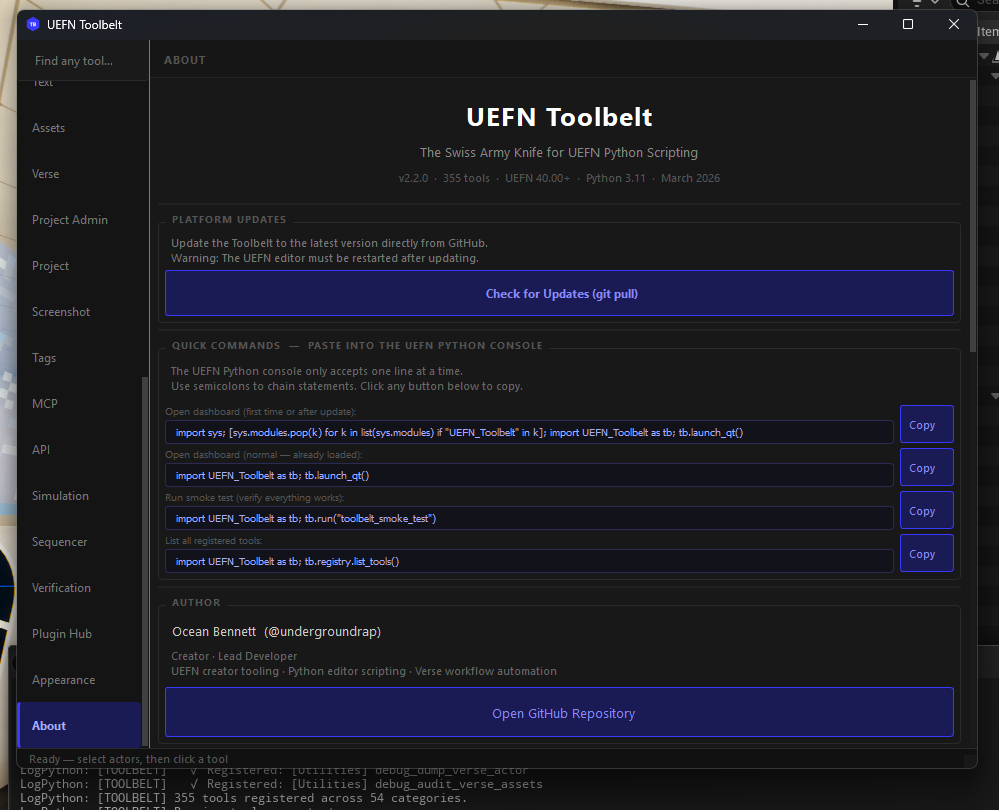
A dark-themed floating window opens with a left sidebar nav and 362 tools across 55 categories (including an About page).
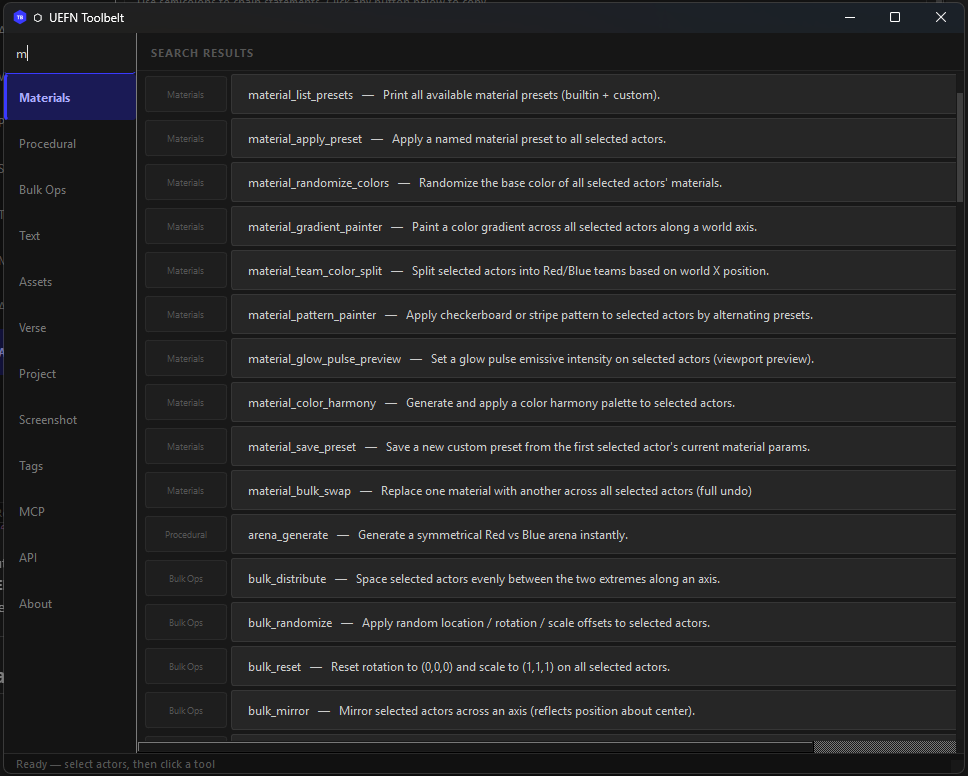
Two search modes:
If the dashboard doesn't open after installing PySide6: The module may be cached from before PySide6 was installed. Paste this single line to clear and reload:
import sys; [sys.modules.pop(k) for k in list(sys.modules) if "UEFN_Toolbelt" in k]; import UEFN_Toolbelt as tb; tb.launch_qt()
Step 7 — (Optional) Clone the Verse spec for AI codegen
In your repo folder, run:
git clone https://github.com/verselang/book.git verse-book
This gives Claude access to the full live Verse language spec for spec-accurate code generation. After cloning, the smoke test reports 89/89 with PySide6 installed.
Step 8 — (Optional) Connect Claude Code via MCP
This lets Claude Code directly control UEFN — spawn actors, run any tool, generate Verse code — without you typing anything in the console.
1. Install the MCP Python package (regular terminal, not UEFN):
pip install mcp
2. Create your own .mcp.json: a fresh clone has none. The file is
gitignored, so your local paths and configuration are never committed.
copy .mcp.json.template .mcp.json
Open .mcp.json and set the absolute path to mcp_server.py in your clone:
{
  "mcpServers": {
    "uefn-toolbelt": {
      "command": "python",
      "args": ["C:/Users/YOURNAME/Projects/UEFN-TOOLBELT/mcp_server.py"]
    }
  }
}
mcp_server.py takes the listener's port from the session handoff, so the
template sets no port. Add UEFN_MCP_PORT to an env block only to override
that, and only with the port the listener actually bound: the session secret is
sent to whatever is listening on the port you name.
3. Restart Claude Code so it picks up the new server config.
4. Start the listener inside UEFN — paste this in the Python console:
import UEFN_Toolbelt as tb; tb.run("mcp_start")
You should see in the Output Log:
[MCP] ✓ Listener running on http://127.0.0.1:8765
5. Try it from Claude Code:
run the toolbelt smoke test
If the client connects, it calls run_toolbelt_tool("toolbelt_smoke_test") through the bridge.
Untested path: No accepted record has run
mcp_server.pythrough any MCP host, stdio, or FastMCP since the WO-001 authentication and WO-004 transport changes.client.pydirect calls are the path with recorded live evidence, on one UEFN 42.20 boot. See the evidence gaps.
Note: The listener must be started in UEFN each session. You can also click Dashboard → MCP → Start Listener instead of pasting the command.
What Claude can do once connected:
- Run any of the 362 tools by name
- Spawn, move, delete actors directly
- Generate spec-accurate Verse code (pulls from the live verse-book spec)
- Use registered commands remotely; arbitrary Python remains local to UEFN
- Batch multiple operations in one editor tick
Step 9 — (Optional) Verse Snippet Library
The Verse tab in the dashboard has a built-in Snippet Library browser. Every time you generate a Verse snippet, it's saved to:
Saved/UEFN_Toolbelt/snippets/
├── game_systems/       ← game manager, elimination handler, scoring tracker
├── device_wiring/      ← @editable declarations, prop spawner
├── spline_tools/       ← patrol AI, zone boundary, vector3 arrays
└── custom/             ← your custom / Claude-generated snippets
In the dashboard:
- Go to Verse → Code Generation and generate any snippet
- Click Refresh Library in the Snippet Library section below
- Your snippets appear organized by category — click any to copy to clipboard
- Click Open Folder to browse them in Windows Explorer
- Paste directly into your
.versefile in UEFN
Snippets also auto-copy to the Windows clipboard when generated, so you can paste immediately without even opening the library.
The "Nuclear Reload" Command
If you have modified the Toolbelt source code, run this in the UEFN console to refresh everything without a restart:
import sys; [sys.modules.pop(k) for k in list(sys.modules) if "UEFN_Toolbelt" in k]; import UEFN_Toolbelt as tb; tb.register_all_tools(); tb.launch_qt()
[!IMPORTANT] Always include
tb.register_all_tools()after a pop, otherwise the tool registry will be empty!
REPL Usage
UEFN console tip: Chain multiple statements on one line with semicolons (
;). The console does not accept multi-line pastes, but a single line can contain as many;-separated statements as you need.
Dashboard & Health Check:
import UEFN_Toolbelt as tb; tb.launch_qt()
import UEFN_Toolbelt as tb; tb.run("toolbelt_smoke_test")
Force reload (after git pull or update):
import sys; [sys.modules.pop(k) for k in list(sys.modules) if "UEFN_Toolbelt" in k]; import UEFN_Toolbelt as tb; tb.launch_qt()
Materials & Bulk Ops:
import UEFN_Toolbelt as tb; tb.run("material_apply_preset", preset="gold")
import UEFN_Toolbelt as tb; tb.run("bulk_align", axis="Z")
import UEFN_Toolbelt as tb; tb.run("arena_generate", size="large", apply_team_colors=True)
Plugin Management:
import UEFN_Toolbelt as tb; tb.run("plugin_validate_all")
import UEFN_Toolbelt as tb; tb.run("plugin_list_custom")
API Explorer & Capability Crawling:
import UEFN_Toolbelt as tb; tb.run("api_crawl_level_classes")
import UEFN_Toolbelt as tb; tb.run("api_crawl_selection")
import UEFN_Toolbelt as tb; tb.run("api_export_full")
Search & Discovery:
import UEFN_Toolbelt as tb; tb.registry.search("material")
import UEFN_Toolbelt as tb; print(len(tb.registry.list_tools()))
Handy Combos:
import UEFN_Toolbelt as tb; tb.run("toolbelt_smoke_test"); tb.run("plugin_validate_all")
import UEFN_Toolbelt as tb; tb.run("snapshot_save", name="before"); tb.run("bulk_randomize", rot_range=360)
Required Asset Setup (Material Master)
Create Content/UEFN_Toolbelt/Materials/M_ToolbeltBase in the material editor with
these five exposed parameters:
Everything else works out of the box.
Adding a New Tool
3 steps. No boilerplate. No registration config.
Step 1 — Create Content/Python/UEFN_Toolbelt/tools/my_tool.py:
"""UEFN TOOLBELT — My Tool"""
import unreal
from ..core import undo_transaction, require_selection, log_info
from ..registry import register_tool

@register_tool(
    name="my_tool",
    category="Utilities",
    description="Does something amazing",
    tags=["utility", "amazing"],
)
def run(**kwargs) -> dict:
    actors = require_selection()
    if actors is None:
        return {"status": "error", "count": 0}
    with undo_transaction("My Tool"):
        for actor in actors:
            log_info(f"Processing {actor.get_actor_label()}")
            # your logic here
    return {"status": "ok", "count": len(actors)}
Return contract: Every tool must return a
dictwith a"status"key. This is what makes tools readable by AI agents via the MCP bridge — they readresult["status"]and domain keys like"count"or"path"directly from the JSON response. Never returnNone.
Step 2 — Add one line to tools/__init__.py:
from . import my_tool
Step 3 — Add a menu entry in init_unreal.py's _build_toolbelt_menu() (optional):
_add_entry(tb_sub, "Utilities", "MyTool",
           "My Tool", "Does something amazing",
           "import UEFN_Toolbelt as tb; tb.run('my_tool')")
Your tool is now registered, searchable, undo-safe, and reachable from the dashboard
and tb.run("my_tool").
Plugin Hub & Community Ecosystem
UEFN Toolbelt ships a live Plugin Hub tab in the dashboard. Click Refresh Hub to pull the latest community registry directly from GitHub — no restart required.
What you see in the Hub
The registry is hosted at:
https://raw.githubusercontent.com/undergroundrap/UEFN-TOOLBELT/main/registry.json
Getting your plugin listed
Add an entry to registry.json at the repo root and open a PR:
{
  "id": "my_cool_tool",
  "name": "My Cool Tool",
  "version": "1.0.0",
  "author": "Your Name",
  "author_url": "https://github.com/yourhandle",
  "type": "community",
  "description": "One sentence on what it does.",
  "category": "Gameplay",
  "tags": ["verse", "gameplay"],
  "url": "https://github.com/yourhandle/yourrepo/blob/main/my_cool_tool.py",
  "download_url": "https://raw.githubusercontent.com/yourhandle/yourrepo/main/my_cool_tool.py",
  "min_toolbelt_version": "1.5.3",
  "size_kb": 10
}
download_urlmust be a raw GitHub URL. The dashboard downloads it directly intoSaved/UEFN_Toolbelt/Custom_Plugins/— no zip, no installer, single.pyfile.
Custom Plugins & Security
UEFN Toolbelt is a security-first extensible platform. Third-party developers can create custom tools that automatically load into the Dashboard and AI bridge — but the Toolbelt enforces strict sandboxing to protect your editor and project files.
How Custom Plugins Work
Drop a .py file into [Your Project]/Saved/UEFN_Toolbelt/Custom_Plugins/. The Toolbelt will:
- Discover the file on startup.
- Security-screen it through four gates (see below).
- Register it in the tool registry with a UI button and AI accessibility.
- Log a tamper-evident audit record.
# Example: one-file custom plugin
from UEFN_Toolbelt.registry import register_tool
from UEFN_Toolbelt import core

@register_tool(name="my_tool", category="Community", description="Does something cool")
def run(**kwargs) -> dict:
    core.log_info("My custom tool ran!")
    return {"status": "ok"}   # always return a dict
🔒 Four-Gate Security Model
Every plugin passes through four security gates before it can execute inside your editor:
📋 Plugin Audit Log
Every time the Toolbelt boots, it writes a tamper-evident audit trail to:
Saved/UEFN_Toolbelt/plugin_audit.json
Each entry records the plugin name, its SHA-256 hash, file size, load status, and timestamp. If a plugin file changes between sessions, the hash changes — making unauthorized modifications instantly detectable.
Read the full developer guide here: docs/plugin_dev_guide.md